




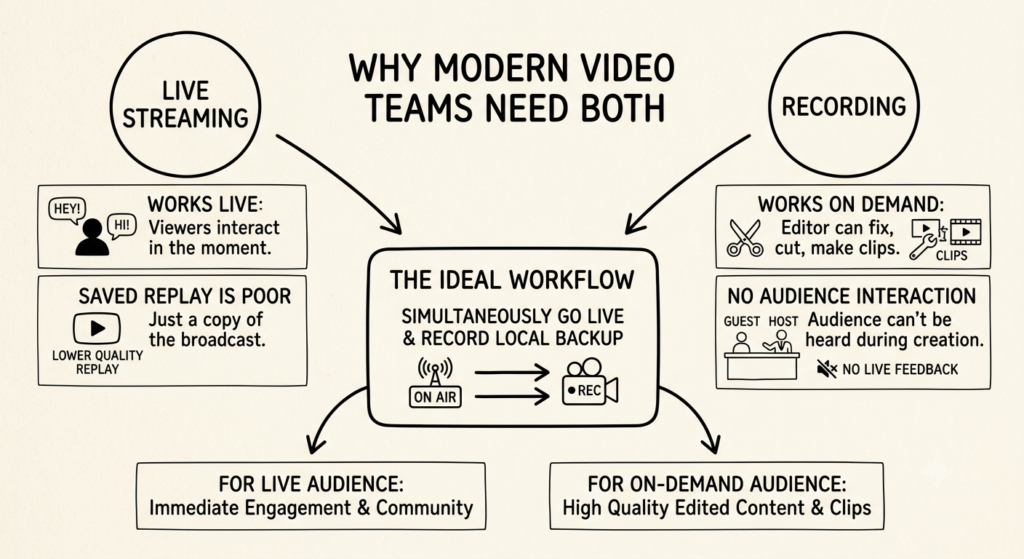
A live stream does the first job well and the second one badly, because the saved replay is only a copy of what went out to viewers, and YouTube itself tells creators to record a local backup. A recording does the second job well but doesn’t let you hear from viewers while the guest is still in the room. Webinar teams face the same split, since one live session can also become a replay, short clips, a blog post or an on-demand resource once it has been recorded properly.
That is why modern video teams need both recording and live streaming. Recording gives you a file your editor can fix, cut, and turn into clips. Live streaming gives your audience a way into the conversation while it’s happening.
The Growing Reach of Video Podcasts
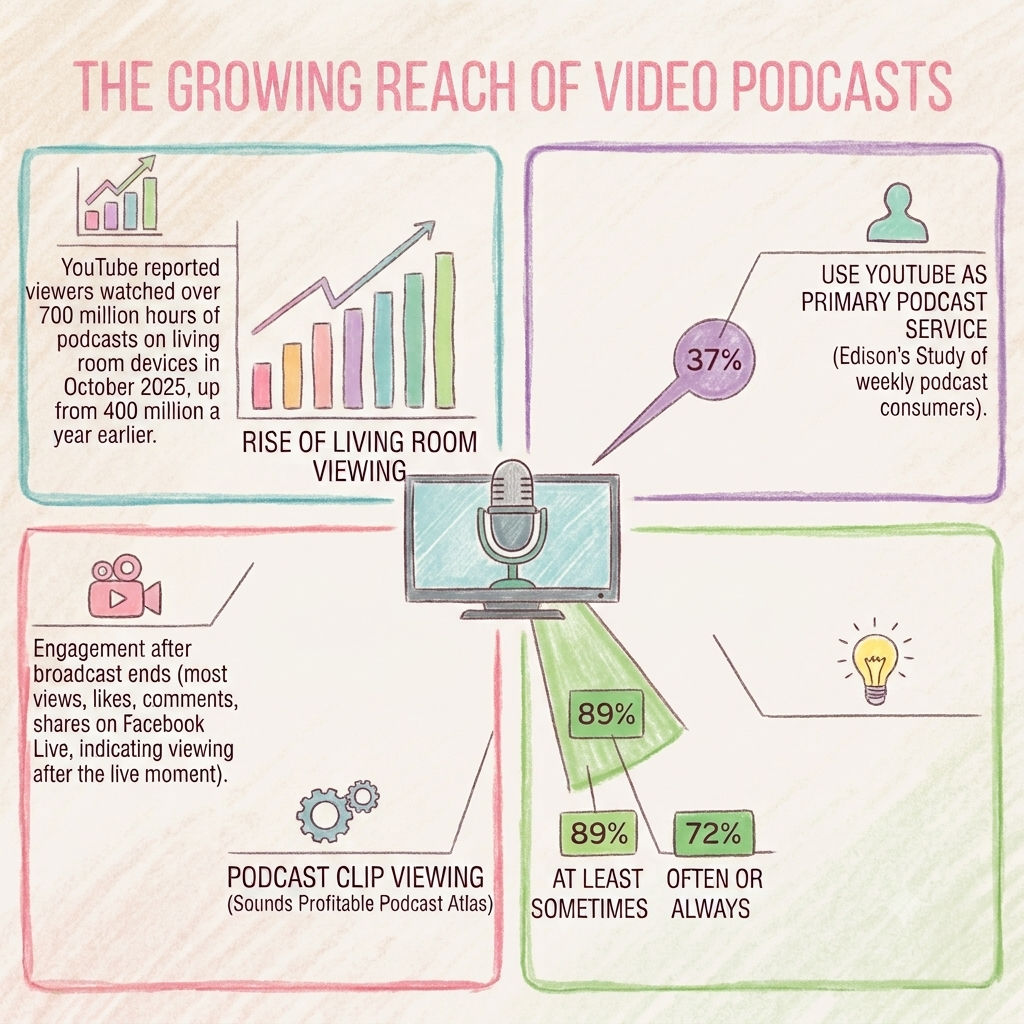
Watching podcasts is now a mainstream habit. Edison’s study also found that 37% of weekly podcast consumers now use YouTube more than any other service for podcasts. YouTube reports that viewers watched over 700 million hours of podcasts on living room devices in October 2025, up from 400 million a year earlier.
Most of the viewing happens after the live broadcast ends. An academic study of Facebook Live broadcasts found that most engagement, including views, likes, comments, and shares, arrived after the broadcast ended. Clips also help bring in new viewers. The Sounds Profitable Podcast Atlas found that 89% of podcast listeners watch podcast clips on social platforms at least sometimes, and 72% do so often or always.
So the live show serves the people watching as it happens. The recording serves everyone else: viewers who find the episode next week, listeners who prefer audio, and people who discover the show through a 30-second clip.
Recording vs. live streaming for video content
Recording and live streaming do different jobs, and most video shows benefit from using both.
- Recording gives you a file you control. You can edit it, publish it as an on-demand episode, and cut it into clips, a transcript, or a written summary. There’s also time to fact-check before anything goes public.
- Live streaming puts the conversation in front of viewers as it happens. They can ask questions and react in real time, which suits launches, Q&As, and panels. The trade-off is that there’s no editing safety net if something goes wrong.
Using both together means one session gives you a live broadcast and a recorded file. The live version serves the audience in the moment, and the recording becomes the base for the edited episode, replay, and clips. A raw live replay still usually needs a clean-up before it’s published as the final version.
Recording and Editing After the Show
A recording is the only version of the show you can still change after it ends. It’s your editable master. Your editor can trim dead air, fix the intro, turn down a noisy microphone, and pull out the best moments, and all of that work needs a file to start from. How much they can fix depends on two choices: whether voices are saved on one track or separate tracks, and where the recording is made.
Mixed Audio or Separate Tracks
A mixed recording puts every voice on a single audio track, so a problem with one microphone, such as a hum, is permanently part of the file. Isolated tracks give each voice or source its own track, which lets an editor correct one issue without affecting the rest of the mix.
OBS Studio, a free tool widely used by small production teams, can assign each audio source to a separate recording track for later editing. In advanced mode, it can record up to six tracks. Keep in mind that standard video players play only one audio track at a time. If you plan to publish a recording without editing it, route every source to track 1 so viewers hear all participants.
Do you need separate audio tracks for a live podcast? If an editor will be working on the audio mix, then yes. If the file is published exactly as recorded, a single mixed track is enough.
Call Recording vs. Local Recording
Audio quality depends on where the sound is captured. A stream recording is made from the call itself, so it contains only the audio that reached the platform over the internet. Any glitch, dropout, or compression along the way is saved in the file. A local recording is saved on the device that picked up the sound before the audio travels over the internet, so connection problems cannot affect it.
The difference matters most with remote guests. Riverside explains that its platform records each participant on their device and uploads the files in the background, so connection dips do not affect the saved file. That is a vendor’s claim about its own product, so test any tool before relying on it.
As a rule, the closer a recording is to the microphone, the more an editor can do with it. Preparing the guest also helps, and Airmeet’s guide to recording a podcast with remote guests covers session settings, guest invitations, and retrieving the finished recording.
Live Streaming and Audience Interaction
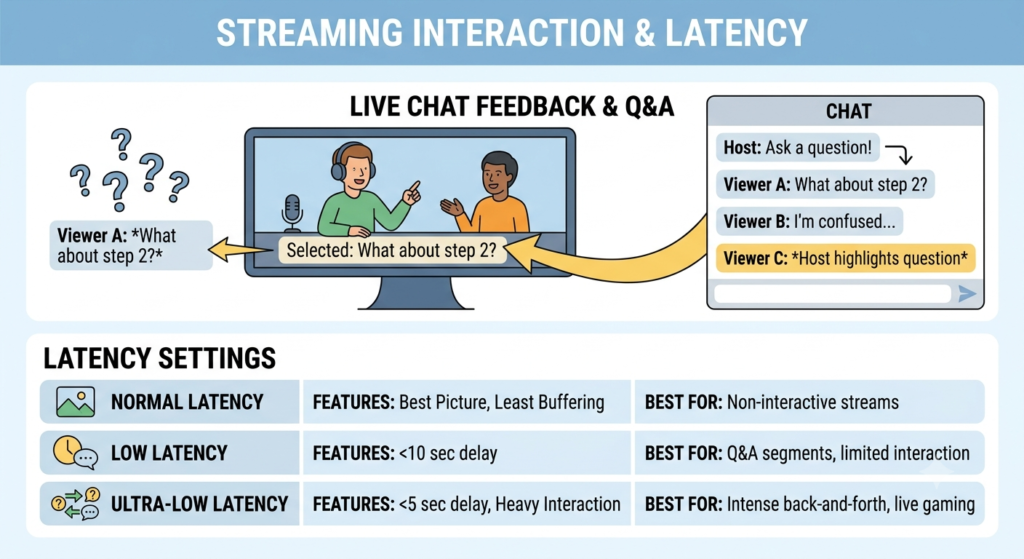
A recorded episode is one-way. Once it’s published, viewers can’t ask the guest anything. A live show changes that. On YouTube Live, the Live Q&A feature lets the host pick questions from the chat and put them to the guest on the spot, so follow-ups get answered in real time.
Live chat also shows you where your explanations weren’t clear, because confused viewers often ask about them.
How Streaming Latency Affects Viewer Interaction
Every live stream runs slightly behind real time. The gap between what you say and what viewers see is called latency, and it decides how quickly your audience can react to you. YouTube offers three latency settings:
- Normal latency gives the best picture quality and the least buffering. It suits streams where viewers aren’t expected to respond.
- Low latency suits limited interaction. Most viewers see a delay of under 10 seconds.
- Ultra-low latency suits heavy back-and-forth. Most viewers see a delay of under 5 seconds, but buffering becomes more likely.
Choose the setting that matches how much you plan to talk with your audience. A Q&A-heavy episode benefits from a shorter delay, so questions and answers stay in step. A prepared interview with little audience interaction can stay on normal or low latency.
Managing and Moderating Live Chat
An unmonitored chat fills with spam and buries the questions worth answering. YouTube’s live chat moderation tools give you control before that happens: you can block messages containing specific words, hold potentially inappropriate messages for review, and choose between basic and strict settings. You can also appoint moderators to share the workload. Configure these before the show, and give one person sole responsibility for selecting questions and passing them to the host.
Stream Archives vs. Local Recordings
After a live stream ends, the platform saves a replay called an archive. It has two limits: length and content.
The length limit is about how long your stream can run. YouTube can automatically archive streams shorter than 12 hours. Longer streams may not be captured at all, so YouTube recommends keeping a local recording as a backup. Most podcasts run well under 12 hours, so length is rarely an issue.
The content limit is about what the archive actually holds. An archive is a copy of the program feed, which is exactly what your viewers saw and heard. The layout and audio mix are already locked in, and the video quality depends on your upload bandwidth, meaning how fast your internet connection can send video out. If your editor needs a guest’s separate audio or video track, the archive can’t provide it.
Platforms do offer quick tools. YouTube lets you create highlight clips while the stream is still live, which is handy for fast social posts. A polished on-demand episode, however, still needs a proper recording file.
You can also record at a higher quality than you stream. In OBS Studio, choosing any recording quality other than “same as stream” uses extra computer resources, but it lets you pick a separate encoder for the recording. The encoder is the software or hardware component that compresses your video.
How to Keep Your Recording Safe
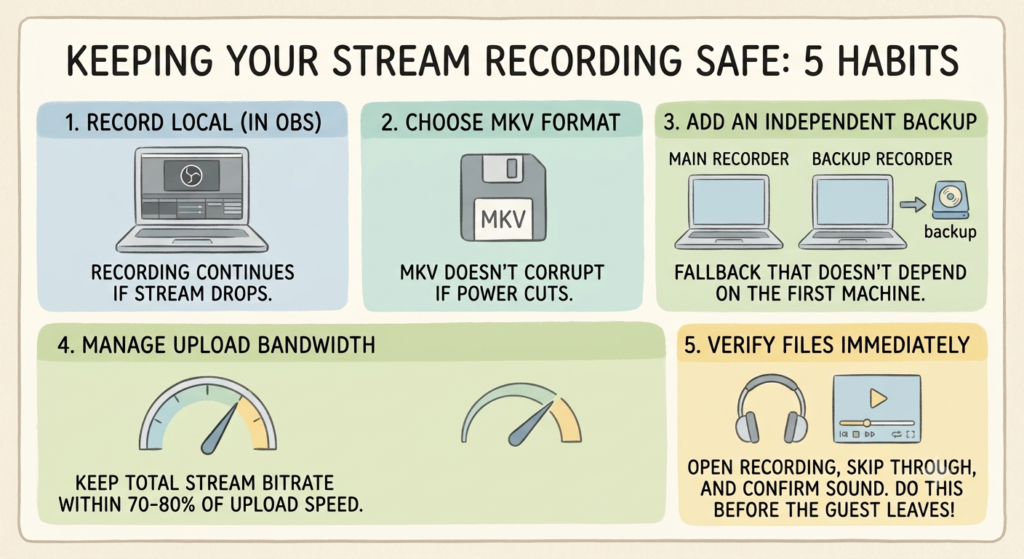
A reliable backup comes from a few simple habits. Follow these steps in order.
- Record on the same machine that runs the stream. OBS treats recording at the same time as streaming as normal use. If the stream drops, the local file keeps writing.
- Save in MKV format. The same OBS guide recommends MKV because a crash won’t corrupt the whole file if recording stops without a clean shutdown, such as during a power cut.
- Add an independent backup. Two files on one laptop share the same drive and power supply, so they can fail together. A second recorder, or a guest recording their own side, gives you a fallback that doesn’t depend on your main machine.
- Leave room in your upload bandwidth. One guide suggests keeping your total stream bitrate within 70 to 80% of your tested upload speed. Another advises that when your upload speed is unstable, lowering the bitrate and using a wired Ethernet connection are the first fixes to try.
- Verify the files before the guest leaves. Open the recording, skip through it, and confirm you can hear everyone. This process takes about two minutes and can save an episode.
Can a small team record and stream at the same time?
A small team can do both, but it puts more demand on your computer. Recording and streaming at once makes it work harder because it has to handle both jobs together, and the stream also needs a steady internet connection. Each extra camera or graphic adds to the load. Airmeet’s podcast recording and streaming workflow guide walks through choosing a format, inviting a guest, and recording, and it confirms you can record a remote episode while streaming to platforms like YouTube at the same time.
Run a practice session with your real equipment and guest before going live. Switch off your internet for a minute to check that the recording saved on your computer keeps going, then play the file back to make sure nothing is missing.
Two people usually make this easier. The host focuses on the conversation, while the producer starts the recording, checks that it’s saving, watches the outgoing feed, reads the chat, and passes audience questions to the host.
A solo host can still record every episode, but going live for just one segment is more realistic, since talking to a guest, running the stream, and following the chat all at once is a lot for one person.
How to decide: live, recorded, or both
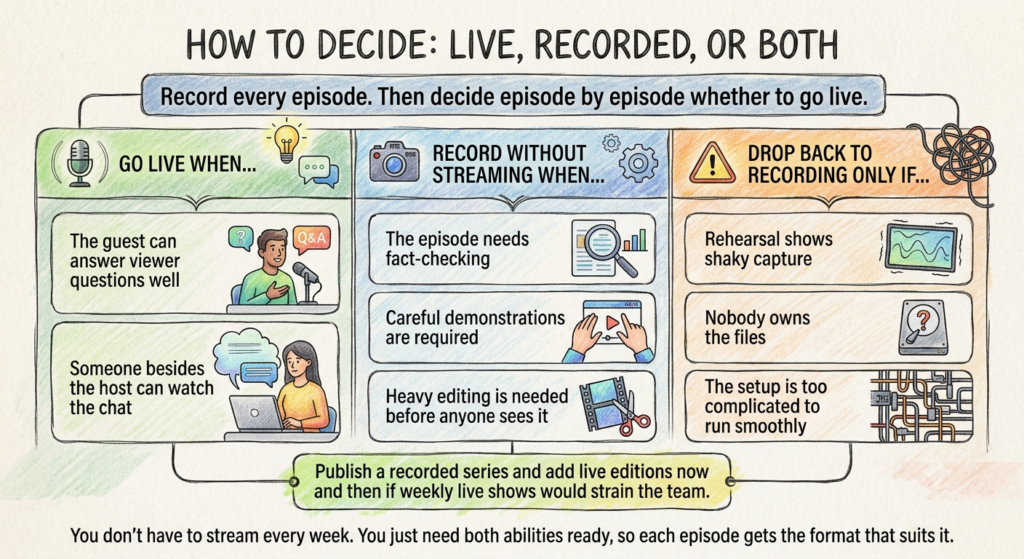
Record every episode. Then ask one question for each: should this one also go live?
- Go live if your guest is comfortable taking viewer questions and a second person can watch the chat.
- Stay recorded-only if the episode needs fact-checking, careful demonstrations, or heavy editing before anyone sees it.
- Mix the two if weekly live shows would stretch your team. Publish recorded episodes and add a live one now and then.
- Pause streaming if rehearsals show shaky capture, nobody owns the files, or the setup is too complicated to run smoothly.
Streaming every week isn’t the goal. Being ready to do both is, so each episode gets the format that fits it.
How to measure live podcast and replay performance
Measure the live show and the finished episode separately, because each does a different job.
For the live show, track how many viewer questions you answered, any technical problems, and how long people stayed. YouTube’s Live Chat help page notes that Live Q&A details aren’t available in YouTube Analytics, so the questions aren’t saved for you after the show. Have your producer keep a running list of the questions asked and answered.
For the on-demand episode, track how far people watch, how long editing took, and whether clips send viewers to the full episode. The Podcast Atlas found that clips often lead viewers to full episodes, so clip performance is worth watching.
Also log the effort behind each episode, including preparation time, staff hours, and editing time. Compare similar episodes with each other, and avoid adding up views from different platforms as if each one were a new person, since the same viewer may watch both the live show and the replay. The key question is whether your production workflow earns back the extra work.
Run a Test Episode
Before you commit to a workflow, test it on one episode. Start by choosing a tool that fits what that episode needs. Whatever you pick, ask these questions:
- Can it record and live stream in the same session, and on which plan?
- Where can you stream to?
- Does it offer isolated tracks, and are they captured on each device or from the call?
- Which formats can you export?
- What happens to the file if a guest or the host disconnects?
Airmeet’s podcast software comparison is a useful place to check these points across several tools.
Then pick an episode with a guest who is comfortable taking questions and a format two people can run. Record locally and go live on one platform. Check the files before the guest leaves. Afterward, give your editor the recording, the best audience questions, and notes on anything that needs fixing.
Once the episode is out, compare the live show with the finished episode and note how many hours each took. Use that to decide what to repeat, what to simplify, and what to save for special editions. One test like this will tell you more about your workflow than any feature list.
Conclusion
Modern video teams need both recording and live streaming because each one covers what the other can’t. Live streaming brings your audience into the conversation while it’s happening. Recording gives you a file you control, so your editor can fix problems, publish the episode on demand, and cut it into clips.
You don’t have to run both perfectly from the start. Record every episode, check the files before the guest leaves, and go live when your guest can handle questions and a second person can run the chat. Test the whole setup on one episode, then keep what worked and simplify what didn’t.
FAQ
It depends on how much you talk to your audience. YouTube suggests normal latency when you aren’t interacting with viewers and a shorter delay when you are replying to chat. A show with one Q&A segment can start at low latency. Test it privately first, since a shorter delay can cause more buffering.
In most cases it does. YouTube says archived streams can be watched along with their Live Chat, but streams edited in YouTube’s video editor lose the chat replay. If you plan to trim the replay there, decide first whether you want to keep the chat.
The stream will stop for viewers, but a local recording on your computer keeps saving, and OBS recommends the MKV format so an interrupted file stays usable. For a remote guest, a tool that records each person locally, as Riverside describes, can keep the guest’s file safe through connection problems, while a recording of the call will include them.
OBS Studio can stream and record together, so many small teams can start with it. Your choice depends on the files you need, where you want to stream, and whether your setup runs smoothly under pressure. Fewer tools mean less to manage, but an independent backup is still worth having. Test your full workflow before paying for extra software.