


A connected production-to-discovery workflow for teams creating revenue-focused webinars, executive interviews, virtual events, livestreams, and video podcasts. Run the experience with Airmeet, elevate the source with AirStudio, turn long-form footage into share-worthy clips with AirShots, and use AirPulse to improve discovery in high-intent AI-search and social conversations.


The Problem
Producers are expected to deliver broadcast quality, protect the run of the show, make every speaker look prepared, create channel-ready content, and prove that the program earned attention. The friction usually lives between tools; files move slowly, context disappears in handoffs, and valuable conversations become dormant recordings.
Four gaps make the job harder than it needs to be
The Solution
Airmeet gives producers a connected operating story across four jobs:
And the result is a repeatable media system designed to compound the value of every expert conversation.

Use Cases
Protect the live narrative, capture buyer questions, and create follow-up assets from the moments that signal intent
Give remote conversations a more controlled, brand-consistent production path and a repeatable clip engine
Turn multiple sessions and speakers into a structured library of episodes, clips, and evergreen answers
Coordinate speakers and media, stream to multiple destinations, then publish highlight moments while interest is highest
Record polished proof, extract concise testimonial moments, and improve how high-intent buyers discover the story
Create a clearer operating model across client shows, branded outputs, approvals, distribution, and reporting
Phase 1: Set Up the Show
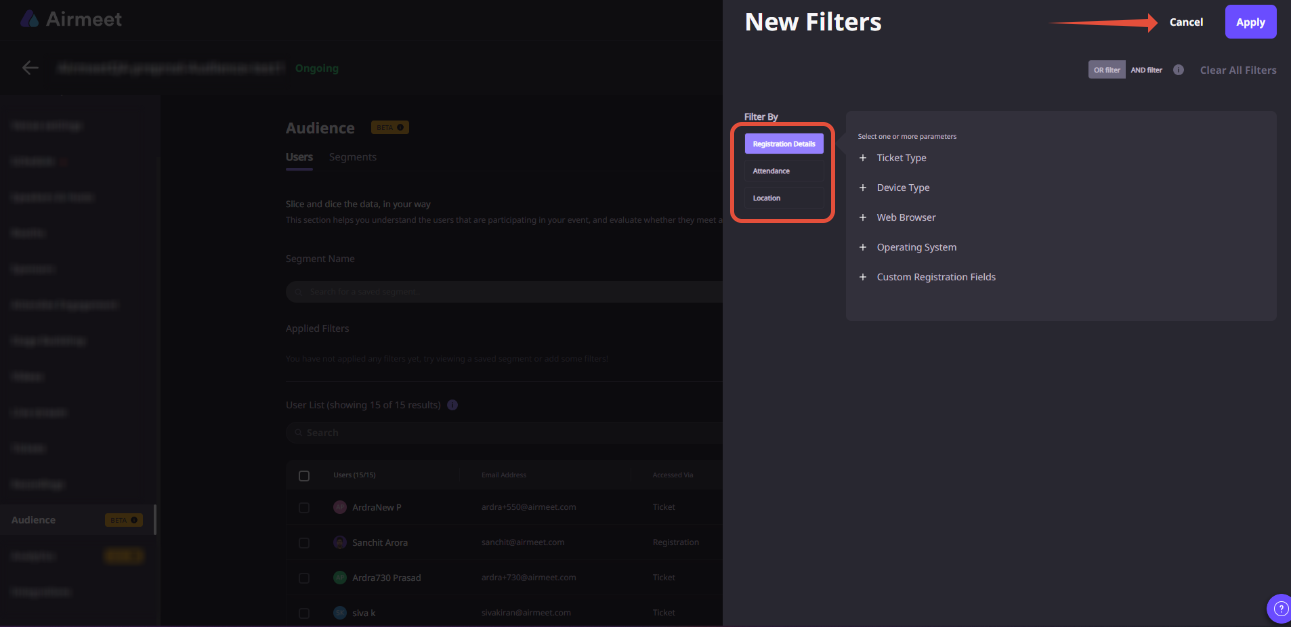
Path: Event Dashboard > Sessions tab > Session Settings and Branding tab
Path: Event Dashboard > Sessions tab > Session Settings > Live Stream > Add Stream Destination
Path: Event > Go Backstage
Phase 2: Deliver the Live Show
Path: Event > Go Backstage > Start Session
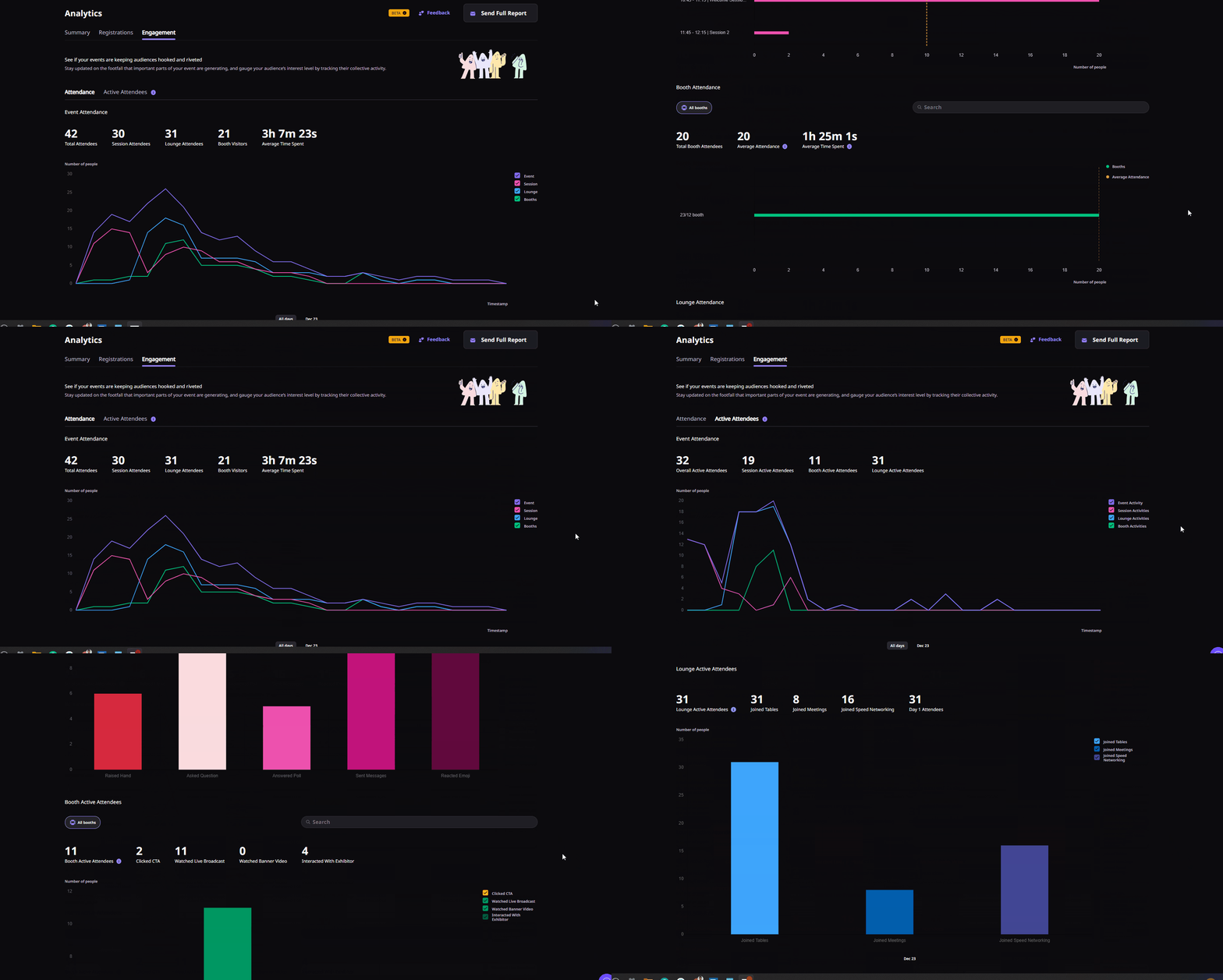
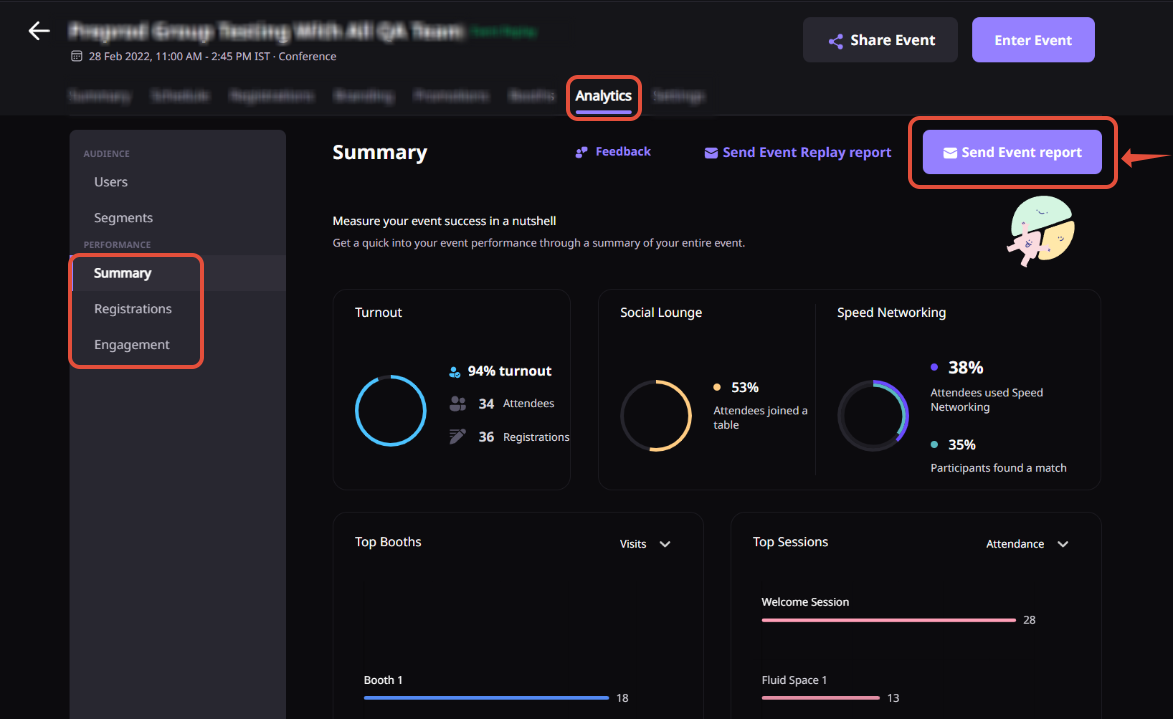
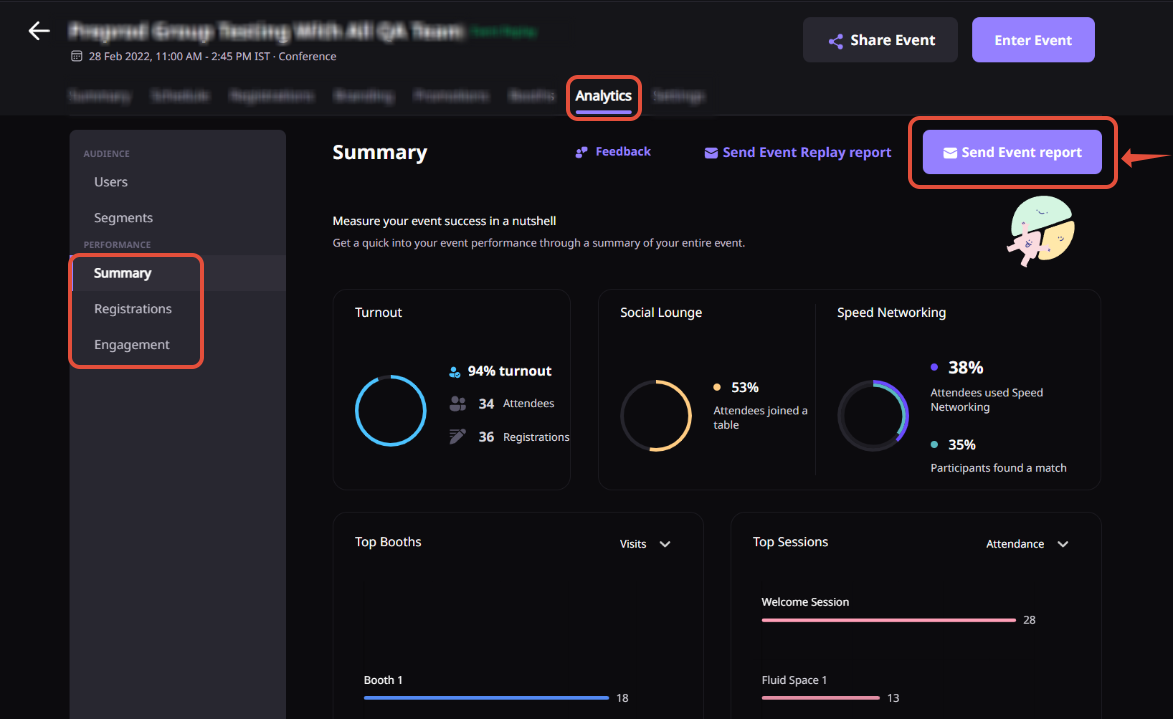
Path: Event Dashboard > Analytics tab > Real-time Analytics
Phase 3: Activate the Recording
Path: Event Dashboard > Sessions tab > Session Recordings tab
Once the session is marked as ended, go to the Session Recordings tab. Preview, download, or share the recording. The recording is generated only after the session is marked ended, not paused.
Path: Event Dashboard > Sessions tab > Session card > Enable replay
Once each session is marked as completed, click the session card and enable replay so attendees can watch on-demand. Processing time varies by session duration.
Path: Event Dashboard > Sessions tab > Session Recordings tab > Scissors icon
This feature is currently in Beta. Contact the customer success manager to confirm access.
A few things to keep in mind:
Why Airmeet
It is a connected workflow for producing live and recorded conversations, turning long-form footage into reusable content, and extending that content into audience discovery. Airmeet anchors the live experience. AirStudio, AirShots, and AirPulse support the broader production-to-discovery story described on this page.
Yes. Airmeet supports stream-out workflows for YouTube, LinkedIn Live, Facebook, and custom RTMP destinations. Prerequisites and availability depend on your plan and the destination platform requirements.
Yes. Airmeet supports sessions that receive an RTMP feed from third-party encoders or production platforms, giving experienced teams room to use their preferred production stack.
Yes. Airmeet supports 720p streaming and recording by default. 1080p is available for eligible plans when enabled from the event dashboard before the session starts. Confirm your plan entitlements before a high-priority show.
The private backstage lets hosts prepare speakers, test inputs, coordinate cues, change layouts, and control the session before and during the live broadcast. Backstage conversations are not recorded or broadcast.
Yes. Airmeet has a built-in workflow for editing and creating clips from recorded session videos using the Scissors icon in the Session Recordings section. The feature is currently in Beta. AirShots extends this with AI-assisted short-form repurposing for social and distribution channels.
AirStudio is the production layer for branded, studio-quality recording and streaming, including podcast-style content. It improves the quality and consistency of the source material before it enters the Airmeet live experience or the clip and distribution workflow.
AirPulse measures and improves how brands appear in high-intent AI-search and social conversations, helping strong producer-led content continue working after publication.
No. The workflow is relevant to recurring webinar series, executive interviews, product launches, customer stories, video podcasts, hybrid broadcasts, and virtual summits of any size.
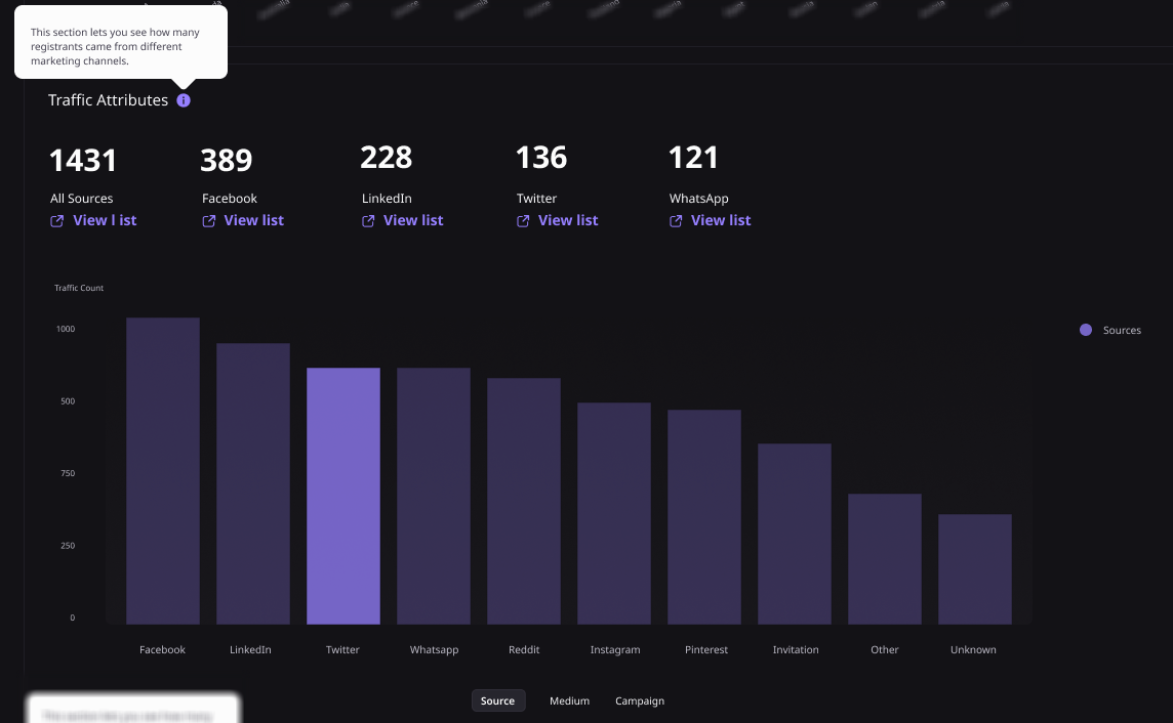
Track show reliability and audience engagement first, then content output, clip distribution, replay consumption, brand discovery, qualified responses, and pipeline influence. The strongest dashboard connects production quality to business outcomes.


Incredible Companies Use Airmeet

Most loved Virtual Events Platform

Incredible Companies Use Airmeet
Most loved Virtual Events Platform
Incredible Companies Use Airmeet
Most loved Virtual Events Platform
Incredible Companies Use Airmeet

Most loved Virtual Events Platform
Incredible Companies Use Airmeet
Most loved Virtual Events Platform

