Is your Brand visible in AI search?

Airmeet features

Fluid Lounge

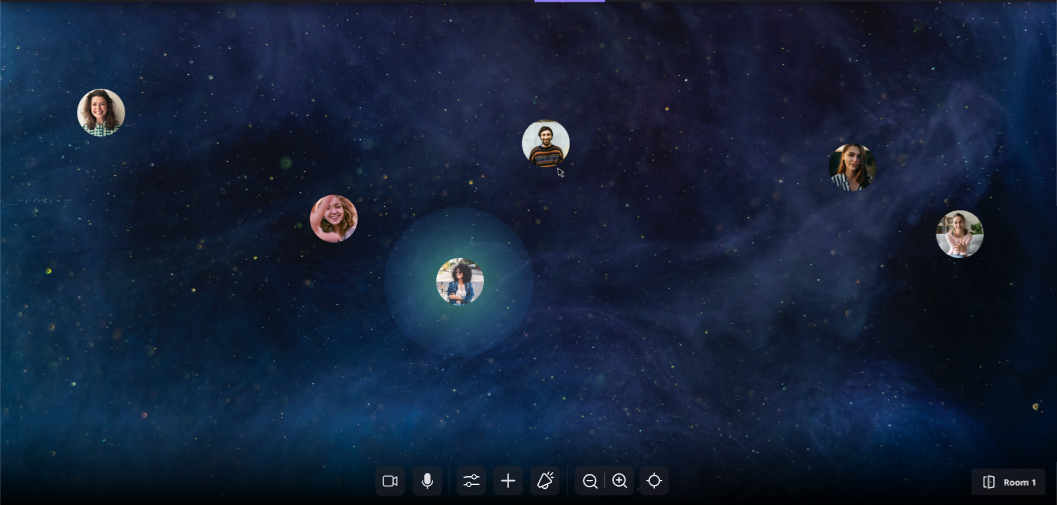
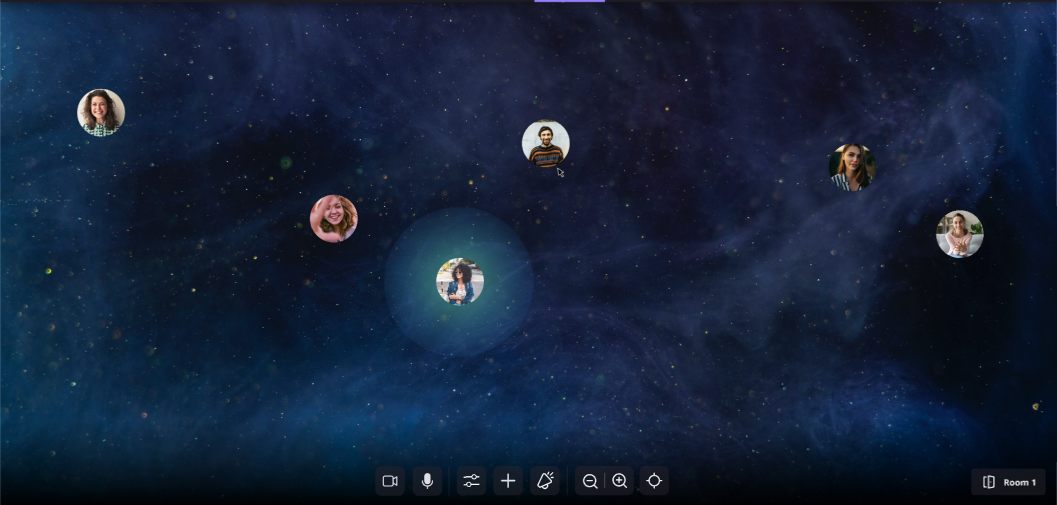
Turn the space between sessions into a place where the right conversations happen naturally. Fluid Lounge gives attendees an open virtual environment where they can move freely, enter another person’s proximity zone, and begin a face-to-face conversation without waiting for a host to assign a table. 

Rigid networking makes valuable people easy to miss.

The Problem

Rigid networking makes valuable people easy to miss.

Traditional virtual networking often asks attendees to choose a fixed table even before they know who is there, what the group is discussing, or whether the conversation is relevant. That friction is especially costly in revenue-focused webinars, where a short post-session window may be the only chance for prospects, customers, speakers, and sponsors to connect.
Conversations start to concentrate around a few pre-set destinations, quieter attendees remain on the edges, and marketers lose the peer-to-peer energy.

The Solution

Let proximity do the introducing

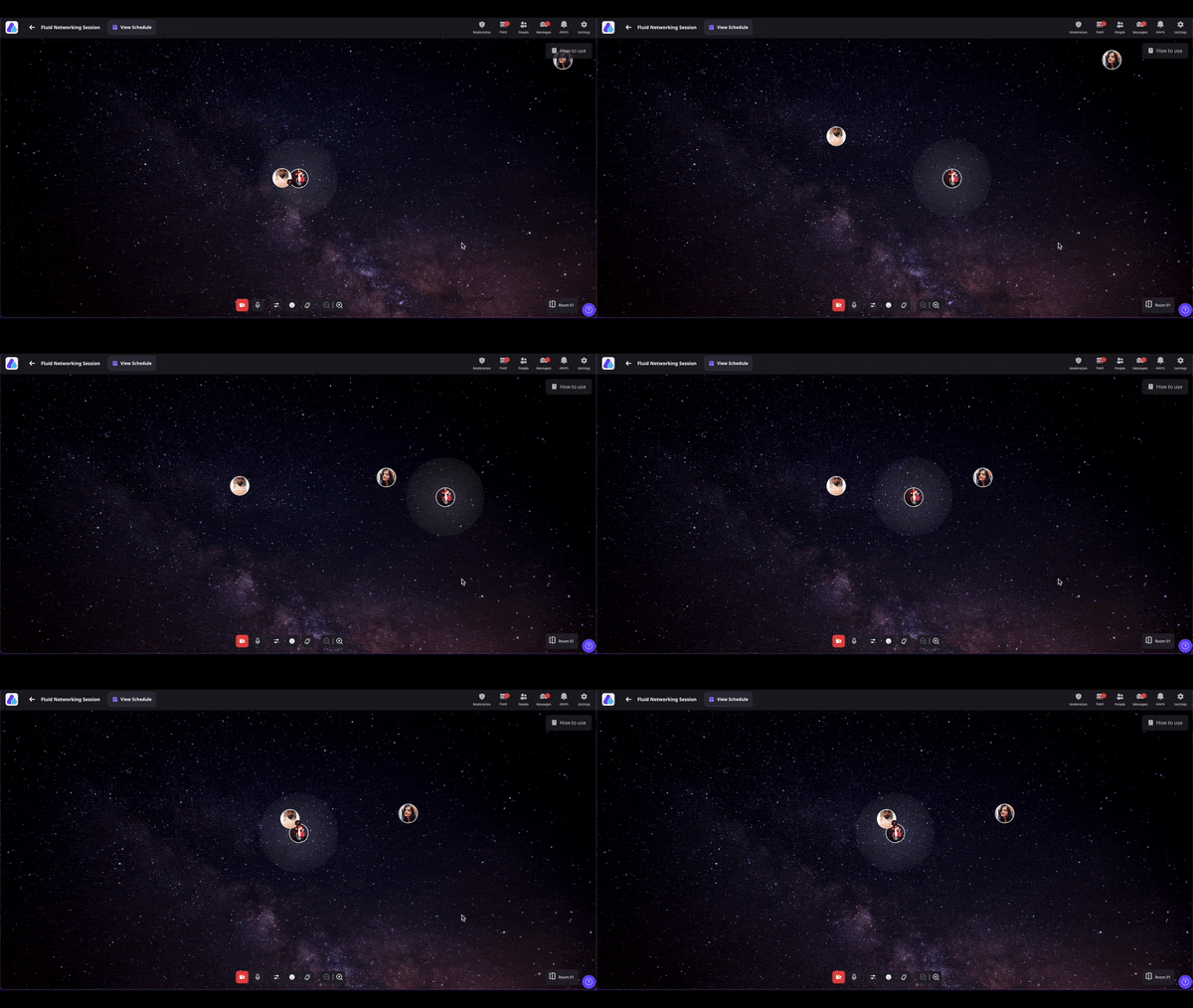
Fluid Lounge replaces fixed-table navigation with a spatial experience. Attendees move around the open environment with their keyboard arrow keys or by double-clicking a destination. When two or more people enter the same on-screen proximity zone, Airmeet opens a live video conversation so they can expand and continue.
Organizers can schedule Fluid Space as part of the agenda, choose a background, and use controls such as Megaphone announcements, reactions, and zoom. If a room reaches its supported capacity, participants can be distributed into additional virtual rooms, helping the experience stay free-flowing as the audience grows.
Let proximity do the introducing

Use Cases

BUILT FOR HIGH-VALUE EVENT MOMENTS

One open space. More ways to build relationships.

Webinar after-parties

Help attendees meet speakers and peers while the session topic is still fresh—turning content interest into human connection.

Executive roundtables

Give senior leaders room to form smaller peer clusters and move toward the most relevant conversation.

BUILT FOR HIGH-VALUE EVENT MOMENTS

Customer communities

Create a relaxed space for customers to compare practices, swap ideas, and discover advocates beyond a fixed agenda.

Sponsor receptions

Make it easier for interested attendees to encounter sponsor teams naturally, without forcing every interaction into a booth or table.
Actual Fluid Lounge Screens

Step-by-step process

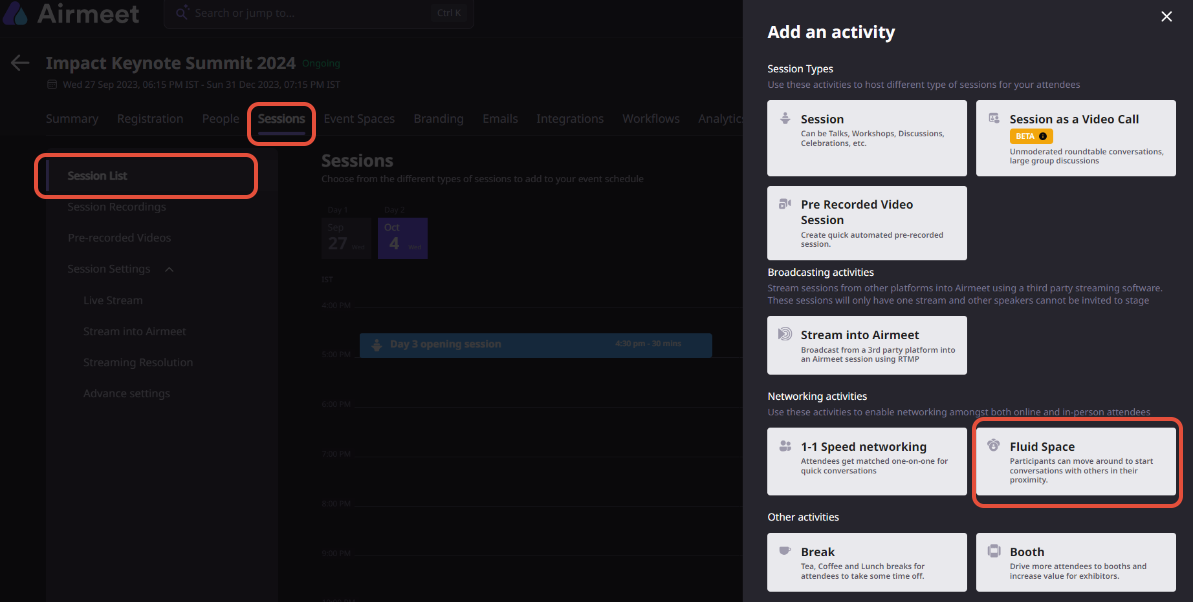
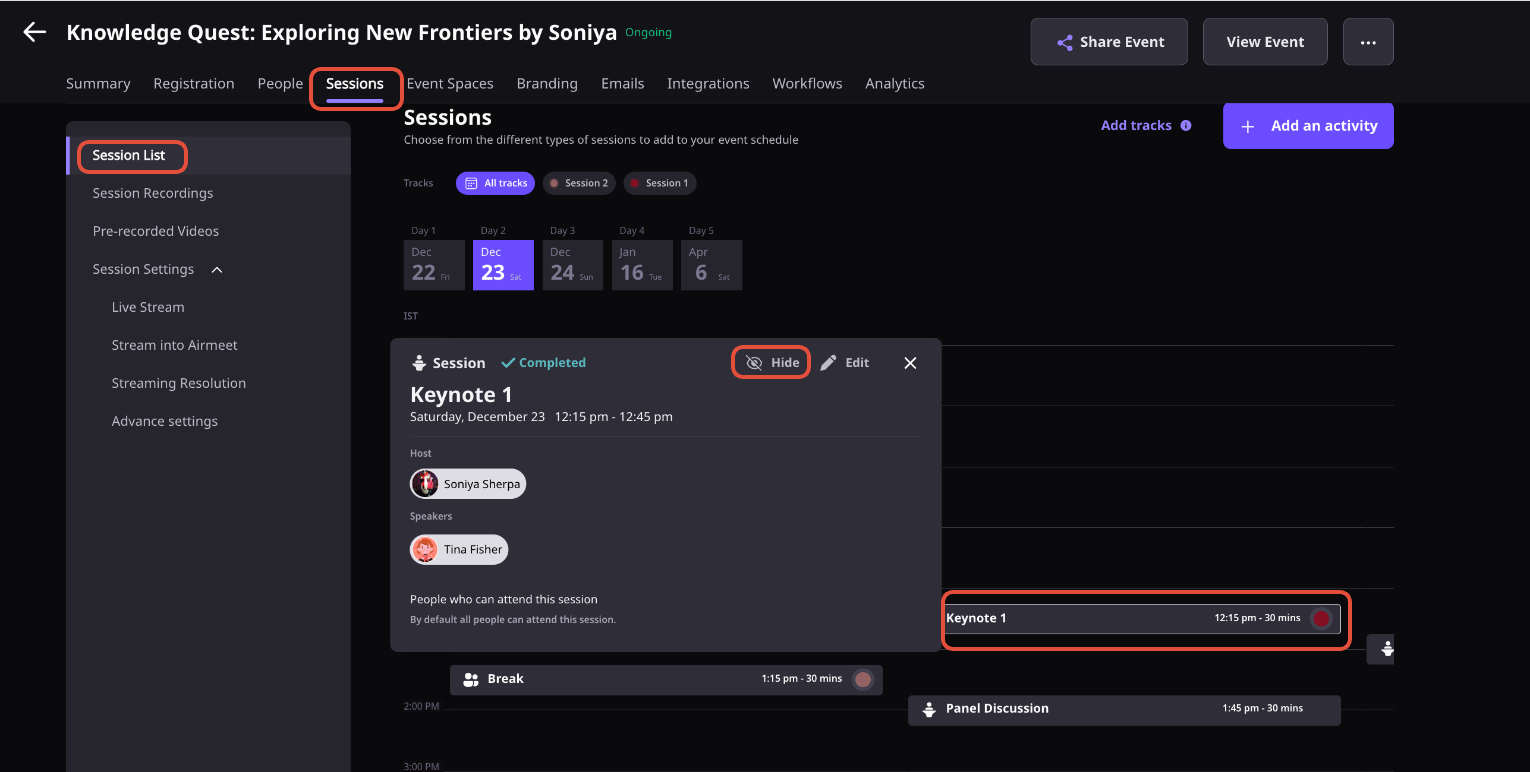
Step 1. Go to the events dashboard and click on the ‘Sessions’ tab.
Go to “Sessions List” on your LHS.

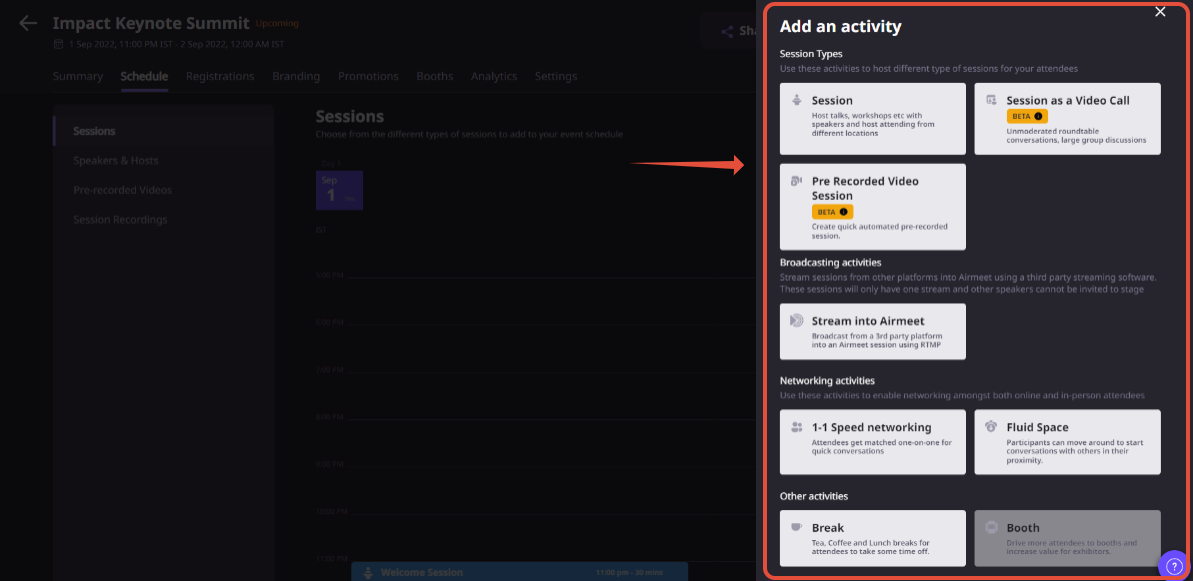
Step 2. Click on the ‘+Add schedule item’ and select ‘Fluid Space.’

Step 3. Fill in the session details as follows:

  1. Name: Enter the name of what event participants should see.
  2. Session date, start time & duration: Enter the session’s date, time & duration according to the event schedule.
    c. Select a background: Apply a background to your fluid space by selecting the templates shown.
    d. Tags: Add multiple tags for participants to search and find sessions easily.
    e. Session description: Add more details to give better clarity to attendees.

Note: You can edit the default description written by Airmeet and add your details.

Add Custom Background

As an event organizer, you can add a “Custom Background” per session and make it more engaging. Click on the “Branding” tab and the “+” icon to add a custom background and upload the image.

  • The background image aspect ratio should be 16:9 and 
  • The recommended size is 2560px x 1440px. 
  • The file size should be under 5MB.

Step 4. Click on the ‘Save’ button

Why Airmeet

Give spontaneous networking an event-ready foundation

help Center

Relevant Help Articles

Explore guides and tutorials to help you create, customize, and host exceptional events on Airmeet.
Fluid Lounge Interaction & Engagement | Quick Guide
How to set up and start a Fluid Space session
Session Setup Guide - Create New Sessions from Dashboard
Attendee Event Controls | Quick Guide

FAQs

Frequently Asked Questions

Fluid Lounge is Airmeet’s open, spatial networking experience for informal sessions. Instead of joining fixed tables, attendees move around the space and enter proximity zones to start conversations. 

A conversation begins when attendees come into contact inside the same on-screen proximity zone. 

Attendees can navigate with the keyboard arrow keys or double-click a destination in the space. 

Yes. Organizers can add Fluid Lounge to the event schedule and start during the event. 

No. Fluid Space is currently accessible on desktop or laptop and is not available through Airmeet mobile applications or mobile browsers.

Up to 300 participants can join, with groups of up to 60 per virtual room, depending on the applicable plan. (Confirm the limits for your plan before publishing capacity claims.) 

Airmeet can place additional attendees into another virtual room. Attendees may move between rooms when space becomes available. 

The controls include Megaphone announcements, reactions, zoom, background configuration, and the ability to end the Fluid Space session. 

Use it for networking breaks, webinar after-parties, executive peer exchanges, customer meetups, and sponsor receptions where attendee choice and spontaneous discovery matter. 

Airmeet features

Other Features to Explore

Discover more powerful features that help you create engaging, branded, and seamless event experiences with Airmeet.
Social Lounge Interaction & Engagement | Quick Guide
Serendipity Session (Speed Networking) | Quick Guide
Breakout Rooms Airmeet

Incredible Companies Use Airmeet

Most loved Virtual Events Platform

Incredible Companies Use Airmeet

Most loved Virtual Events Platform

Incredible Companies Use Airmeet

Most loved Virtual Events Platform

Incredible Companies Use Airmeet

Most loved Virtual Events Platform

Incredible Companies Use Airmeet

Most loved Virtual Events Platform