



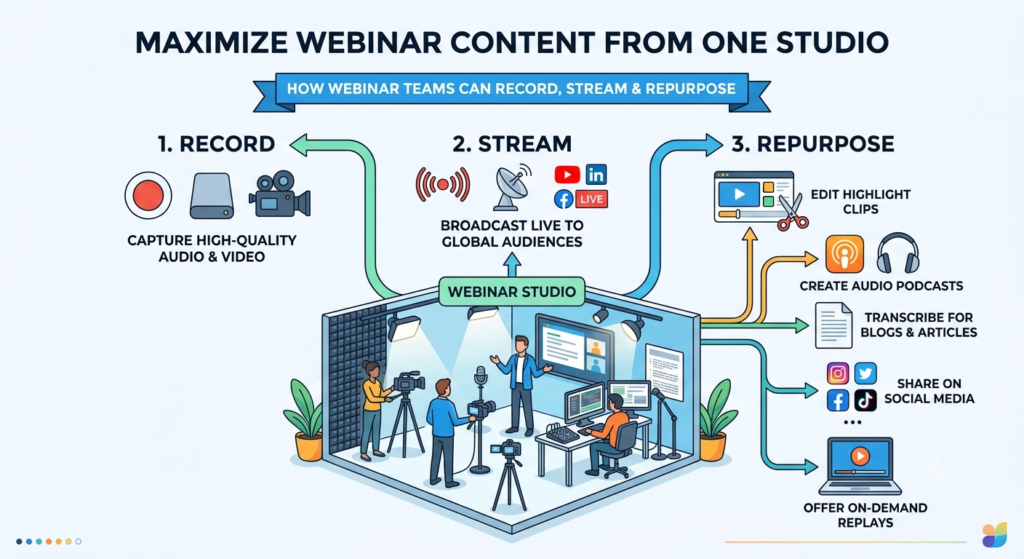
A webinar recording, streaming, and repurposing workflow can help teams manage these outputs as part of the same production process.
A webinar can give your team more than a recording to share after the event. When recording and streaming are planned together, the footage can also be used for clips, social posts, and other content later.
Why Does a One-Studio Workflow Help Webinar Teams?
A webinar may be live for an hour, but the conversation can continue long after the event ends.
The problem is that teams often treat the live session and everything that follows as separate jobs. The producer manages the broadcast. Later, an editor searches through the recording for useful moments. A writer asks for a transcript, while the social team looks for quotes or short clips. That creates unnecessary handoffs.
A one-studio workflow gives the team one production setup for capturing the conversation and preparing it for what comes next.
The same session can provide the source material for a recording, social video, article, podcast episode, or on-demand experience.
Airmeet’s article on using recording and live streaming for content creation looks at how live sessions can provide material for blogs, short videos, social posts, and other formats.
The important part is to decide what the recording needs to become before the webinar starts.
Start With the Deliverables
Before setting up cameras, microphones, and graphics, make a simple list of what the session needs to produce.
For example:
- The live webinar
- A full-length recording
- Short video clips
- A written article or recap
- Social media posts
- An audio version
- An on-demand webinar
- Sales or customer education content
This approach affects the production itself.
If the recording later becomes a short-form video, the team can think about framing and visual quality from the beginning. If it becomes an article, the conversation needs enough structure to give the writer useful explanations, examples, and questions.
The goal is to avoid creating unnecessary work afterward.
Separate the Live Program From the Master Recording
The version viewers see during the live event does not always need to be the same version kept for editing. A live program may include audience interactions, transitions, sponsor messages, technical pauses, or other elements that make sense in real time but may not belong in the final content.
Before the event, decide what should appear in the broadcast and what should be preserved in the master recording. Also check whether the workflow provides separate speaker or screen-share sources. That can give editors more control when creating later assets.
Plan the Production Before the Event
Good webinar production begins before the host enters the studio.
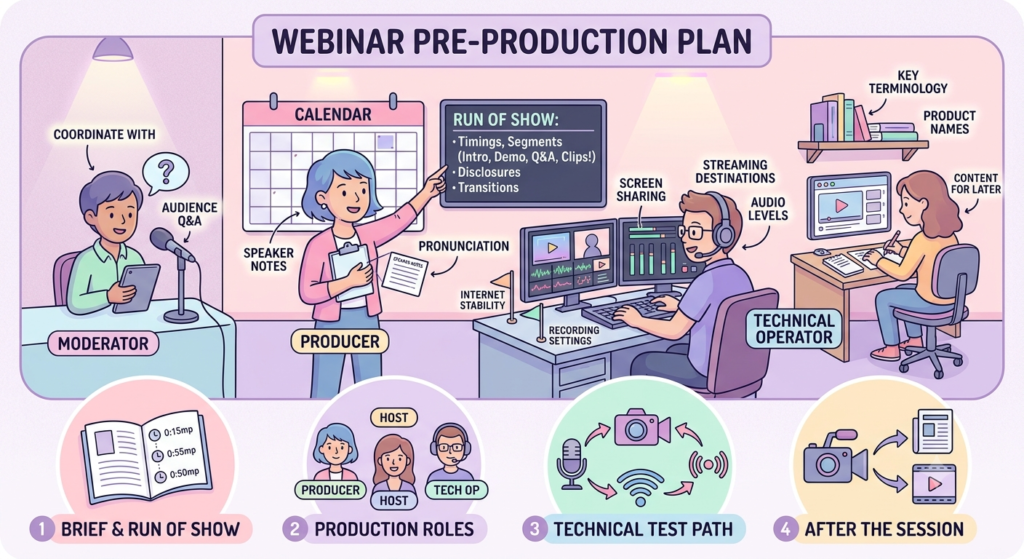
The production and content teams should know what the session needs to achieve, who is responsible for each task, and what needs to happen with the recording afterward.
Build One Brief and Run of Show
The run of the show should cover more than timings.
Include the opening, speaker introductions, discussion topics, demonstrations, screen sharing, audience questions, calls to action, transitions, and closing. It is also useful to mark moments that could become content later.
For example, if a speaker is expected to explain a common industry mistake, mark that section as a possible clip. If an audience question could make a useful article topic, note it during the session.
Keep important details in the same document
- Speaker names and titles
- Pronunciation notes
- Key terminology
- Links that may be mentioned
- Product names
- Required disclosures
- Graphics and slides
This material gives the editor and writer a reliable reference after the session.
Assign Clear Production Roles
A small team does not need a separate person for every task, but every responsibility should have an owner.
Depending on the size of the webinar, the team could include
Host or interviewer: Keeps the conversation moving.
Producer: Controls the timing and flow of the show.
Technical operator: Will be responsible for audio, video, screen sharing, scenes, streaming, etc.
Moderator: Will manage the audience interaction.
Editor: Takes the recording and turns it into content for different uses.
Content writer: Will be responsible for converting the discussion into different types of content.
Publisher: Handles final distribution.
Clear ownership prevents the host from solving technical problems while also managing the conversation.
Test the Complete Path
A technical check should cover the entire production path, not just whether the host can hear the guest.
Test the same equipment, browser, internet connection, presentation, graphics, recording settings, and streaming destinations that you will use during the actual event.
Check:
- Microphones and audio levels
- Headphones
- Camera and framing
- Lighting
- Internet stability
- Screen sharing
- Browser permissions
- Notifications
- Recording settings
- Streaming destinations
YouTube’s own live-streaming guidance recommends testing before a live broadcast and monitoring stream health during the event. That makes the rehearsal an important part of the workflow rather than an optional final check.
How to Record and Stream a Webinar at the Same Time
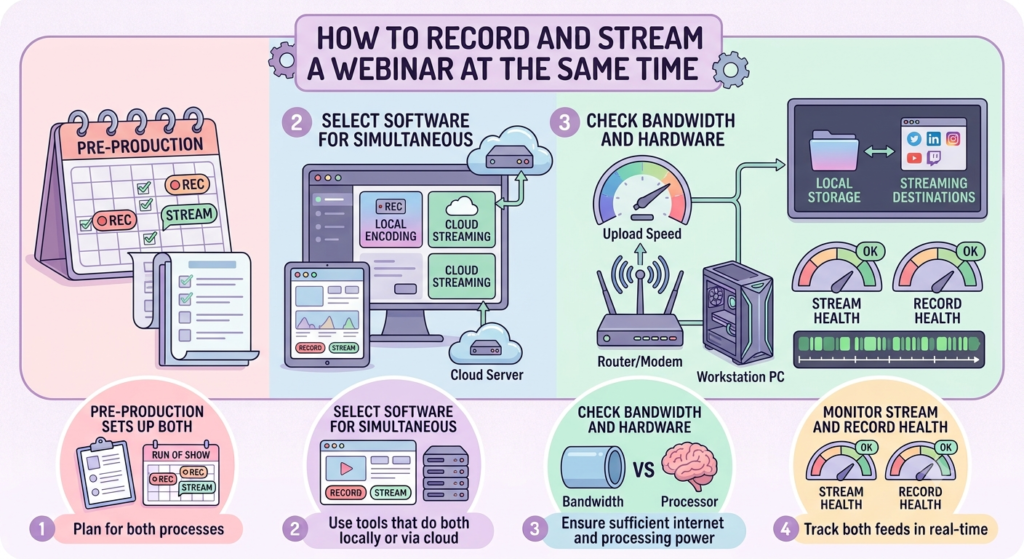
A live webinar depends on several things working at once. The guest connection, internet, presentation, audio, production controls, and streaming destination all have to cooperate.
That is why the recording should be treated as more than an archive.
The goal is to record and live stream at the same time while keeping a dependable source that the content team can use after the event.
Use a Stable Studio and Simple Guest Entry
A repeatable studio setup makes production easier.
Keep branding, graphics, presentations, speaker layouts, holding screens, and closing scenes ready to use. When the basic environment stays consistent, the producer can spend more time focusing on the conversation.
Guest entry should be simple too.
For a remote guest recording, test the guest’s camera, microphone, headphones, browser, and connection before production day. A guest should not have to work out the technical setup while the countdown is already running.
Protect Source Quality
Audio deserves particular attention. A slightly imperfect video can often be edited. Poor audio is much harder to rescue.
Use a quiet environment and check microphone placement before going live. Listen for echo, background noise, uneven volume, and interruptions. If possible, monitor the audio throughout the session.
The source also needs to be good enough for later content. Airmeet’s guide on turning webinar recordings into powerful assets discusses how recordings serve as source material for continued audience engagement and content use after the live event.
Treat Distribution as a Separate Path
Streaming and recording serve different purposes.
The team may need to manage access credentials, privacy settings, titles, descriptions, thumbnails, platform requirements, and destination settings separately.
If you are using multistreaming, confirm every destination before the event starts.
For teams using RTMP, Airmeet’s custom RTMP streaming guide explains how an Airmeet session can be sent to platforms or encoders that accept RTMP.
You should still check the current requirements of each destination before production.
Repurpose the Conversation Without Reopening Production
Once the webinar ends, the content team should not have to search for everything from zero.
Ideally, they already have:
- The master recording
- A transcript
- The run of the show
- Speaker information
- Presentation files
- Graphics
- Audience questions
- Notes about important moments
Together, these form the source package for webinar content repurposing.
Create a Searchable Source of Truth
A transcript can save considerable time when an editor or writer is looking for a particular idea.
But it should not simply be copied into a blog post.
People speak differently from the way they write. Speakers repeat themselves, change direction, and sometimes explain an idea in a way that sounds natural aloud but awkward on a page. The recording should therefore be treated as source material.
The writer can identify the strongest ideas, verify information, reorganize the discussion, and build the article around what the reader actually needs.
Create One Clip From One Idea
A short video clip does not need to explain the entire webinar.
It needs to communicate one useful idea.
When reviewing the recording, ask:
- Does this section answer a clear question?
- Can someone understand it without watching the full webinar?
- Does it contain a useful explanation or example?
- Does it have a natural beginning and ending?
- Would someone want to watch the longer session?
This approach usually creates stronger webinar clips than cutting the recording into random one-minute sections.
Do Not Create Clips Just to Hit a Number
There is no fixed number of clips every webinar needs.
One 45-minute expert discussion might contain three genuinely useful moments. Another might contain eight or ten. The quality of the ideas matters more than the number of assets created.
If a clip needs several minutes of explanation before it makes sense, it may be better suited to a longer video, article, or newsletter.
Package Each Format for Its Destination
The same source material should not look identical everywhere.
A full webinar can provide context and depth. A short social video needs to be concise. An article needs a clear written structure. An audio version needs clean sound and an introduction that works without visuals.
That’s where content repurposing becomes more than just a cut-and-paste job.
A discussion about AI in marketing, for example, could become
Full webinar: The complete conversation with examples and audience questions.
Short video: A common mistake made by most marketers when using AI.
Article: A detailed explanation of the issue.
Social post: One strong observation from the speaker.
Email: Three useful ideas from the conversation.
On-demand webinar: The edited session with a clear title, description, chapters, and resources.
For YouTube, chapters can make a long recording easier to navigate. YouTube’s official video chapter guidance says manually added chapters should start at 00:00 and contain at least three timestamps in ascending order.
Audience Questions as Content Ideas
The Q&A section can be one of the most useful parts of a webinar for future content. Why? Because the audience is showing you what they want.
A single question can become:
- An FAQ
- A short video
- A LinkedIn post
- A blog section
- An email topic
- A future webinar
- A sales enablement resource
Instead of letting useful questions disappear when the webinar ends, add them to the content backlog.
Airmeet’s on-demand webinar and content repurposing guide covers formats such as short videos, blog posts, podcasts, FAQs, and recording replays.
Build a Content Queue Instead of Publishing Everything at Once
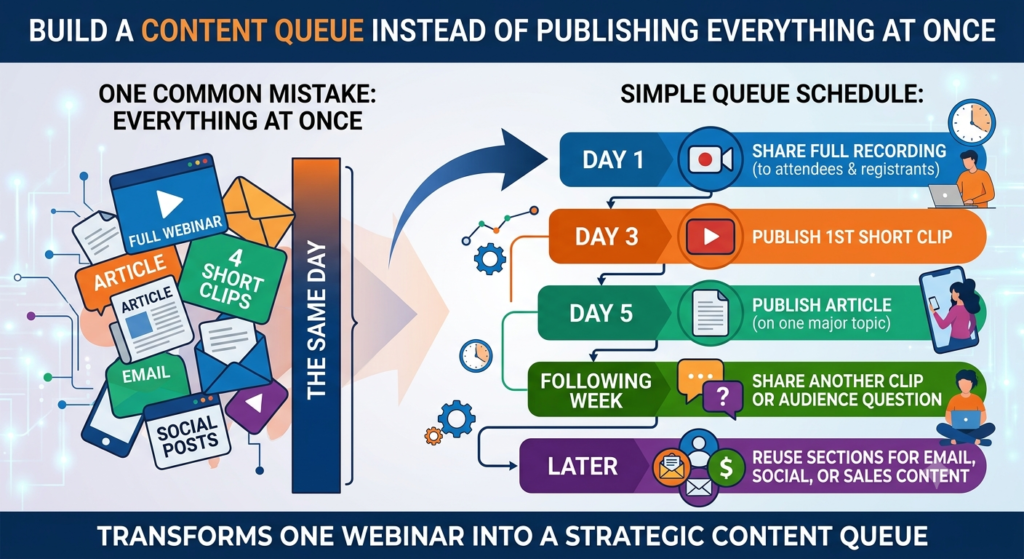
One common mistake is trying to publish every asset immediately. There is no need to release the full webinar, four clips, an article, an email, and several social posts on the same day. Allow some time between content releases.
A simple schedule could look like this:
Day 1: Share the recording with attendees and registrants.
Day 3: Publish the first short clip.
Day 5: Publish an article based on one major topic.
Following week: Share another clip or audience question.
Later: Reuse another section for email, social, or sales content.
This turns one webinar into a small content queue instead of one busy publishing day.
Where Does the Studio Fit Into the Larger Content Operation?
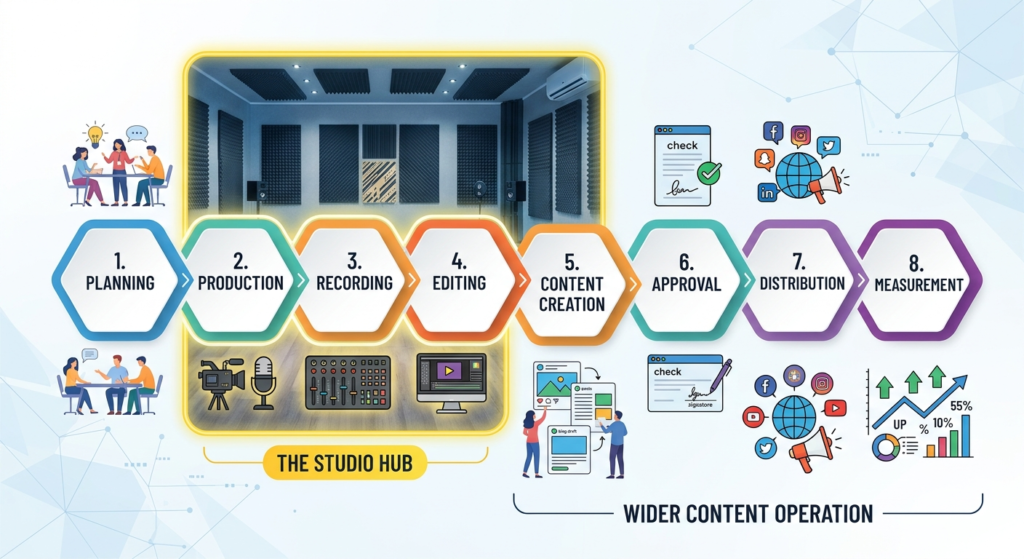
A studio is not a content strategy by itself. It is the production hub that makes the strategy easier to execute.
The studio handles the technical side of capturing the conversation. The wider content operation still needs people to decide what the conversation means, who needs to see it, how it should be packaged, and where it should be distributed.
The workflow therefore connects
Planning → Production → Recording → Editing → Content Creation → Approval → Distribution → Measurement
The more connected these stages are, the less time the team spends moving files, repeating instructions, and searching for information.
The One-Studio Operating Checklist
Before going live, ask:
- Is the purpose of the webinar clear?
- Have the final content formats been identified?
- Is there a shared brief and run of show?
- Are production roles assigned?
- Have speakers completed a technical check?
- Is the master recording protected?
- Has audio been tested properly?
- Are graphics and presentations ready?
- Have streaming destinations been checked?
- Is the recording easy to access after the event?
- Will a transcript be available?
- Have potential clip moments been marked?
- Are audience questions being captured?
- Is there a post-webinar content schedule?
- Does someone own final approval and publishing?
If most of these answers are yes, the team is preparing more than a live event. It is preparing a reusable content asset.
Measure the Workflow, Not Just the Live Audience
Webinar registrations and attendance still matter, but they only tell you part of the story.
If the goal is to create more content from each production, measure what happens after the live event too.
Metric | What it tells you |
Time to master recording | How quickly the source becomes available |
Time to first clip | How quickly repurposing begins |
Asset completion rate | How much planned content gets produced |
Correction rate | Whether avoidable errors are reaching review |
Transcript turnaround | How quickly written content can begin |
Publication time | How long it takes to move from recording to published asset |
Content performance | Which formats and topics connect with the audience? |
These numbers can reveal workflow problems that attendance figures cannot.
For example, if a webinar gets strong attendance but the recording takes five days to reach the content team, the issue may be the post-event handoff rather than the live session.
Conclusion
A webinar does not have to end when the live session ends. When the production team plans for recording, streaming, editing, and repurposing from the beginning, one conversation can support much more than a single live event.
Start with the outputs. Decide what needs to be created, build the run of show around those needs, protect the master recording, and give the content team a clean source to work from.
That makes it easier to turn one webinar into clips, articles, social posts, audio, and on-demand content without asking the team to start production all over again.
The most useful webinar recording and live streaming workflow gives the conversation somewhere to go after the cameras are switched off.
FAQs
Not necessarily. A studio refers to the production setup and workflow. Depending on the team, you may still use separate tools for editing, publishing, analytics, or distribution.
The important thing is to understand which part of the workflow each tool handles before production begins.
It can, but it is not always ideal. The public replay may include audience interaction, technical interruptions, or other elements that make sense during the live event but are less useful for later editing. A separate master recording gives the content team more flexibility when creating additional assets.
There is no fixed number.
Review the conversation and identify sections that communicate a complete, useful idea. Three strong clips can be more valuable than ten weak ones.
Test the microphone, camera, lighting, internet connection, screen sharing, recording, presentations, browser permissions, graphics, and streaming destination.
For remote speakers, test their complete setup before the actual session.
YouTube also recommends testing live streams and monitoring stream health during the broadcast.
Yes. A single well-recorded conversation can provide material for a full replay, short-form video, article, social posts, email content, audio, FAQs, and other on-demand resources. The important part is to plan those outputs before the webinar begins.