


Turn the space between sessions into the conversations that move relationships and pipelines forward.
Social Lounge gives attendees a fluid virtual space to choose a table, meet the people gathered there, move when the conversation is complete, and create their own discussion tables when organizers enable the option.

Use focused table topics and informed hosts to make networking useful for the attendee and strategically valuable for the event team.
Group prospects by challenge, industry, or buying stage so sales and marketing teams hear richer intent in context.
Give customers a peer-led space for best-practice sharing, office hours, advocacy, and relationship building.
Create feedback tables where buyers, users, and product experts can discuss use cases immediately after the reveal.
Connect partners around markets, integrations, plays, and co-selling opportunities without forcing every attendee into one room.
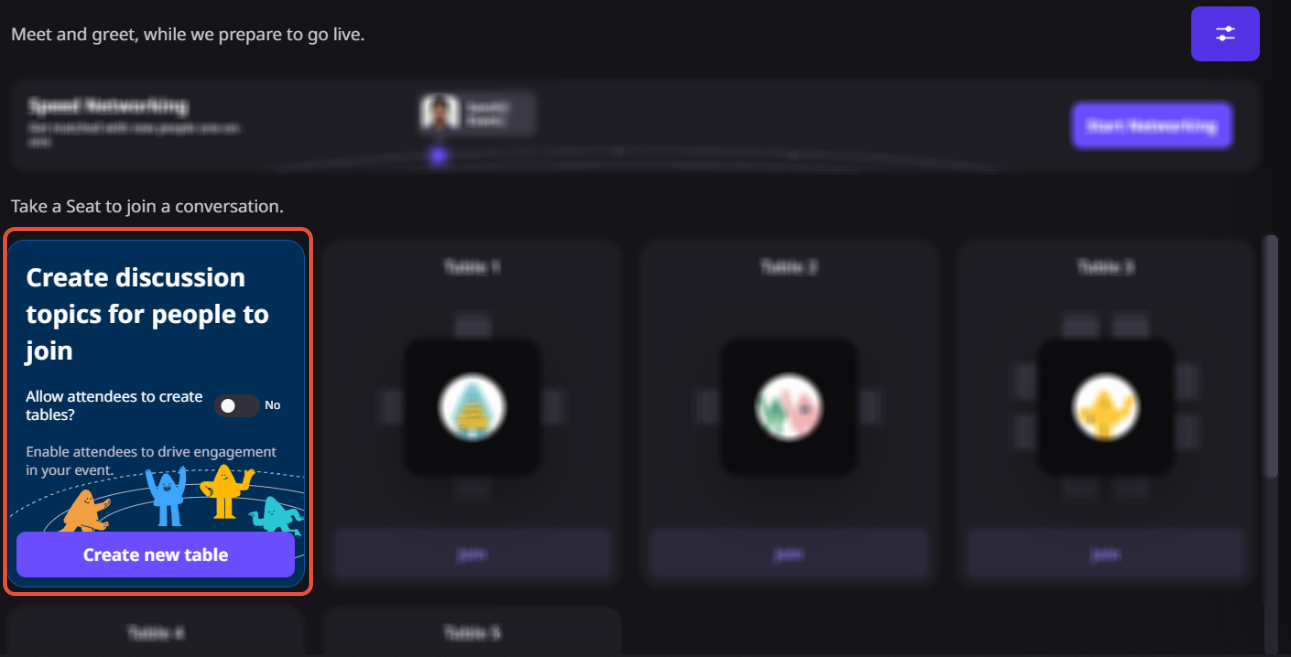
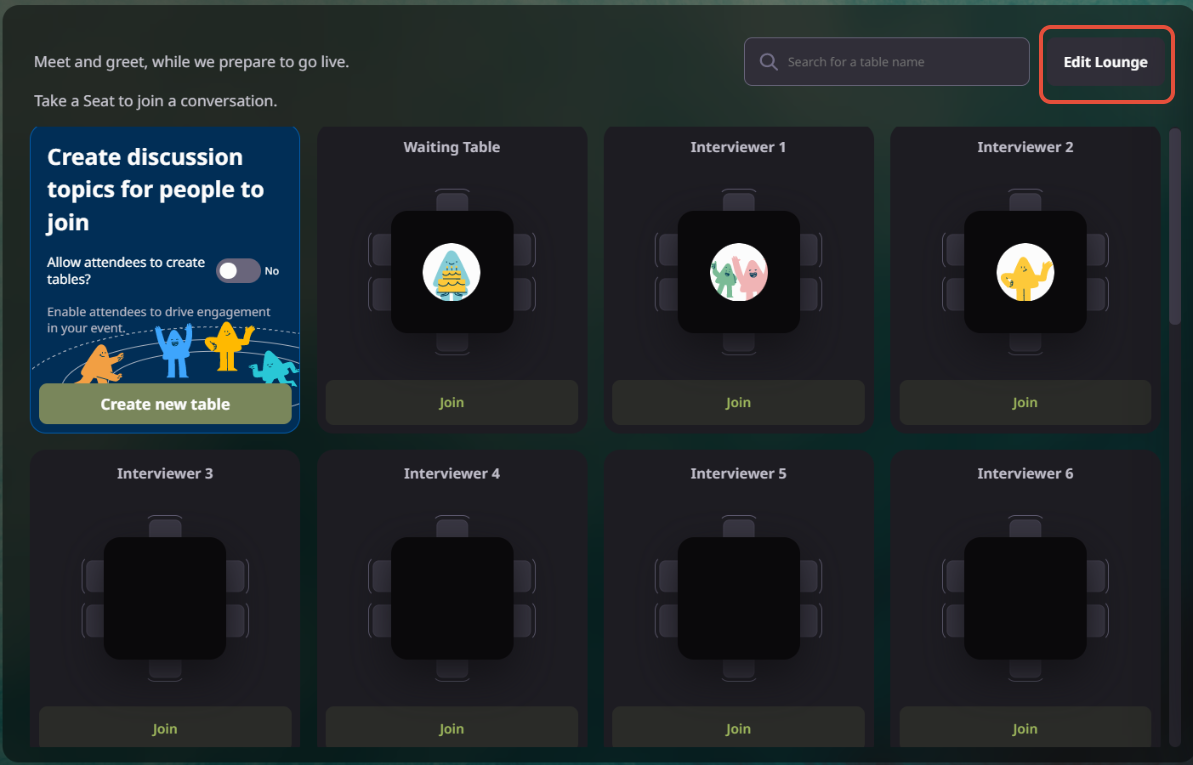
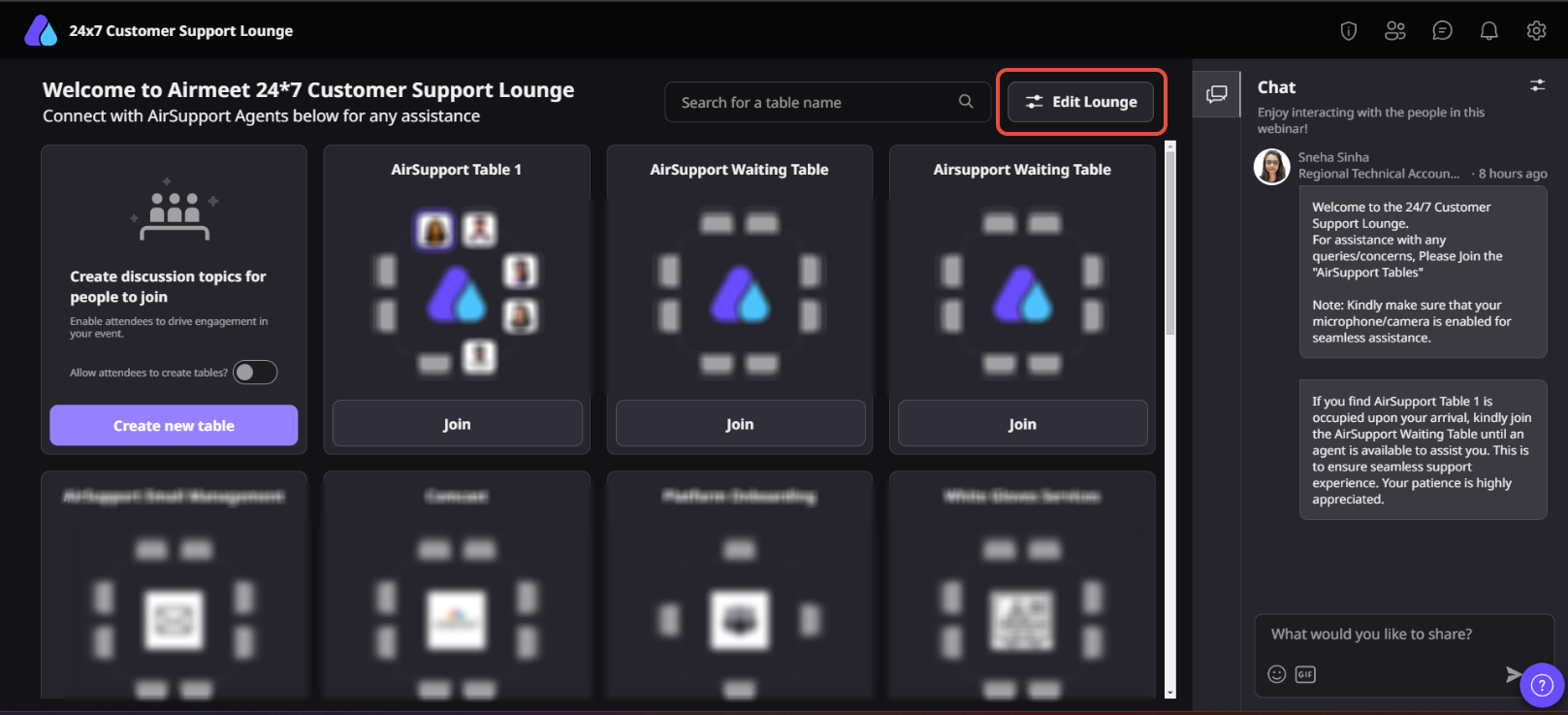
Navigate to your Event Dashboard and ensure that Social Lounge is enabled for your virtual event.
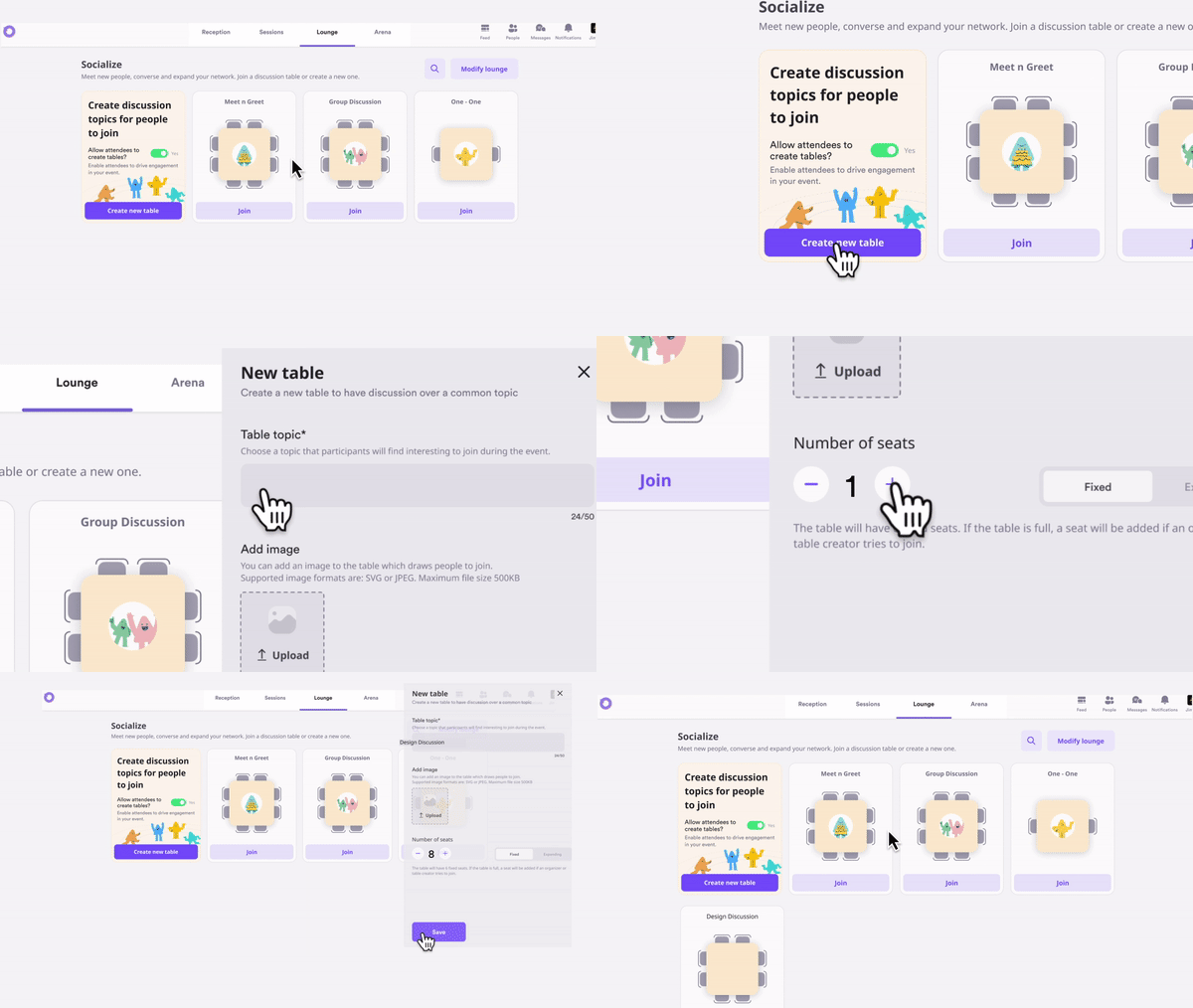
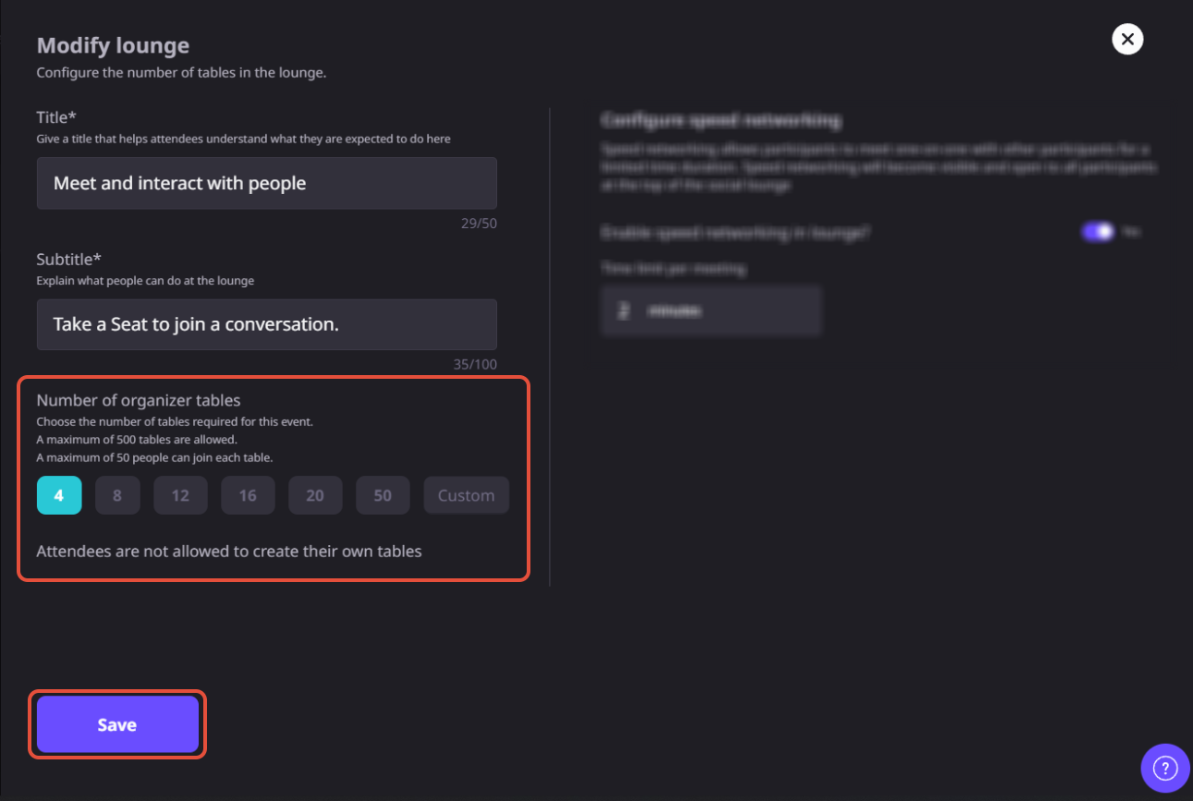
Create networking tables that align with your event goals. For each table, you can-
Organizing tables by industry, product interest, customer segment, or discussion theme helps attendees quickly find relevant conversations.
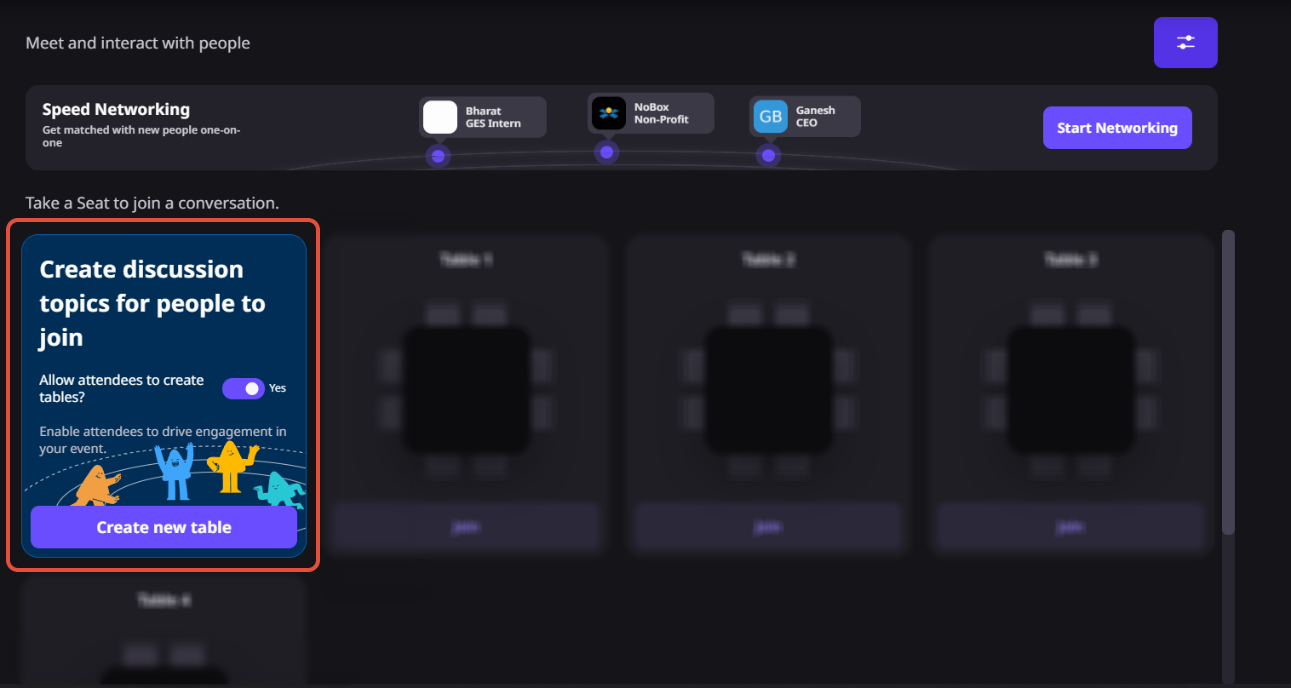
Choose whether attendees should be allowed to create their own networking tables or not.
When enabled, participants can start new discussions around emerging topics while organizers retain moderation controls.
Once your networking tables are configured, publish your event.
Attendees will see the Social Lounge as part of the event experience and can browse available tables before joining conversations.
Attendees simply select a table and click Join. Inside the table they can-
– Meet other participants.
– Enable camera and microphone.
– Participate in live discussions.
– Leave and join another table whenever they choose.
This flexibility allows attendees to network naturally instead of remaining in one assigned breakout room.
Organizers and hosts can monitor the lounge throughout the event. Depending on event settings, they can-
– Manage networking tables.
– Moderate attendee-created tables.
– Join conversations.
– Remove tables when necessary.
Social Lounge is Airmeet’s virtual networking space where attendees can choose a table, move between tables, and interact with the people seated at the same table in a mini virtual conference.
An attendee can select a table and use its “Join” control to enter the conversation. To leave, the attendee uses the close control and can then browse or join another table.
Yes. Free movement is central to the experience: attendees can leave one table, explore other topics and participants, and join the conversation that is most relevant to them.
Yes, when the organizer enables attendee-led tables. Attendees can then create a table for an open group conversation or roundtable discussion, while organizers retain moderation controls.
Yes. Organizers can configure table topics, add a table image, and set seating capacity within the limits available for their Airmeet plan and event setup.
In webinars, attendees can access the Social Lounge before the live session begins or during scheduled networking breaks, giving participants dedicated time to connect without interrupting the main presentation.
Yes. In virtual event formats, the Social Lounge remains available throughout the event, allowing attendees to network whenever they are not participating in sessions.
Camera and microphone controls become available once another participant joins the table. Attendees should also use a supported browser and allow camera and microphone permissions for the best networking experience.
Yes. Hosts can join a networking table even when all attendee seats are occupied, allowing them to moderate discussions or assist participants without displacing attendees.
Use outcome-oriented topics tied to audience intent, seed each table with a knowledgeable host, schedule a clear networking window, promote the lounge before the break, and give sales or customer teams an explicit follow-up motion after the event.
Yes. Even when attendee-created tables are enabled, organizers retain moderation controls. They can monitor activity, remove inappropriate tables, and ensure networking remains productive and aligned with event guidelines.


Incredible Companies Use Airmeet

Most loved Virtual Events Platform

Incredible Companies Use Airmeet

Most loved Virtual Events Platform

Incredible Companies Use Airmeet
Most loved Virtual Events Platform

