


Recording screencasts and live streaming, like recording training sessions and events, involves three basic requirements. Viewers must be able to hear and read what you recorded, everyone involved must have agreed to be recorded, and the file must work when you finish.
A Simple Recording Setup
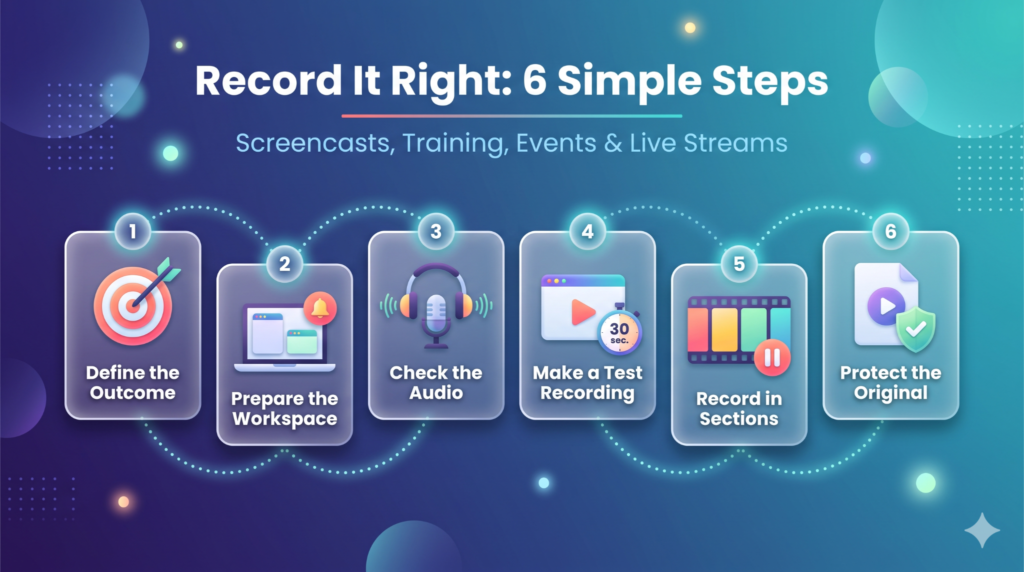
For any format, start with these steps:
- Define the outcome. Decide what viewers should be able to do after watching.
- Prepare the workspace. Close unneeded applications, enable Do Not Disturb and use a demonstration account.
- Check the audio. Wear headphones and use a headset or external microphone if you have one.
- Make a test recording. Record about 30 seconds, then watch and listen to the saved file, not just the live preview.
- Record in sections. Cover one task at a time, pausing before and after key actions.
- Protect the original. Keep the untouched recording, edit a copy, and check captions and playback before publishing.
Recording, Streaming, or Screen Sharing?
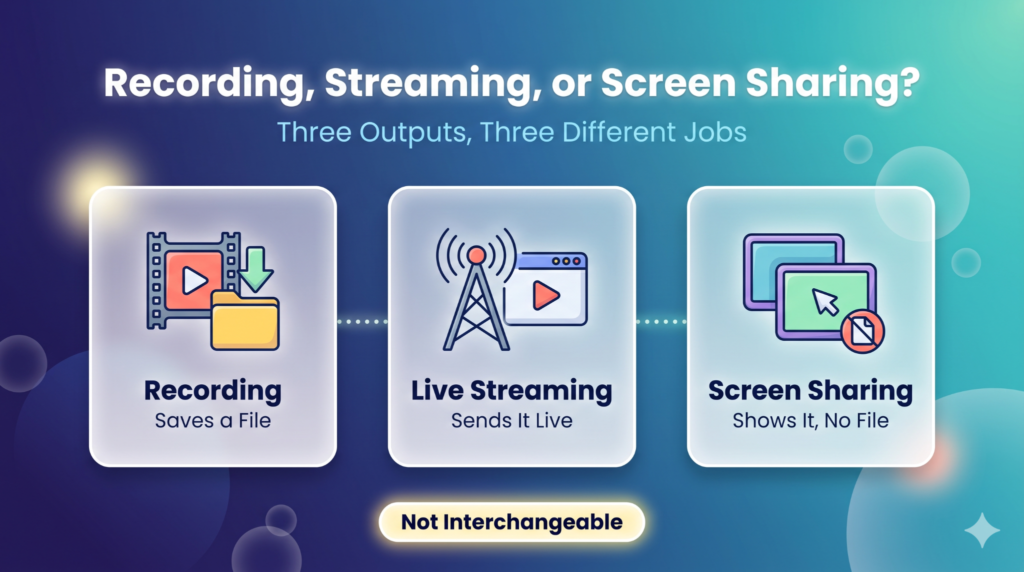
Choose the output before opening your software. Each format serves a different purpose.
- Screencast: screen actions, usually with narration.
- Online training: teaches a skill and lets learners practice.
- Event recording: preserves a presentation or panel for those who missed it.
- Live stream: delivers a program as it happens, so it needs a stable connection and an interruption plan. See common mistakes and this beginner’s guide.
W3C recommends planning accessibility as part of production, not as a final step.
These are not interchangeable. OBS can save a local recording while streaming. YouTube can also archive a copy of eligible broadcasts, but a platform archive is not the same as a local master, because quality, format, and tracks may differ. Screen sharing does not create a video file by itself, and defaults vary, so check Teams, Google Meet, and Zoom before the session.
Choosing Recording Software
The right tool depends on whether you need to record the screen, edit the footage, or both. The table below shows what each tool does best and the limits to check before you choose.
Tool | Best for | Limits to know |
Recording and live streaming on Windows, macOS 13+, and Linux | No built-in editor | |
Video editing, with recording also available in version 4.0 | Check the download page for current terms. | |
Simple editing on Mac, iPhone, iPad | Apple devices only | |
Quick Mac screen recording | Saves .mov files | |
Step-by-step training videos | Free download adds a watermark. | |
The presenter is shown beside slides on Mac and Windows. | Free trial allows up to five recordings, each capped at five minutes. | |
Narrated screencasts and meetings | Cloud recording needs a paid plan. |
Leave disk space for every export, whichever tool you choose. Because OBS has no built-in editor, pair it with an editor such as OpenShot or iMovie if the footage needs cutting. Free versions and trials carry limits, such as the Camtasia watermark and the Airtime recording cap, so check current terms before you settle on a tool.
Equipment Essentials
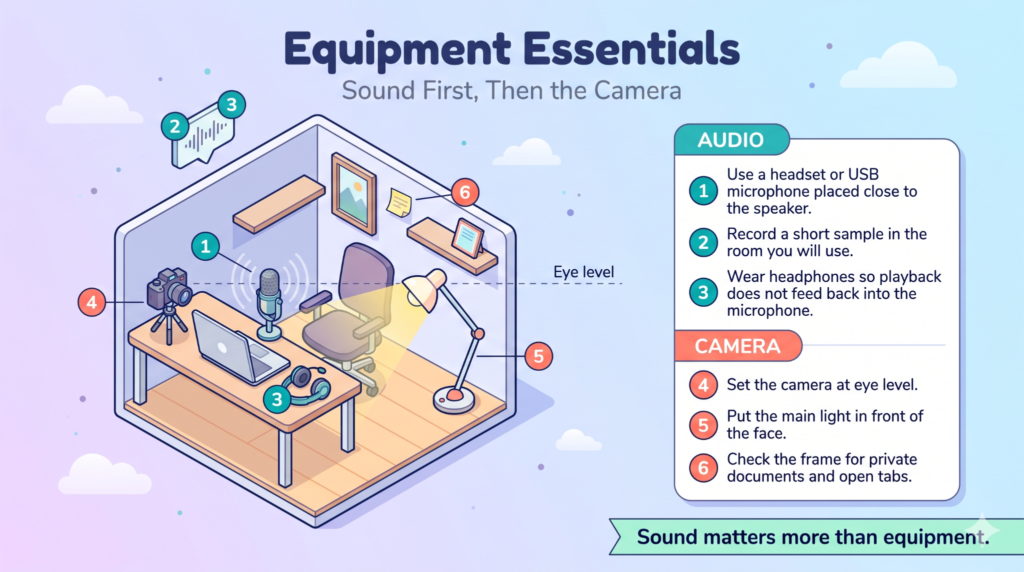
Sound matters more than equipment. Start with the microphone, then set up the camera if the presenter appears on screen.
Audio
- Use a headset or USB microphone placed close to the speaker. It usually captures speech more clearly than a laptop’s built-in microphone.
- Record a short sample in the room you will use, since echo and background noise show up there.
- Wear headphones so playback does not feed back into the microphone.
Camera
- Set the camera at eye level.
- Put the main light in front of the face rather than behind it.
- Check the frame before recording for private documents, open tabs, or anything else that should not appear.
Set Up Your Capture So the Content Is Readable
Decide what to capture first, then make it readable at the size people will watch. OBS offers Display Capture for an entire monitor and Window Capture for a single application. On macOS 13 and later, the macOS Screen Capture source replaces both (see the sources guide). Choose window capture when one application holds everything the viewer needs, and use display capture only when switching applications is part of the demonstration. Display capture can record notifications and private messages.
Increase text size and close unneeded panels. You can crop a source in OBS by holding Alt (Option on a Mac) and dragging its edges. High resolution does not guarantee legibility, so test the smallest text on both a laptop and a phone.
Avoiding echo. Echo can happen when OBS captures the same audio device twice. Follow the OBS audio sources guide, add each device only once, and wear headphones. Record a short test and listen to it; the audio meter only shows that OBS detects sound, not that it sounds clear.
OBS also supports separate audio tracks, which are useful for editing. If you plan to publish the recording without editing, ensure that the audio viewers need is included in the primary playback track, as some media players may not play every track by default.
How to Record a Screencast With Voice Narration
TechSmith’s tips start with planning. Instead of a script, prepare an action list: the starting state, inputs needed, key choices, likely mistakes, and the result that confirms success.
At each key step, explain why it matters rather than just naming the button. For example, saying, “Select the Export button in the upper-right corner,” is more helpful than saying, “Click here.” Leave pauses between topics, and if you stumble, restart the section rather than trying to fix it later.
For a webcam inset, keep your eyes on the lens. To reduce glasses glare, StreamYard suggests tilting your head, dimming the screen, and lighting your face from the front.
How to Record Online Training Sessions
Organize training around a specific learning objective. Demonstrate the task and finish with a practical exercise. If menus may change, note the software version or date.
For live training on Zoom, set the recording layout in the web portal before the meeting starts, as Zoom’s layout guide explains. Recording layouts separately gives editors flexibility but increases storage and editing work, so test the layout you plan to use.
How to Record Event Speakers and Audience Questions
For every segment, list the speaker, visual source, and duration, and assign someone to audio, recording, and audience messages. This webinar hosting guide can help with planning. Rehearse with the actual speakers, and remind them to share all key information during the recorded session, since backstage conversations may not appear in the replay.
Get Consent Before You Record
The Institute for Research Software recommends addressing recording consent during registration. If consent is handled through event information instead, clearly explain the recording arrangements in advance and announce when recording begins. Make consent practical:
- Explain how the recording will be used, shared and retained.
- Offer an alternative, such as the camera off or an unrecorded session.
- Check local rules and consult a legal or data-protection contact for multi-location events.
- Take extra care with minors and confidential content.
Pinning a video in Zoom changes only your view, so verify in rehearsal. Hiding names in cloud recordings, per this University of Michigan guide, does not hide anyone’s voice or video.
Handle Audience Questions
Announce one route for questions. If an attendee has no microphone, have the host repeat the question. Prepare a holding slide for breaks, since a black frame suggests the feed has failed.
How to Record and Live Stream at the Same Time
Recording locally while streaming gives you a file even if the destination fails but adds computer workload. OBS notes that any quality other than “Same as stream” takes extra resources, so matching the stream is the simpler start. In OBS, use File → Remux Recordings to convert to MP4, then open the result before deleting the original.
How to Live Stream a Zoom Meeting to YouTube
Zoom can send a meeting to YouTube through its custom live streaming service. Set up YouTube first.
- In YouTube Studio, select Go Live and enter the title and description.
- Copy the stream key, stream URL, and live page URL from YouTube Studio. Enter them in the corresponding fields under Zoom’s custom live streaming settings. On the day, start the meeting and open the live page in a separate window.
- In Zoom, select More, then Live on Custom Live Streaming Service, and start a local backup recording.
- After presenters test screen sharing, select Go Live in YouTube Studio. The stream is not live until you do.
- At the end, stop recording and streaming in Zoom, then select End Stream in YouTube Studio.
Choosing Bitrate, Resolution, and Latency
These settings determine how good and how reliable a live stream is: bitrate (how much data you send each second), resolution (how sharp the picture is) and latency (how far viewers lag behind real time). Choose values your connection can sustain for the whole event, not just for a few minutes.
Bitrate and Resolution
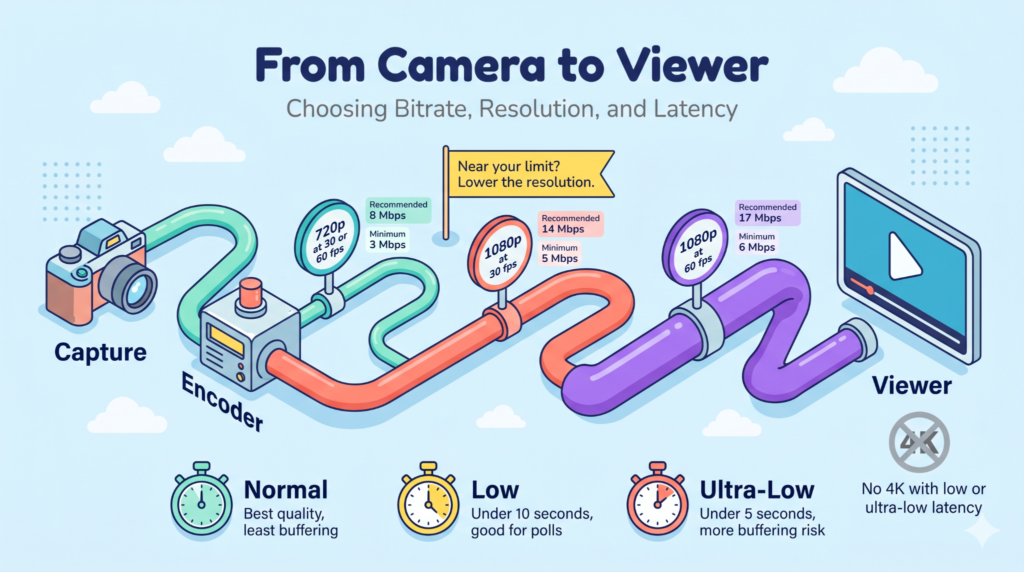
YouTube recommends testing your upload bitrate before going live. For H.264 video, it gives these recommended and minimum figures:
Resolution and frame rate | Recommended | Minimum |
720p at 30 or 60 fps | 8 Mbps | 3 Mbps |
1080p at 30 fps | 14 Mbps | 5 Mbps |
1080p at 60 fps | 17 Mbps | 6 Mbps |
If your connection is close to its limit, lower the resolution rather than risk an unstable stream. YouTube’s encoder settings guidance also recommends a two-second keyframe interval, constant bitrate, 128 kbps stereo audio, and RTMPS for secure delivery.
Latency
Latency is the delay between what you capture and what viewers see. YouTube offers three settings:
- Normal: the highest quality and least buffering, best for presentations without audience interaction.
- Low: most viewers are less than 10 seconds behind, which suits sessions with polls.
- Ultra-low: a delay under 5 seconds, best for live conversation, but with a greater risk of buffering.
YouTube does not support 4K streaming with low or ultra-low latency.
Other Streaming Platforms
Beyond YouTube, you can stream to Facebook (overview), LinkedIn Live, or X. Each has its own eligibility requirements, so confirm them before the event.
Testing a Live Stream and Handling Disconnects
Test with the real computer, network, and settings. YouTube recommends representative audio and movement because a static screen may hide problems. Watch from a separate device, and confirm the local recording is saving. YouTube’s error guidance explains common problems. Enabling live streaming for the first time can take up to 24 hours, so do it early.
Write a recovery plan before the event: who monitors for failure, who informs the host, and where viewers go if the feed cannot be restored. A backup encoder helps only if primary and backup streams use identical settings, and it will not help if both share one internet connection. Keep recording locally during any interruptions.
Captions, Transcripts, and Audio Description
Under WCAG, captions are required for prerecorded video with meaningful audio (Level A) and for live audio (Level AA). Audio description or a descriptive transcript is needed when important visual information is not in the audio. In software tutorials, name buttons and read key labels aloud.
Automatic captions can save time, but they should always be reviewed before publication. Check names, technical terms, numbers and other potentially misrecognized words. Captioning features and limitations vary by platform:
- YouTube: live automatic captions are English-only and need normal latency. Check the replay.
- Webinar platforms: captions may be off by default or missing from replays, so see the live captions help page.
- Vimeo: live captions are saved in the archive, but showing them live requires an RTMP source that carries captions.
To add subtitles in YouTube Studio, upload the video as unlisted, open Content, choose Subtitles, and add text by file, auto-sync, or typing. Download an .srt file if hosting elsewhere; for Google Drive, see caption tracks.
Editing, Publishing, and Storing Recordings
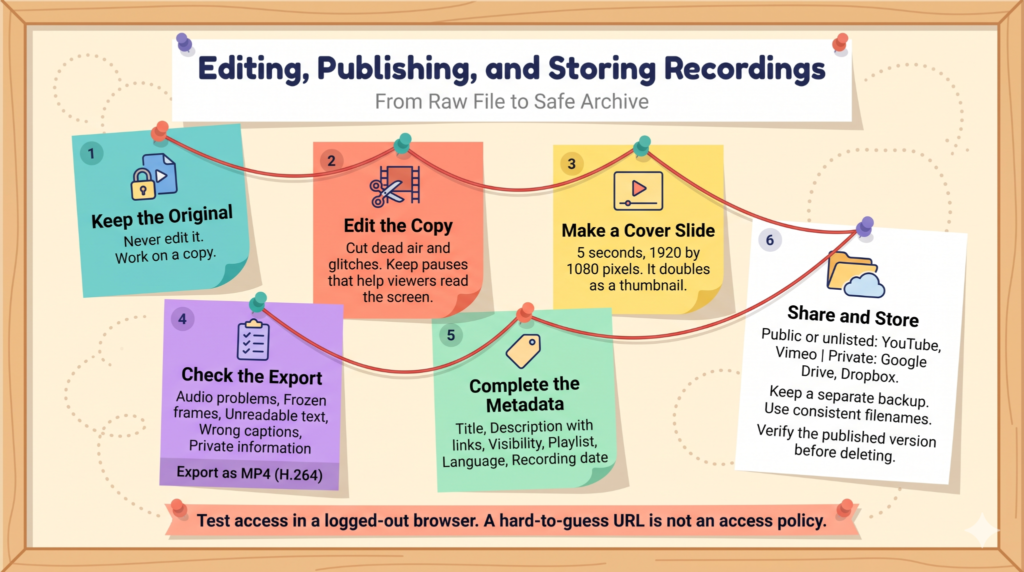
Keep an untouched original and edit a copy. Cut dead air and glitches, but keep pauses that help viewers read the screen. A five-second cover slide at 1920 by 1080 pixels, made in Canva or Inkscape, can double as a thumbnail. In OpenShot, trim with the razor tool and export as MP4 (H.264); the user guide has details. Before publishing, watch the whole export for audio problems, frozen frames, unreadable text, wrong captions, and private information.
On YouTube, complete the metadata: title, description with links, visibility, playlist, language, and recording date. Use YouTube or Vimeo for public or unlisted sharing, or share privately through Google Drive or Dropbox.
Keep a separate backup with consistent filenames, and verify the published version before deleting it. Download recordings promptly, since retention varies: Airmeet’s free plan keeps recordings 60 days in standard definition with a watermark. Test access settings in a logged-out browser, because a hard-to-guess URL is not an access policy.
Conclusion
Whether you are recording a screencast, a training session, or a live event, the same practices apply. Pick the format first, test with your real equipment, and review the saved file before you publish. Get consent from everyone on screen, check automatic captions, and keep the original recording unedited.
For live events, one more step matters: record a local backup and prepare a written recovery plan before the stream starts. If the feed fails, the backup is the file you can still publish. Airmeet records live sessions and can stream them to YouTube, Facebook, LinkedIn, X, and custom RTMP destinations.
FAQs
No. TechSmith treats camera footage as optional. Add one only when the presenter’s presence helps.
Long enough to teach one outcome, short enough that learners can find a step quickly.
A few hours to record, edit, and subtitle a 10-minute talk, longer for beginners.
Correct factual errors before distributing the recording. If an error occurs during a live session, clarify the correct information as soon as possible. For the replay, edit or annotate the mistake, or add a correction alongside the video. Update the captions and transcript to reflect the correction.