


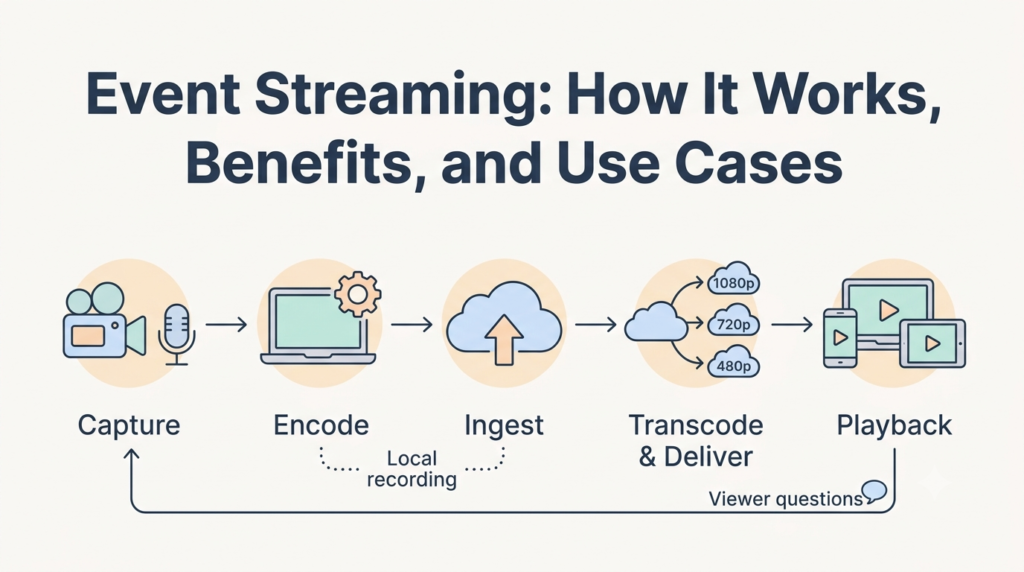
Many streaming problems can be prevented through decisions made before the event begins. Camera setup, video encoding, upload bandwidth, and content delivery all affect stream quality. YouTube’s streaming guidance explains how encoder settings, internet capacity, and stream health checks contribute to a reliable broadcast, while Cloudflare’s documentation describes how live video is encoded and delivered.
Once you know how event streaming works, it’s easier to choose the right setup, balance video quality against playback reliability, and address potential problems before the audience sees them.
What Is Event Streaming, and How Is It Different From Video Conferencing?
Event streaming sends one program from a stage to a large audience. Viewers mainly watch, and they take part through chat, polls, and Q&A rather than by speaking on camera. Video conferencing lets participants send and receive audio and video in real time. The difference affects how video is delivered, how much delay viewers experience, and how they interact with speakers.
Video conferencing tools commonly use WebRTC, a standard designed for real-time audio and video communication. Large broadcasts often use HTTP Live Streaming (HLS) or MPEG-DASH. Both deliver video in segments that the player downloads and plays in sequence. Segment-based delivery helps distribute video to large audiences, but segment duration and player buffering can add delay. The IETF’s HLS specification explains how playlists identify media segments and how players retrieve them during playback.
Accessibility is another consideration. WCAG Success Criterion 1.2.4 was designed with broadcast content in mind and does not automatically require captions for every two-way multimedia call. For event streaming, plan for live captions before the broadcast rather than treating them as a last-minute addition.
Many events combine both formats. Speakers and moderators interact on a virtual stage while the wider audience watches on another platform. Airmeet, for example, supports streaming sessions to YouTube and Facebook, as well as other platforms through custom RTMP. Organizers can also stream Airmeet sessions to LinkedIn Live. The setup lets organizers retain an interactive event environment while extending the broadcast to audiences on external platforms.
The Benefits of Event Streaming
Streaming an event can widen your audience, reduce travel expenses, and give you content to reuse after the event ends. Each benefit comes with its requirements, from choosing an encoder and securing enough bandwidth to selecting a platform and assigning people to manage the broadcast. A weak point in any of these areas can affect the viewing experience. Start with the outcome you want, then choose a setup that supports it.
Wider Audience Reach
A content delivery network (CDN) helps deliver a live stream to viewers wherever they are, regardless of the device they use or the network they’re on. YouTube transcodes live streams into several formats so people on slower connections can still watch, and Cloudflare’s network spans more than 330 cities. Someone in a different time zone may never catch the live broadcast, which is why a replay is useful.
Replays That Are Ready Quickly
A live broadcast can also become on-demand content after the event, allowing viewers to catch up and organizers to reuse content. Platforms such as YouTube can automatically archive eligible live streams. Before sharing a replay, check its captions, recording permissions, and visibility settings.
Live Participation
Features such as chat and Q&A give remote viewers a way to interact with speakers instead of watching passively. Airmeet’s attendee help resources cover attendee interaction features, including chat and Q&A. These features need active moderation and a host who can respond to questions. Streaming delay also affects how closely remote participation follows the live event.
Measurable Outcomes
Streaming platforms can provide data on viewership, attendance, participation, and stream performance. These figures can help you assess whether the event reached its intended audience and whether technical issues affected the broadcast. Decide which metrics matter before the event begins.
The Tradeoffs
- Interaction vs. smooth playback: Lower latency reduces the delay between the live event and the viewer but leaves less time for the player to buffer incoming video.
- Wider reach vs. platform restrictions: Streaming to additional destinations can expand your audience, but each platform has its eligibility rules and technical requirements.
- Captioning cost vs. accuracy: Captions for live content are part of an accessible webcast, so the decision is how to provide them. Automatic captions cost less and need little setup, while a trained live captioner is usually more accurate but adds cost and scheduling.
- Lower travel costs vs. production work: Streaming can reduce travel expenses, but it still requires equipment, rehearsals, production staff, and technical monitoring.
How Does Live Video Event Streaming Work?
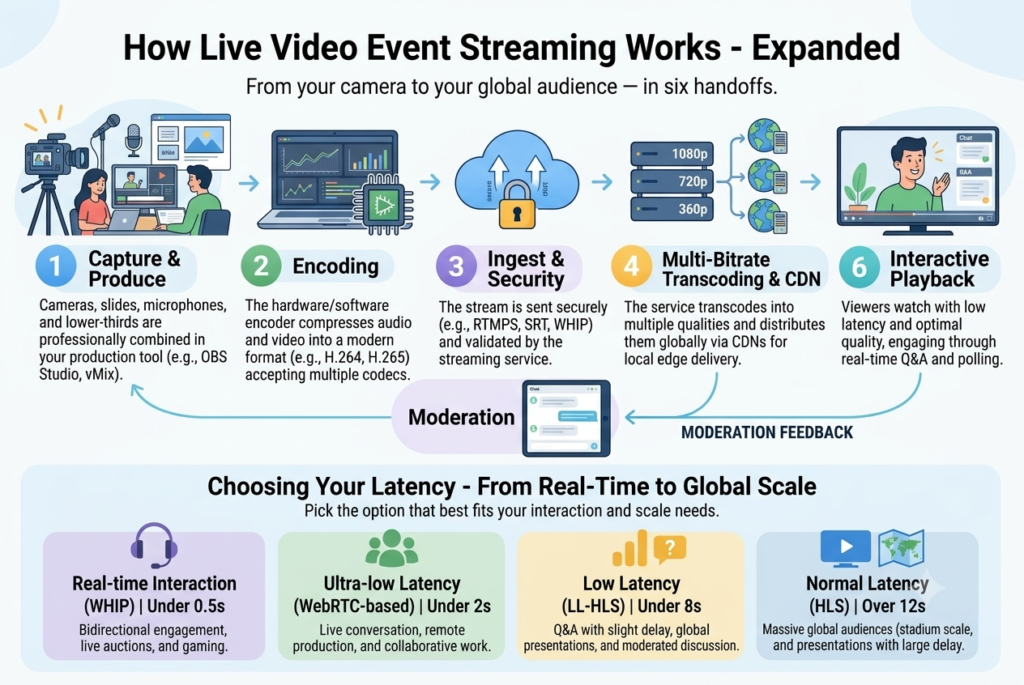
The signal passes through five handoffs: capture, encoding, ingest, transcoding and delivery, and playback. Knowing which handoff failed tells you who should fix it. A local recording branches off the encoder, and viewer questions return to production through a moderator.
Capture and production
Production decides what viewers see and hear before any streaming setting matters. A tool such as OBS Studio combines cameras, slides, and microphones into scenes. By default, OBS captures desktop audio and the microphone, so check the Audio Mixer meters rather than assuming the right inputs are live. Its Studio Mode lets you prepare the next scene before it goes live. Viewers see the program output rather than the Studio Mode preview.
For a panel, give every speaker a dedicated microphone. For software demonstrations, send the screen feed directly instead of filming a monitor, and check the text size on a phone-sized player.
Audio levels
Set a loudness target and use audio meters to check your sound levels. The EBU’s R 128 recommendation, written for broadcast, targets an average program loudness of -23 LUFS, with a tolerance of plus or minus 1 LU for live programs. R 128 is a television reference, not a requirement for event streams, and the EBU also publishes guidance on loudness in streaming. Use this recommendation as a reference for the overall mix.
During rehearsal, check each speaker’s microphone level separately and adjust the volume so no voice sounds noticeably louder or quieter than the others. Then measure the overall program loudness to see whether it meets your chosen target.
Encoding
The encoder compresses audio and video into a format the streaming service accepts. YouTube’s live streaming guidance lists H.264, H.265, and AV1 for video, AAC or MP3 for audio, constant bitrate (CBR) encoding, and a two-second keyframe interval that should never exceed four seconds. Those are YouTube’s values. Other destinations publish their own, so read the target platform’s page before reusing them.
Ingest protocols
Ingest is the connection from your encoder to the service. YouTube recommends RTMPS, the encrypted form of RTMP, so nobody can intercept the feed.
Treat stream keys like passwords. Airmeet’s stream-in documentation states that its RTMP key and URL need no password to send a stream, so anyone holding them can push video to your stage.
RTMP is not the only contribution option. SRT is an open-source transport that recovers lost packets through retransmission and supports encryption, and Cloudflare Stream accepts it alongside RTMPS. It suits unstable venue networks. It is only a contribution transport, though: browsers still play HLS or DASH after the service transcodes and packages the feed. For sub-second ingest and playback, WebRTC with WHIP and WHEP is an option, subject to the pairing requirements described below.
Transcoding, adaptive bitrate, and the CDN
You upload one feed. The service then creates several quality levels so each viewer gets what their connection can handle. YouTube automatically transcodes live streams into many output formats, and Cloudflare calls this adaptive bitrate streaming (ABR). In ABR, the player learns what quality a connection can sustain and switches renditions to reduce buffering.
ABR protects viewers from their own weak connections. It cannot repair a weak upload from your venue, because every rendition starts from the one feed you send. That is why upload planning gets its own section below.
Playback and latency
Latency is the delay between the camera and the viewer’s screen. YouTube explains that the read-ahead buffer is the main source of latency, so a shorter delay means a smaller cushion against network trouble. YouTube offers normal, low, and ultra-low latency options, which the table further down compares with other delivery approaches.
Normal latency suits streams without audience interaction and supports all resolutions and live features.
Note that YouTube’s encoder guidance states that 4K streams cannot use the low-latency optimization. If you need sub-second interaction, WebRTC delivery is the route, but Cloudflare’s documentation says its WebRTC input must be used with WebRTC playback, not mixed with HLS or DASH. Choose latency by asking how often the host needs to react to viewers.
Where the delay comes from
Delay accumulates at several points: the encoder, segment packaging, the CDN, and the player’s buffer. In classic HLS, segments are long, and players buffer several of them. One technical analysis calculates that a six-second segment with a three-segment buffer means 18 seconds of delay before any other contributor is counted. AWS’s media blog gives the same arithmetic.
Low-Latency HLS attacks this with partial segments, which publish small pieces of a segment as they are produced, and blocking playlist reloads, where the server holds a request until new media is ready, as summarized from Apple’s WWDC session (session notes). Those notes describe latencies under two seconds as achievable at scale. A competing vendor reports 3 to 7 seconds in practice, so test with your own CDN and player.
The figures below are indicative ranges drawn from platform documentation and vendor reports, not guaranteed performance. Actual latency varies with configuration, network conditions, encoder settings, and player behavior.
Delivery approach | Typical delay | Fits |
Standard HLS or DASH | Presentations to large audiences | |
Under 10 seconds for most viewers | Occasional polls and questions | |
Under 5 seconds for most viewers | Live conversation | |
Low-Latency HLS | Interactive broadcasts at scale | |
WebRTC with WHIP and WHEP | Real-time interaction |
Choose the latency setting that gives the host enough time to respond to audience interactions without unnecessarily reducing stream quality. Start with the most interactive use case and compare the available settings until you find one that supports the required response time.
- Must viewers speak in real time? Use WebRTC or an interactive stage.
- Is there a live conversation with viewers? Use ultra-low latency.
- Are there occasional polls or questions? Use low latency.
- Otherwise, use normal latency for the smoothest playback.
How Do You Choose a Bitrate, Resolution, and Frame Rate?
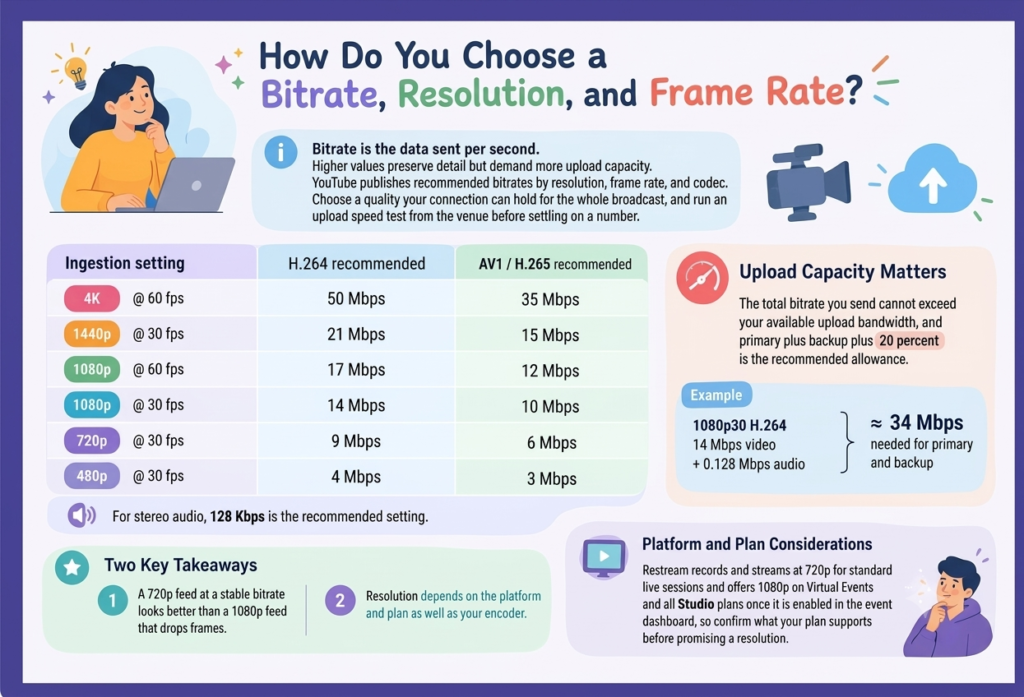
Bitrate is the data sent per second. Higher values preserve detail but demand more upload capacity. YouTube publishes recommended bitrates by resolution, frame rate, and codec, and the table below shows its recommended values for a selection of common settings. Choose a quality your connection can hold for the whole broadcast, and run an upload speed test from the venue before settling on a number.
Ingestion setting | H.264 recommended | AV1 / H.265 recommended |
4K @ 60 fps | 50 Mbps | 35 Mbps |
1440p @ 30 fps | 21 Mbps | 15 Mbps |
1080p @ 60 fps | 17 Mbps | 12 Mbps |
1080p @ 30 fps | 14 Mbps | 10 Mbps |
720p @ 30 fps | 8 Mbps | 6 Mbps |
480p @ 30 fps | 4 Mbps | 3 Mbps |
For stereo audio, 128 Kbps is the recommended setting. Upload capacity matters as much as the video setting: the total bitrate you send cannot exceed your available upload bandwidth, and primary plus backup plus 20 percent is the recommended allowance. A 1080p30 H.264 feed (14 Mbps video plus 0.128 Mbps audio) sent as both primary and backup therefore needs roughly 34 Mbps of dependable upload.
Two points follow from this. A 720p feed at a stable bitrate will usually look better than a 1080p feed that drops frames, which is why YouTube advises choosing a quality that gives a reliable stream. And resolution depends on the platform and plan as well as your encoder: Airmeet streams and records at 720p by default, while 1080p is available on eligible plans and has to be enabled for each event, so confirm what your plan supports before promising a resolution.
How Do You Stream an Event to Multiple Destinations?
To stream to multiple platforms at once, add each destination to your event platform session, then start the session. The steps below use Airmeet’s event dashboard as an example, so menu names and limits will differ on other platforms. The process has four steps:
- Open the stream settings. In the event dashboard, go to Sessions, then Session Settings, then Live Stream, and click Add Stream Destination.
- Connect each destination. YouTube and Facebook connect through your account. For custom RTMP and LinkedIn Live, paste the stream URL, stream key, live stream page URL, and a destination nickname from the receiving platform. Edits are only possible before the session starts streaming.
- Select the session. Choose the session to stream and add it to the destinations.
- Start the session. The stream begins automatically. On LinkedIn, you also need to click Go Live on its custom stream page to open the stream to viewers.
Expect 720p output. On custom RTMP and LinkedIn Live, there is also roughly 15 to 20 seconds of delay between the stage and the destination, and a break in the session freezes the stream on the last frame. On YouTube and Facebook, a long break starts a new post instead.
Multistreaming extends reach, but each destination brings its own eligibility rules, chat, and moderation load. These limits are worth knowing before show day:
- Custom RTMP cannot stream two parallel sessions at once. LinkedIn also allows only one session at a time and one account or page at a time.
- If the host ends the session, the external live stream stops immediately, as the YouTube and Facebook guides also state.
- Copyrighted material can lead the destination platform to block the stream, which is outside the event platform’s control.
- Eligibility takes lead time. YouTube requires a verified channel with no live streaming restrictions in the past 90 days, and Airmeet’s troubleshooting note says activation can take up to 24 hours. LinkedIn Live access requires an account or page with more than 150 followers or connections, created at least 30 days ago and in good standing.
Enable every destination well before the broadcast date, then run a test on each one. A destination that works for your colleague’s account may not work for yours.
How Do You Control Access to a Private Live Event?
Private live events, such as internal briefings, paid sessions, and client previews, need a plan for who gets in, and that plan has to be settled before the stream goes out.
The first step is to set the event entry rule to invited-only, then add session, moderation, and recording controls as the material requires. Most event platforms offer this setting. You add your attendee list, and people who hold the event link but are not on it cannot join.
This matters because a link alone doesn’t control who can join. On YouTube, for example, unlisted videos can be seen and shared by anyone with the link, while a private video can only be seen by the people you choose.
Match the control to the sensitivity of the material:
- Invited-only entry. Each invitee can receive a unique access link by email and should not share it.
- Manual registration approval. Each sign-up waits until an organizer approves it.
- Session-based access. Individual sessions can be limited to certain ticket tiers.
- Blocking. Organizers can remove disruptive attendees and stop them from coming back.
Platforms differ, so confirm the exact controls your plan includes.
Recordings need their permission check. On YouTube, you can change an archive’s visibility after the stream from the Live tab under Content in YouTube Studio. On Cloudflare Stream, a video marked to require signed URLs cannot be watched with only its ID. Viewers need a token, and tokens from the default endpoint expire after one hour. Whatever platform you use, ask whether recordings are tokenized or reachable by anyone who finds the URL.
How Do You Make a Live Event Stream Accessible?
Accessibility must be planned from the start, not added at the end, and W3C advises planning for it from the very start of any media project.
Four things need to be in place before the event: live captions, spoken descriptions of key visuals, a transcript, and a player that supports accessibility. WCAG success criterion 1.2.4 (Level AA) requires captions for all live audio content in synchronized media. Good captions identify speakers and significant sounds, not only dialogue.
Captions are one layer. W3C’s media guidance also covers transcripts, descriptions of visual information, and accessible media players. In practice, that means building description into the program itself by describing important on-screen actions aloud, so the program works without seeing the screen.
Check how your platform handles captions. On YouTube, for example, live automatic captions are available only in English and only on normal latency streams. You can also send your own captions, either embedded in the video or through supported software. Whatever you choose, test captions with your actual feed in rehearsal, including any encoder output, before the event.
What Are the Main Event Streaming Use Cases?
Use cases differ in what viewers must see, how they participate, and who may watch. Choose the audience’s main task first, then set production priorities around it.
Product launches and demonstrations
A launch succeeds when viewers understand the product and can ask qualified questions. If there is little live interaction, normal latency is usually enough and gives the player the most buffer. Build demo scenes in advance and keep a recorded walkthrough ready as a fallback.
Rehearse the screen at the final player size. Cursor visibility and text legibility on a phone are common failure points, so check them in the real viewing link.
Conferences and expert panels
Panels depend on audio coverage and a route from remote moderators to the host. For parallel tracks, decide early whether each room needs its own broadcast. Airmeet lets you create sessions that each use a unique RTMP stream key, but the one-session limit noted earlier means that external multistreaming of parallel tracks requires a separate plan.
Internal briefings and training
Start with access: confirm who can watch, how entry is verified, and who can open the recording. Pair that with captions and a feedback path. When the exercise needs continuous two-way discussion, a conferencing-style room may fit better than a broadcast, per the distinction above.
Performances and public programs
Sound carries most of a performance, so test the actual broadcast mix instead of relying on the room’s loudspeaker feed. Clear rights before scheduling distribution, because platforms can block streams that include copyrighted content, as Airmeet warns. Tell viewers when the stream starts and whether a replay is planned.
Hybrid events
A hybrid event adds a remote audience to a physical one, so the production has to serve both. Airmeet’s help center describes streaming an in-person event into a session from an RTMP source such as OBS or vMix, and its hybrid format lets in-person attendees join Q&A and polls through the app. Assign someone to monitor remote questions separately from the room, and test the venue connection with the audience present.
Webinars and social live streaming
Webinars often prioritize reach over deep interaction. Airmeet positions social live streaming as a way to extend the top of the webinar funnel while it remains the production center. Check each destination’s eligibility and session limits in advance, and consider normal latency when chat is secondary.
How Do You Live Stream an Event Reliably?
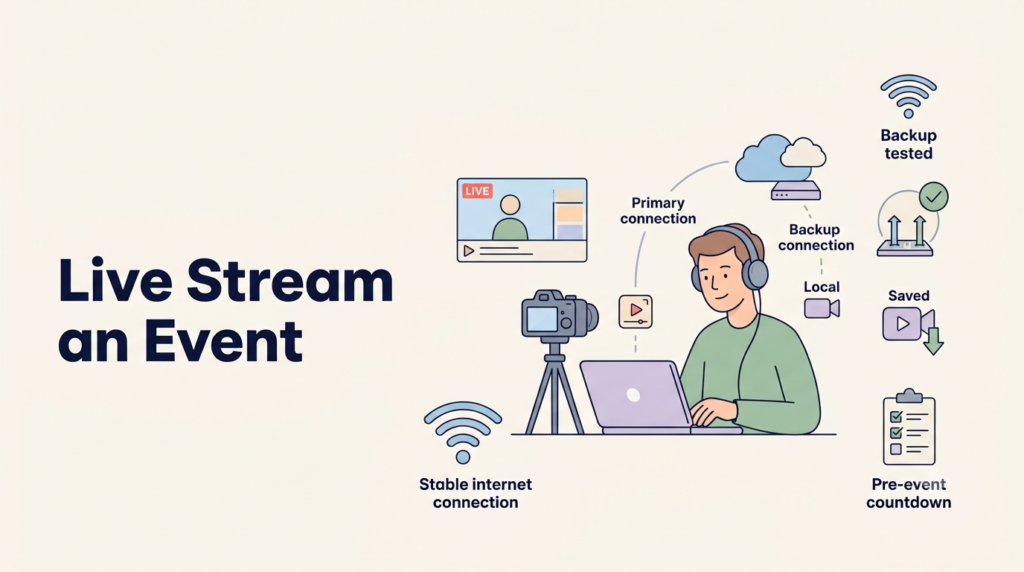
Reliability comes from redundancy and rehearsal. YouTube’s streaming tips set the baseline habits, and the countdown table at the end of this section puts them in order.
Plan the upload
Test the venue’s sustained upload capacity at the same time of day as the planned broadcast. Where possible, test under realistic network conditions, including when the venue is occupied.
Run a real failover test
Do not assume a backup works. YouTube advises stopping the primary encoder or unplugging its network cable, then confirming the player rolls over to the backup. Also check what happens once the primary returns, since a backup that takes over may not hand back automatically.
If the backup uses the same internet connection as the primary, an outage on that connection will stop both streams. Give the backup its own connection, such as a different internet provider, so that a network failure on one path does not affect the other. AWS documentation gives the same advice for redundant streams.
Record locally
A live stream does not guarantee a usable recording. YouTube can archive streams under 12 hours, yet it recommends keeping a local archive as a backup. OBS can record while streaming, and its quick-start guide says to run a test for a few minutes before the first real broadcast. Listen to the test recording, not only the preview.
Assign named roles
Write down who owns production, moderation, and viewer support. Also write down who decides to switch to the backup, since several people changing settings at once makes recovery slower.
Producer’s countdown
When | What to do |
Days before | Enable every destination and test it |
At least 2 hours before | Set up encoders and the stream |
Before going live | Check the Live Control Room preview, test backup failover, and confirm the event appears on mobile |
During | Monitor stream health and review messages |
After | Stop the encoder once the event ends and verify the archive |
What Happens If the Internet Fails During Event Streaming?
Follow a predefined recovery plan: identify the source of the problem, inform viewers, switch to the backup if necessary, and verify playback before resuming the event.
Locate the Fault First
YouTube’s troubleshooting guidance says to check the stream directly in the encoder, look for encoder errors on the live dashboard, and check CPU load and the local archive file. If the encoder output looks healthy but viewers still see problems, the likely cause is the outbound connection or the ingest.
Recovery Sequence
- Put up a holding screen so viewers see a deliberate pause rather than a frozen frame.
- Tell the audience through the agreed channel, such as event chat or social posts.
- Switch to the backup connection or encoder. On YouTube, the player rolls over to a backup encoder if the primary drops. On Vimeo, the backup takes over automatically, but the player does not switch back when the primary returns, so someone has to restore it manually.
- Confirm playback on a separate device, not only in the encoder preview.
- Resume the program once the feed is stable.
Reconnection at the Ingest
A streaming platform may continue ingesting a feed when an encoder briefly disconnects, but recovery depends on the encoder’s reconnect configuration. Cloudflare Stream supports this behavior when the streaming software reconnects. Before going live, check that your encoder is configured to reconnect automatically, then test the setup by briefly interrupting the connection and confirming that the stream resumes without requiring a new session.
How Do You Measure Live Event Streaming Success?
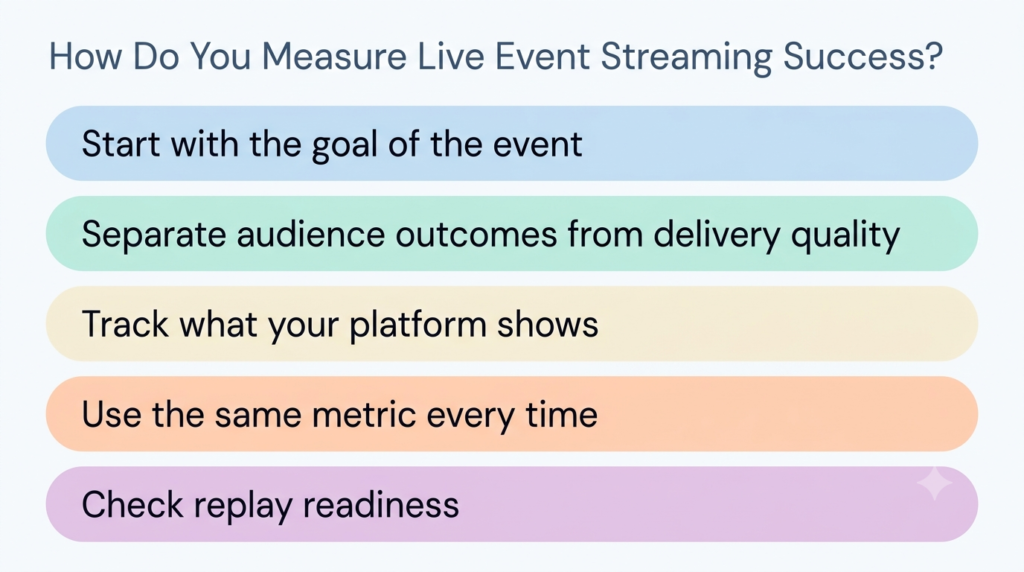
Success looks different for every broadcast, so measurement starts with deciding what the event was meant to achieve.
Match Metrics to the Purpose
Tie measurement to the purpose of the broadcast, then separate audience outcomes from delivery quality. A launch might aim for qualified questions, and a training session for completed exercises. Viewer counts alone cannot show either.
Track What Your Destination Exposes
YouTube’s live metrics show viewer numbers and reported errors, and Vimeo’s live analytics updates current viewers, peak viewers, and total views in real time. Use the same metric every time you compare events. Peak concurrent viewers is the most people watching at once, while total views counts every time the stream was watched, so mixing them would make one event look bigger or smaller than it was.
Log Operations and Replay Readiness
Note whether speech was intelligible, whether viewers struggled to enter, and whether questions were answered before the session ended. Replay readiness is worth recording as well: Cloudflare states that recordings of live streams are available within 60 seconds of the stream ending. If the stream stayed stable but people left early, look at the programming before the equipment.
Do You Need a Separate Studio Tool?
Some teams reduce complexity by running the interactive session and the broadcast from one platform instead of adding a separate studio tool. Airmeet, for example, lets organizers run an interactive session with chat and Q&A and send it to external destinations from the same dashboard. Fewer handoffs make the checks above easier to run, such as testing each destination, confirming captions, and rehearsing a failover before going live.
Final Thoughts: What Makes an Event Stream Succeed?
Most of the work for an event stream is done before the broadcast begins. Choose a delivery method that suits the level of interaction your audience needs. Confirm that your upload speed is sufficient to support a backup feed, and determine who may attend and how captions will be provided before attendees arrive.
Test every streaming destination in advance, practice switching to the backup feed, and verify that a local recording is running. Assign a specific person to each of these roles: production, moderation, and viewer support. After the event, compare the results against the goal you set for it.
FAQ
A simple host-led broadcast can run with one operator, but higher-stakes events should split production, moderation, and viewer support. Combine roles only if rehearsal shows the workload is manageable. Moderation also needs authority: in Airmeet, a host or co-host can block attendees who are reported for spam or abuse, so make sure those roles are staffed.
A smartphone can be sufficient for a simple event, provided the streaming platform supports mobile streaming. This setup works well for a single camera angle featuring one speaker or performer. YouTube points out that a laptop and webcam also work, but better equipment improves quality. Before buying anything, run a test stream and check microphone pickup, battery life, heat, and connection stability. Add gear only where the test shows a real problem.
Include preparation as well as the live hour: production labor, rehearsal, equipment, connectivity (including a backup path), captioning, moderation, hosting, and recording storage. Lead time matters too, since each destination needs to be enabled and tested before the broadcast. Keep a contingency for recovery rather than spending everything on picture quality.
Ordinary broadcast playback is one-way. Two-way participation requires a workflow that allows viewers to join as speakers, such as an interactive stage or a real-time communication setup built on WebRTC. Test speaker admission, audio checks, and moderation before promising it.
Only if the higher resolution benefits viewers and your upload connection can support the required bitrate. YouTube’s 4K recommendation is 50 Mbps with H.264 at 60 fps, and 4K cannot use YouTube’s low-latency optimization. For talks and slide-driven sessions, a stable 1080p or 720p feed usually serves viewers better.