

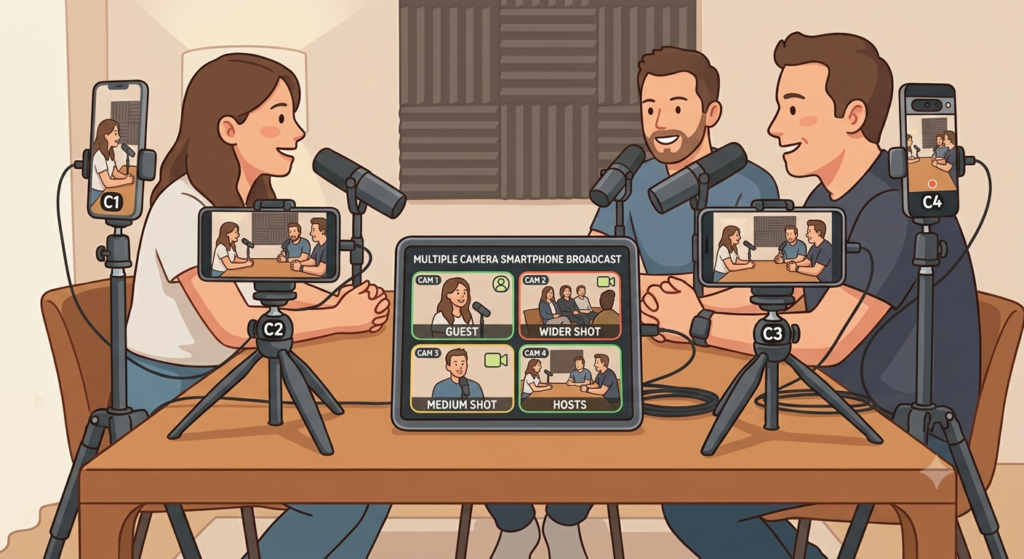
Viewing habits are moving in the same direction. In October 2025, viewers watched more than 700 million hours of podcasts on living room devices on YouTube, up from 400 million a year earlier. YouTube also reported more than 1 billion monthly active viewers of podcast content as of January 2025. As more of this viewing moves to larger screens, extra camera angles give a live show more to work with than a single fixed shot.
This list covers seven apps and tools for streaming with multiple cameras on Android and iPhone. Each section explains what the tool does and what it doesn’t do well, so you can choose the one that works best for your show.
What to Look For in a Streaming App
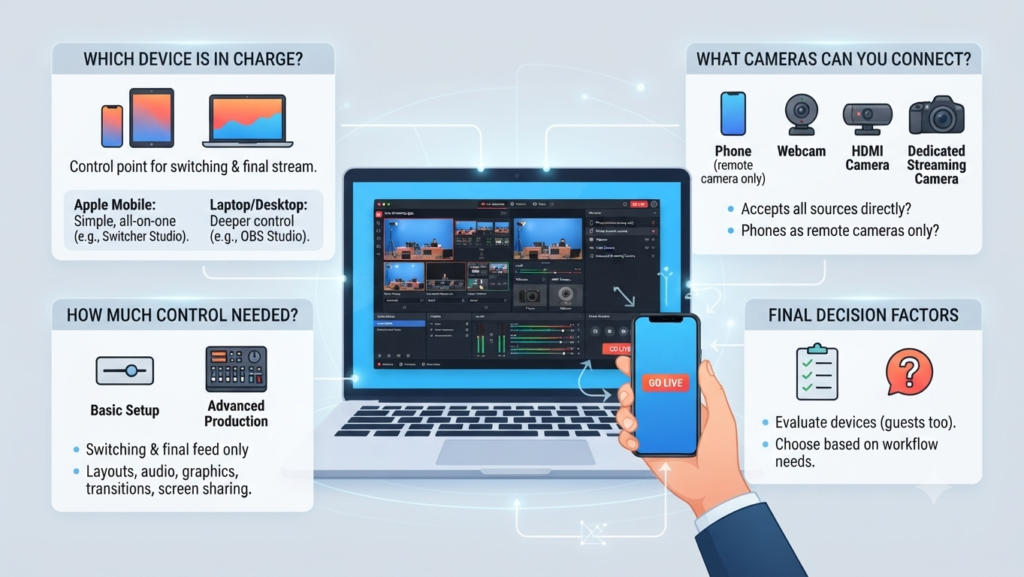
The right app is decided less by its feature list than by three practical questions: which device is in charge, what cameras can you connect, and how much control does the production need.
Which Device is in Charge?
One device acts as the control point, switching angles, managing audio, and sending the final stream. Everything else is either a camera or a guest. If that device is an iPhone or iPad, an app built around Apple hardware, such as Switcher Studio, keeps the whole production on one screen. If it is a laptop, desktop software such as OBS Studio gives deeper control over scenes, audio, and overlays, but it takes longer to learn and configure.
What Cameras Can You Connect?
Phones, webcams, HDMI cameras, and streaming cameras each connect differently, and not every app supports all of them. Some apps accept a phone only as a remote camera, meaning it can send video but cannot control the stream. Before choosing an app, list every device you plan to use, including guests’ devices, and rule out any app that cannot support them.
How Much Control Does the Production Need?
Some productions only need to switch between camera feeds and send the final video live. Others need more control over layouts, audio, graphics, transitions, screen sharing, and what viewers see at each point in the stream. A simple app can be enough for a basic setup, while a more advanced production may need software that gives the operator control over each part of the broadcast.
Choosing the Right App for Your Setup
Each tool in this guide performs a distinct function in a multi-camera production, so the right choice depends on the equipment and workflow already in place.
- Apple-based productions (iPhone, iPad or Mac): Switcher Studio is the most suitable option. It combines up to nine camera sources and accepts Android phones as remote cameras.
- Mixed iPhone and Android crews, or teams using Mevo cameras: Mevo Studio with Mevo Go enables live switching across both platforms and turns phones into additional camera sources.
- Budget-conscious, computer-based productions: OBS Studio offers a free, highly configurable control room that accepts phone cameras as sources.
- Mac-based productions with iPhone cameras: Ecamm Live works as a camera switcher on a Mac and accepts a plugged-in iPhone or iPad as a camera.
- Productions that rely on scenes and effects: PRISM Live Studio allows a phone to feed scenes built in its desktop application.
- Productions using professional cameras or a larger existing setup: CameraFi Live connects external cameras to a phone, and Larix Broadcaster delivers a clean feed to a switcher.
App | Where it runs | Cuts between several cameras | Multistreaming |
iPhone, iPad, and Mac, with Android as a remote camera | Up to nine sources | Two destinations on Studio, 20 on Suite | |
iOS and Android, with Mevo Go adding phones as sources | Across Mevo cameras and phones | Requires Mevo Pro | |
iOS and Android, plus a desktop app | Through its desktop app | One channel free, six with Plus | |
iOS and Android | Not a switcher; it sends a feed to one | Depends on what receives the feed | |
Android and iOS | Phone and one external camera on iOS | Sends to RTMP and SRT destinations | |
Windows, macOS, Linux | Phones as sources | Through RTMP, usually with a relay service | |
Mac only | iPhone or iPad plugged in, plus USB and NDI sources | Up to 10 destinations, depending on plan |
What to Check Before You Pick an App
A phone can do one of three jobs in a live stream: capture video as a camera, cut between several video sources as a switcher, or compress the signal and send it online as an encoder. App store descriptions often use the same terms for all three, which makes it tricky to tell what an app actually does. An app that sends one good feed is a different tool from one that lets you cut between three feeds live, so decide which job you need done before you compare apps.
Switching and Camera Inputs
Real multi-camera production means you can see several sources and choose the program angle while you are live. Check which devices the app accepts as sources and how they connect. One iPhone with several lenses is a separate thing from several phones in a room. Apple’s camera team introduced simultaneous capture from multiple cameras on iPhone XS, XS Max and XR with iOS 13, and Larix uses it for picture-in-picture and side-by-side capture on a single iPhone. That gives you two views from one position and not two positions.
Multistreaming and Recording
Multistreaming sends one program to many destinations, and it does not by itself give you a clean recording. Airmeet’s guide to live podcast platforms explains that multistreaming and isolated local recording are separate capabilities that often appear on the same feature page. It is also worth finding out whether an app sends one feed to a cloud service or a separate feed to every destination, because each extra feed adds load on your phone and your network.
The Seven Best Apps
1. Switcher Studio: Best When an iPhone, iPad, or Mac Runs the Show
Switcher Studio is the best choice when an iPhone, iPad, or Mac is in charge. The main app runs on those devices, while Android phones join as cameras through a separate remote camera app. Webcams and screen shares come in through Switcher Cast, HDMI cameras connect through the Accsoon SeeMo adapter, and NDI cameras are supported in beta. Switcher’s own setup guide shows an iPhone, an Android phone, and a laptop webcam working together in one production.
Switcher combines up to nine camera sources and supports up to five remote guests. It also offers instant replays of the last 10, 20, or 30 seconds, a built-in clip creator, and automatic saving of every broadcast as a video file.
The Studio plan includes multi-camera streaming and multistreaming to two platforms, and the Suite plan raises that to 20. All plans include a 14-day free trial, and you can find current prices on Switcher’s pricing page. If a destination has no built-in integration, a custom RTMP channel can be set up.
The main drawback is that it leans toward Apple devices. An Android phone can be a camera, but it can’t run the production.
2. Mevo Studio With Mevo Go: Best for Phone-First Switching That Includes Android
Mevo Studio is the control app for Logitech’s Mevo cameras, and Mevo Go is the companion app that turns an iOS or Android device into a source. According to Logitech, the pairing supports multi-camera streaming and recording in 1080p with any mix of Mevo cameras and phones. The operator taps a camera to cut to it, an auto-director toggle can switch the show automatically, and each camera’s audio is mixed separately.
The app also supports NDI|HX devices and webcams, which, like phone sources and multistreaming, require Mevo Pro.
That makes Mevo the closest alternative to Switcher for teams that want to run the production on an Android device, since Mevo Studio is available on both iOS and Android.
The limits are cost and ecosystem. Phone sources and multistreaming require the Mevo Pro subscription, and Logitech’s own cameras form the basis of the system.
3. PRISM Live Studio: Best for Creator-Style Scenes and Effects
The most useful trick PRISM has for multi-camera work sits on the desktop side. Its mobile app has a CONNECT button that links the phone to PRISM’s desktop app, and the iOS app store listing says the phone then serves as a video and audio source after a QR code scan. That lets a phone with a good camera feed a scene you build on a computer.
On its own, the mobile app streams in camera, screen, and VTuber modes at up to 1080p and 60 frames per second, depending on the device, and exposes manual controls for focus, exposure, ISO and shutter speed. The PRISM Plus page shows one streaming channel on the free tier and six with Plus, along with the price and a free trial for new subscribers. The iOS app needs iOS 16 or later.
4. Larix Broadcaster: Best for Sending a Clean Feed Into Someone Else’s Setup
Larix is a contribution app. It sends video and audio over SRT, RTMP, NDI, WebRTC, RTSP, Zixi and RIST from iOS and Android, and the iOS page lists 4K streaming on recent iPhones. The NDI side is NDI HX certified, which helps when the receiver is a production switcher on the same network. NDI output is a paid add-on, so check what your plan unlocks before you build a show around it.
For a producer, the useful extras are talkback over SRT, RTMP, Icecast, and SLDP so you can speak to the person on camera, and the Larix Tuner web service for managing several app instances remotely. Larix also lists OBS Studio among its supported destinations.
The app is free, with some features, including the iPhone multi-camera capture mentioned earlier, tied to a subscription described on the Larix Premium page. It does not include a switcher, so plan what receives the feed before you shoot.
5. CameraFi Live: Best for Plugging Real Cameras Into a Phone
Plenty of people own a mirrorless camera or camcorder that looks better than any phone, and CameraFi Live exists to get that picture into a stream. On Android it connects USB video class cameras, and the team’s own guide shows how to bring in a DSLR or camcorder through an HDMI to UVC capture card. The iOS version connects external cameras through Accsoon’s SeeMo adapter and can switch between the phone’s built-in cameras and the external source.
The app broadcasts to YouTube, Facebook, OBS, vMix, RTMP, and SRT and supports web source overlays, including alert tools such as Streamlabs. USB camera support can vary by phone model, so test the exact phone, adapter, and camera before show day.
6. OBS Studio With Phone Cameras: Best Free Control Room
OBS is free, and the trade for that is your time. You build scenes, wire in each source, and own every failure, which suits a producer who likes building a system and frustrates someone who wants a single button. The official smartphone camera guide lists several ways to bring a phone in, including Camo, which supports iOS and Android over USB or Wi-Fi, Apple’s Continuity Camera on iOS 16 and macOS 13, and DroidCam with its OBS plugin.
Two other routes are worth knowing. VDO.Ninja sends video between browsers over WebRTC and works as a browser source in OBS without extra software, so a guest or a second phone can join with a link. Larix can send SRT into OBS, as covered above. OBS is the most flexible option on this list and the one where a rehearsal pays off most.
7. Ecamm Live: Best for Mac-Based Productions With iPhone Cameras
Ecamm Live is a live production studio built exclusively for Mac, and it works as a camera switcher for cutting between sources live. A plugged-in iPhone or iPad can serve as a camera, a DSLR or mirrorless camera can connect over USB, and NDI sources appear in its camera switcher.
Multistreaming reaches up to 10 destinations depending on the plan, so confirm the current limit on Ecamm’s pricing page. A 14-day free trial is available.
The main limits are the platform and the cabling. Ecamm runs only on a Mac, so it does not suit Windows or Android-first teams, and phones plug in by cable, which limits how far each one can sit from the computer.
Other Streaming Tools Worth a Look
Streamlabs Mobile is built mainly around a single device. Its Collab Cam feature can add a guest or an extra camera, but the app is aimed at mobile gaming and on-the-go streams rather than multi-angle productions. Only Ultra subscribers and people redeeming rewards can multistream to Twitch, YouTube, Facebook, and TikTok from mobile.
StreamYard and Restream are browser-based studios built around webcams and remote guests rather than several phone cameras in one room. They are worth a look if broad multistreaming matters more than camera angles.
Webinars and panels often need an event platform on the audience side. Platforms such as Airmeet add polls, Q&A, and live chat around the stream and can send a session out to YouTube, Facebook, LinkedIn, and X, so the audience experience can be handled separately from the camera setup.
How to Build a Reliable Phone-Based Setup
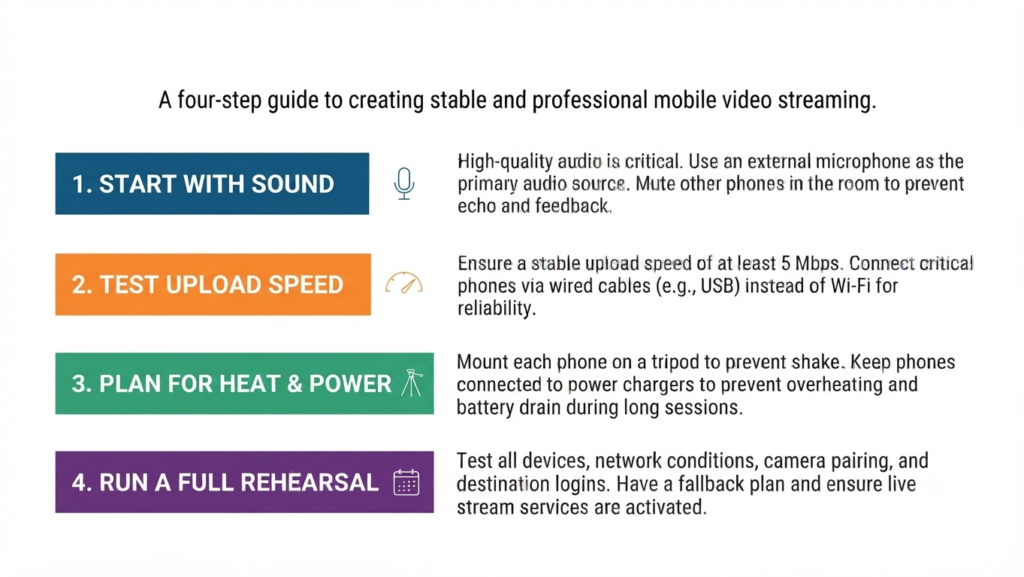
Start with sound. Switcher’s setup guide advises that viewers will sit through a shaky shot but not audio they cannot understand, and it calls an external microphone the highest-value upgrade. Use one microphone path for the show and keep the other phones muted, because several open microphones in one room cause echo.
Test your upload speed before every session. Switcher suggests at least 5 Mbps of upload as a starting point, and more cameras or higher quality need more. Put the hub device on the strongest connection, and if a phone offers a cable option, such as Camo over USB, use it so Wi-Fi is not part of that camera’s path.
Plan for heat and power. Apple’s camera team flagged hardware, thermal and bandwidth constraints when several cameras run at once, and a phone that films, encodes, and sends video for an hour gets warm. Switcher recommends one tripod for every angle, so mount each phone and keep a charger on it.
Run a full rehearsal with the same devices and network you will use on air. Check camera pairing, destination logins, audio monitoring, recording playback, and your fallback camera. A first YouTube live stream can take up to 24 hours to be enabled, so set that up days ahead. After the show, the recording is worth more than a replay link, and Airmeet’s guide to turning webinar recordings into powerful assets covers what to do with it.
Conclusion: Choosing the Right Multi-Camera Setup
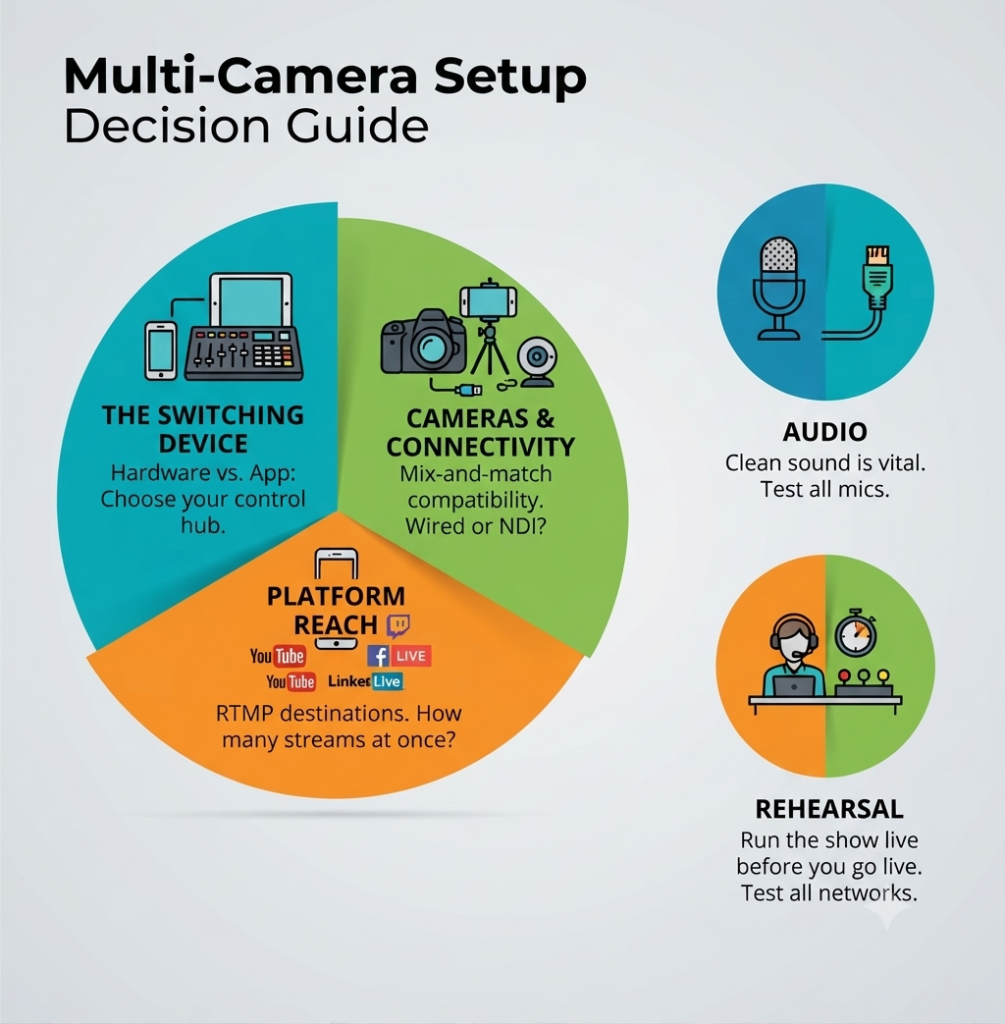
A multi-camera stream once meant racks of equipment and a crew to run them. Today, you can achieve the same result with phones you already own, as long as the app suits how you run the show. The device in charge of switching, the cameras you can actually connect, and the number of platforms you need to reach will narrow the field faster than any feature list.
Audio and connection quality shape the viewer’s experience more than the app does. A plain layout is easily forgiven, but muffled sound or a feed that drops mid-show is not, so a full rehearsal on the same devices and network you will use live is worth more than another hour spent comparing options.
FAQs
Switcher Studio, Mevo Studio with Mevo Go, OBS Studio, and Ecamm Live are the strongest options for switching between cameras. Switcher is built around iPhone, iPad, and Mac; Mevo accepts both iPhone and Android phones as sources; OBS is the free desktop option for a more flexible production; and Ecamm suits Mac-based productions.
PRISM Live Studio suits mobile creators who want scenes, effects and multistreaming, and Larix Broadcaster sends a phone feed into a larger production.
Switcher Studio is the clearest fit. The main app runs on iPhone, iPad, and Mac and combines up to nine sources. Check its pricing page before you buy, since the two-platform multistream cap on the Studio plan may not suit every show.
The method depends on the app. Switcher uses a separate remote camera app for Android. Mevo Go turns an Android phone into a source for Mevo Studio. Larix can send SRT into OBS. Camo and DroidCam both appear as camera sources in OBS.
OBS Studio is free and can take phone cameras as sources. Larix Broadcaster is free with some features behind a subscription. Switcher, Mevo, and PRISM offer free trials or limited free tiers, so check what each includes.
Switcher can run a whole show on an iPad or iPhone, and Mevo Studio runs from a phone or tablet. A computer helps if you want OBS scenes, capture hardware, or finer audio routing, and it is required when phones feed a desktop switcher. Ecamm Live runs only on a Mac.
Some apps support multistreaming on their basic plans, while others reserve it for paid tiers or require a separate tool to send your stream to multiple destinations. Check how many platforms each app supports and whether multistreaming is included in your chosen plan before making a decision.
Test camera pairing, echo, battery and heat, upload stability, destination logins, recording playback, and your fallback camera. Start with your upload speed and the 24-hour live enablement window some platforms require, and run the whole list with the same phones and network you’ll use on air.