




A live stream gives your audience a reason to be there at a certain time. But when you go live, not everyone who wants to watch will be there. By recording the same event, you get something to share later, whether it’s an on-demand replay, shorter video clips, or other content formats based on the session.
You don’t have to sacrifice live streaming for recording. The right setup can live stream and record at the same time. Your approach will vary depending on the type of event, the level of production control you need, and where you want the recording to be stored or published.
Can You Record While Live Streaming?
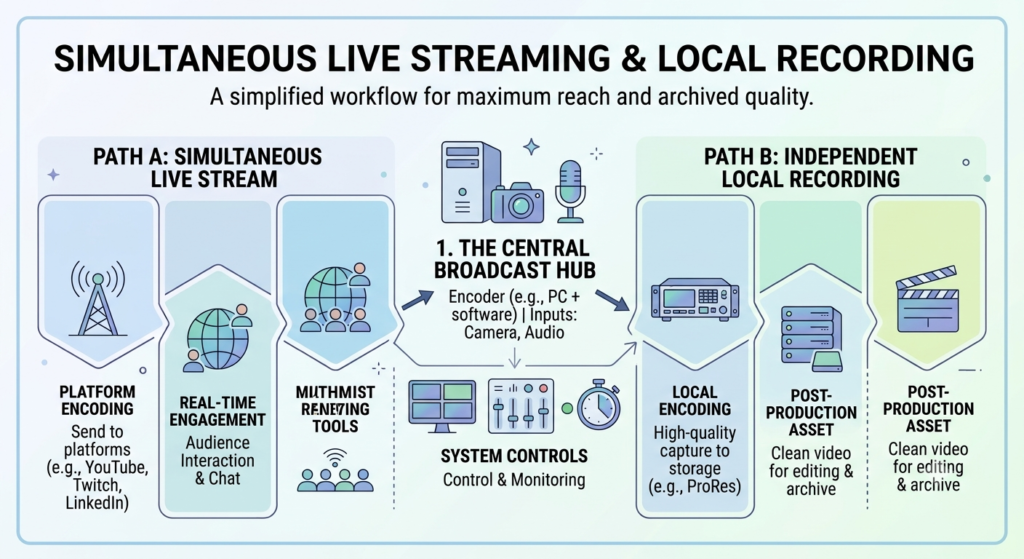
You can record an event and stream it live at the same time. Your camera, microphone, screen and other sources are combined into a single video feed. That feed is then streamed live to your audience and also saved as a recording. You can stream the event live and get a recording for later use, all from the same setup.
OBS Studio is free, open-source software for recording and live streaming. It confirms that it can record at the same time as streaming.
Or you can also choose a webinar or virtual event platform such as Airmeet that includes recording as part of the event workflow. It can come in handy when you need more than just a video file, like attendee registration, audience interaction, Q&A, live streaming etc.
Why Record a Live Stream?
A live event has a limited window. Once it ends, the audience that could not attend has to wait for another opportunity unless you have a recording available.
Recording gives the event a longer life.
For example, a one-hour webinar can be turned into an on-demand session that people can watch later. You can also use segments from the recording and create content for social media, email campaigns, blog posts, training material, etc.
This is particularly helpful for webinars and business events where the content delivered in a live session can continue to be valuable long after the original broadcast.
Airmeet’s on-demand webinar approach also considers how recorded sessions can be repurposed across formats, from short video clips and social posts to blog content and full replays.
What Do You Need to Record and Live Stream at the Same Time?
You do not necessarily need a complicated production setup. The type of event will determine the equipment and software you need.
A camera
A webcam is enough for a simple webinar or presentation. For larger productions, you may want to use an external camera or multiple camera sources.
A microphone
Good audio matters just as much as video quality. A poor microphone can make an otherwise decent recording difficult to watch.
If you are using more than one speaker, test every microphone before the event begins.
A reliable internet connection
Your live stream depends on your upload connection. A high download speed does not automatically mean you have enough upload bandwidth for streaming.
YouTube recommends testing your upload bitrate before going live, and leaving some bandwidth available rather than using the entire capacity of your connection. It also recommends leaving some room in your upload bandwidth and checking your outbound connection before streaming.
How to Record and Live Stream Simultaneously with OBS
If you’re using OBS for the event, set up the stream and recording before you go live. Check both settings beforehand so you don’t have to change them during the session.
A simple setup looks like this
- Add your camera, microphone, screen, or other sources in OBS.
- Set up your scenes and check the audio mixer.
- Connect OBS to your chosen streaming platform.
- Set up your recording settings and where to save them.
- Test run before the event.
- When you are ready, you can begin recording and streaming live.
OBS recommends recording in MKV format, as it is less likely to corrupt the entire file if the recording is interrupted. It also mentions that if you select a recording quality other than the stream, it may consume additional computer resources.
OBS can be a good choice if you want hands-on control of the production. But it’s primarily recording and broadcasting software. It does not replace the broader event management features needed for a webinar that you may require, such as registration, attendee engagement, Q&A, networking, and post-event follow-up.
Webinar Platform for Recording & Live Streaming
For webinars and virtual events, another possibility is to use an event platform that integrates the live event and streaming workflow.
Rather than separately handling the recording and broadcast, the platform can run the session and provide you with tools for managing the audience and event experience.
For example, Airmeet allows you to live stream sessions to destinations such as YouTube and Facebook, as well as LinkedIn Live through Custom RTMP. Its current multi-channel live streaming workflow also includes recording options for replay and reuse.
This approach can be useful when the goal is not simply to broadcast a video but to run a complete webinar or virtual event and then extend its value through the recording.
Can Recording Reduce the Quality of a Live Stream?
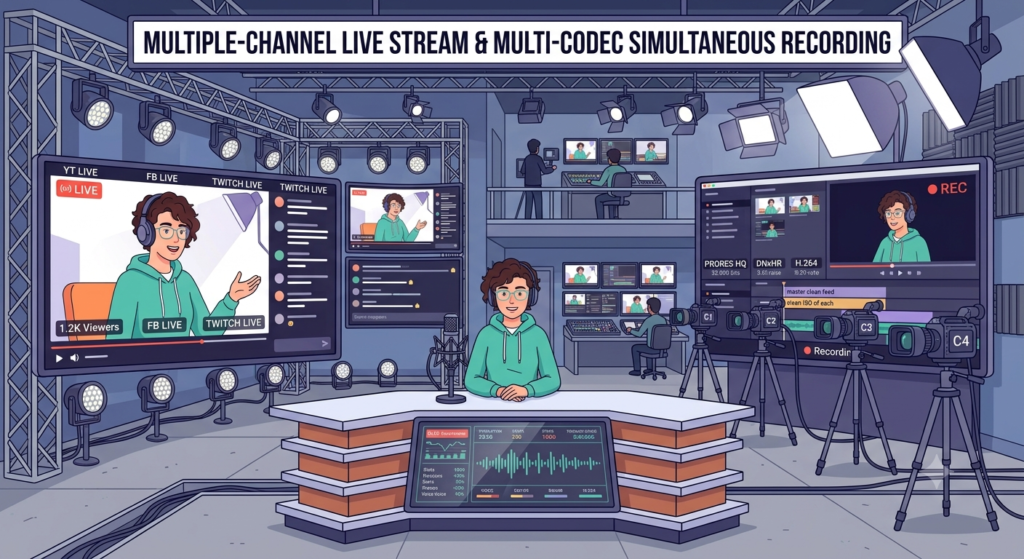
Note that streaming and recording at the same time can put a load on your computer, as it must process and encode the video. Using multiple cameras, high-quality video, screen sharing, animations, or other sources, the load will be higher.
OBS recommends checking your encoding settings and system resources when dealing with a more demanding setup. Your internet connection equally plays an important role. The live stream requires sufficient upload bandwidth to reliably send the video to the streaming service.
YouTube also recommends testing the stream before the event and monitoring stream health while you are live. The important thing is not simply to choose the highest possible quality. Your settings should match what your computer and internet connection can reliably handle.
Will the Recording Be of the Same Quality as the Live Stream?
The live stream needs to be optimized to ensure a reliable delivery to the viewer, but the local recording can be saved at another quality depending on later use. OBS allows recording quality to be set separately from the stream.
If you plan to edit clips from a local recording later, you might want a higher-quality recording. However, if you have a low-end computer, trying to push both the live stream and recording to very high settings could be an unnecessary strain. OBS notes that recording settings other than the stream can use additional computer resources.
The right mix depends on your gear, connection, streaming destination, recording goals etc.
Common Problems When Recording and Streaming at the Same Time
Running recording and streaming simultaneously can increase the load on your computer and create a few potential issues if the setup isn’t configured properly.
Your computer is bogged down
Video encoding can be a resource-intensive process. Adding local recording can increase the load if you already have several cameras, browser windows, screen sharing, etc. running on your system.
Close any applications you don’t need during the event and do a test run before going live. YouTube also recommends testing your live stream before the event.
Your live stream is loading
To stream live, you need a stable upload bandwidth. If the stream is set to a high bitrate for your connection, viewers may experience buffering or a loss of quality of the stream.
YouTube recommends leaving some upload bandwidth available rather than using your entire connection for the stream.
Your recording takes up too much storage
High-quality video files can become large quickly. Check your available storage before the event, especially if you expect a long session.
Also decide in advance where to store the recording and how to back it up.
Your audio is missing from the recording
A stream can look fine while still having an audio problem. Before starting, check the microphone levels and make sure the correct audio sources are included in the recording.
A short test recording can catch problems that a quick visual check may miss.
You forget to start the recording
This is one of the simplest problems to avoid. Add recording to your pre-event checklist and confirm that it has actually started before beginning the main presentation.
Using a platform with automatic recording can also reduce the chance of losing an entire session because someone forgot to press a button.
If you plan to make the recording available after the event, consider how to present and promote the replay.
Best Practices for Simultaneous Recording and Live Streaming
With a little prep work, recording and live streaming at the same time can be simple and help you avoid problems during the event. The idea is to make sure your recording, live stream, audio, equipment etc. are all working properly before you go live.
A few simple checks can also help you avoid issues such as poor audio, insufficient storage, buffering, or a failed recording.
Test before the event
Do a complete test with the same camera, microphone, presentation, and internet connection you plan to use during the actual event.
Check audio separately
Do not assume that excellent video means good audio. Listen to a short test recording before going live.
Ensure you have enough storage space
Know the amount of space your recording might need and ensure your computer or storage destination can accommodate it.
Do not use more bandwidth than you need
Pick a stream quality that your connection can maintain consistently rather than just picking the highest available setting.
Keep the setup simple
Every additional camera, source, application, or production element adds another thing that can go wrong.
Have a backup plan
For an important event, decide what you will do if the primary recording or stream fails. This might mean an alternative recording method, a backup internet connection or a local copy of essential presentation material.
Monitor the stream while you are live
Do not assume everything is working because the stream started successfully. Monitor audio and stream health during the event.
What Can You Do With the Recording After the Event?
The recording should not have to sit on your computer once the event is over.
A webinar recording can become an on-demand version of the original event, allowing people who missed the live session to watch it later. You can also extract shorter sections for social media or create content around specific questions and topics that the session covered.
For example, one webinar could give you:
- A full on-demand recording
- Short video clips
- Social media posts
- A blog based on the discussion
- Email follow-up content
- Training material
- Highlights for a future event
This is one reason it makes sense to think about recording before the event begins. If you know how you’ll use the recording, you can plan the session around that.
Airmeet also covers several ways to turn webinar recordings into additional content, including social posts, short videos, blogs, YouTube videos, and on-demand replays.
Recording vs. Live Streaming
Recording | Live Streaming |
Saves the event for later | Delivers the event in real time |
Can be edited before publishing | Usually delivered as it happens |
Can be used for on-demand viewing | Creates real-time audience engagement |
Requires storage | Requires a stable internet connection |
Can be repurposed into other content | Can reach audiences across streaming platforms |
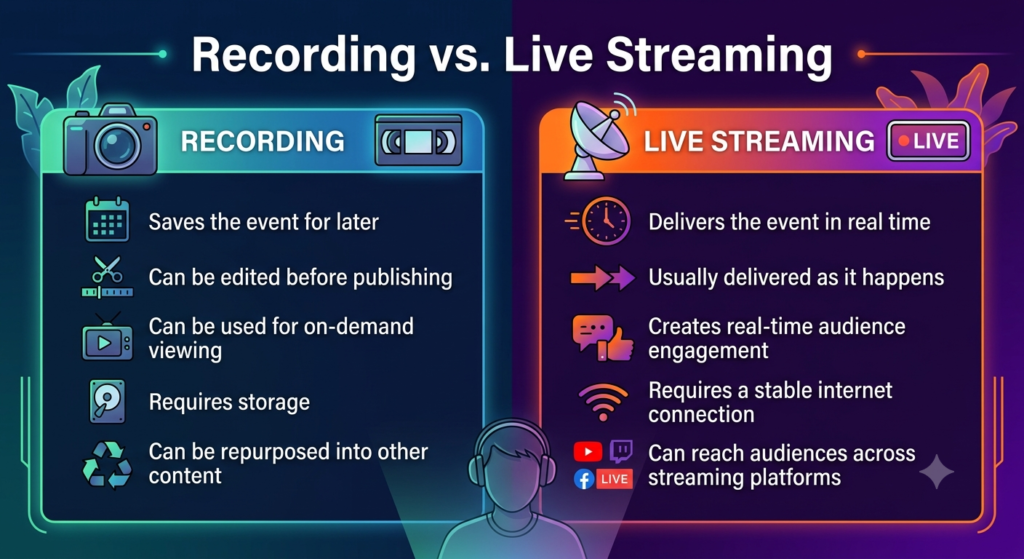
For many webinars and virtual events, you do not have to choose one over the other. Recording and live streaming serve different purposes, and using both can extend the value of the same event.
Conclusion
Recording and live streaming at the same time does not have to mean managing a complicated production setup. The trick is to pick a setup that matches the kind of event you’re running and how much control you want.
If you want a production-oriented setup, tools like OBS can give you more control over your sources, recording, broadcast settings, etc. For webinars and virtual events, an event platform can bring the live session, audience experience, recording, and distribution into a more connected workflow.
Either way, test your setup before the event, pay close attention to audio and upload bandwidth, and think about how you will use the recording afterward.
If you want to get more value from your recording, check out Airmeet’s on-demand webinar and content repurposing ideas. It covers practical ways to turn one webinar into content you can continue using after the live session ends.
FAQ
Software such as OBS can record locally and also send a live stream to a streaming platform at the same time. Webinar and virtual event platforms can also support recording alongside live events and streaming.
OBS Studio supports recording at the same time as streaming. Its recording settings can be configured separately from the live stream settings.
It depends on your resolution, frame rate, number of sources, encoder settings, and other applications running on the computer. Higher-quality video and more complex productions generally require more processing resources.
A webinar can be recorded while it is being streamed. The exact setup depends on the webinar platform or broadcasting software you use.
A local recording itself does not necessarily use additional upload bandwidth because it is saved to your computer. However, the live stream does require upload bandwidth, and your computer still needs enough processing capacity to handle both recording and streaming.
Yes. You can use a broadcasting tool such as OBS or a webinar platform that supports streaming to YouTube while you record the session. Airmeet, for example, supports streaming sessions to YouTube and other external destinations while providing recording capabilities.