Turn every webinar into a multi-channel audience engine. Broadcast an Airmeet session to YouTube, Facebook, LinkedIn Live, or any compatible destination through Custom RTMP—then bring more prospects into the moments that build trust, intent, and pipeline.
Your best webinar should not stop at the event room
Revenue-focused webinars compete for attention across fragmented channels. Your audience already spends time on YouTube, LinkedIn, Facebook, and other live platforms. Asking every prospect to discover a registration page, switch context, and enter a new environment can limit reach. Separate production workflows also create more handoffs, more opportunities for configuration errors, and slower campaign execution.
Audience fragmentation Prospects already spend time on social platforms, while the event experience often lives elsewhere.
Duplicate production Running separate broadcasts for each destination adds tools, operators, and risk.
Missed demand signals A smaller live audience means fewer moments to spark questions, shares, and sales follow-up.
Brand inconsistency Disconnected streams make it harder to deliver one controlled story across every channel.
The Solution
Stream once. Reach audiences everywhere
Airmeet lets organizers stream live sessions directly to supported social platforms or any compatible RTMP destination from the event dashboard. Configure your streaming destination before the event, then simply start the session from backstage. Airmeet automatically starts the external broadcast and stops it when the session ends.
Choose the session Open the event and select the session that should be distributed.
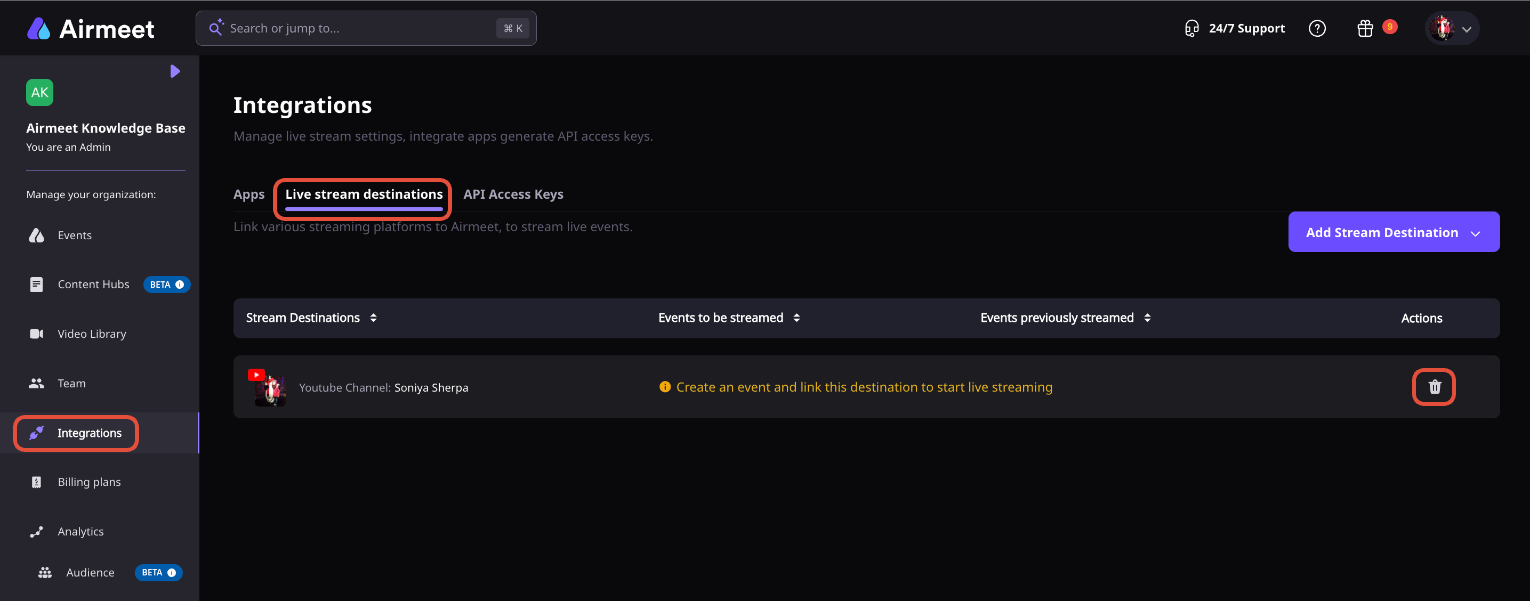
Add a destination Use YouTube, Facebook, or Custom RTMP details; LinkedIn Live can be reached through an eligible RTMP workflow.
Confirm before going live Set titles, descriptions, privacy, or stream details as the destination requires.
Start from backstage Start the mapped Airmeet session and the connected social broadcast begins.
Use Cases
One distribution layer, four revenue-event use cases
Social live streaming extends the top of the webinar funnel while Airmeet remains the production center for the session experience.
Demand generation
Meet prospects on high-reach social channels, then use the event narrative to create interest and follow-up moments.
Product launches
Broadcast demos and announcements where customers, partners, and category audiences already follow your brand.
Executive thought leadership
Extend keynotes and expert conversations beyond the registered room without rebuilding the production workflow.
Partner webinars
Give co-marketing campaigns broader distribution through brand and partner-owned live destinations.
Actual Product Screenshots
Step-by-step process: How Social Live Streaming Works
Step 1. Select the session
Open your event dashboard and choose the session you want to broadcast externally.
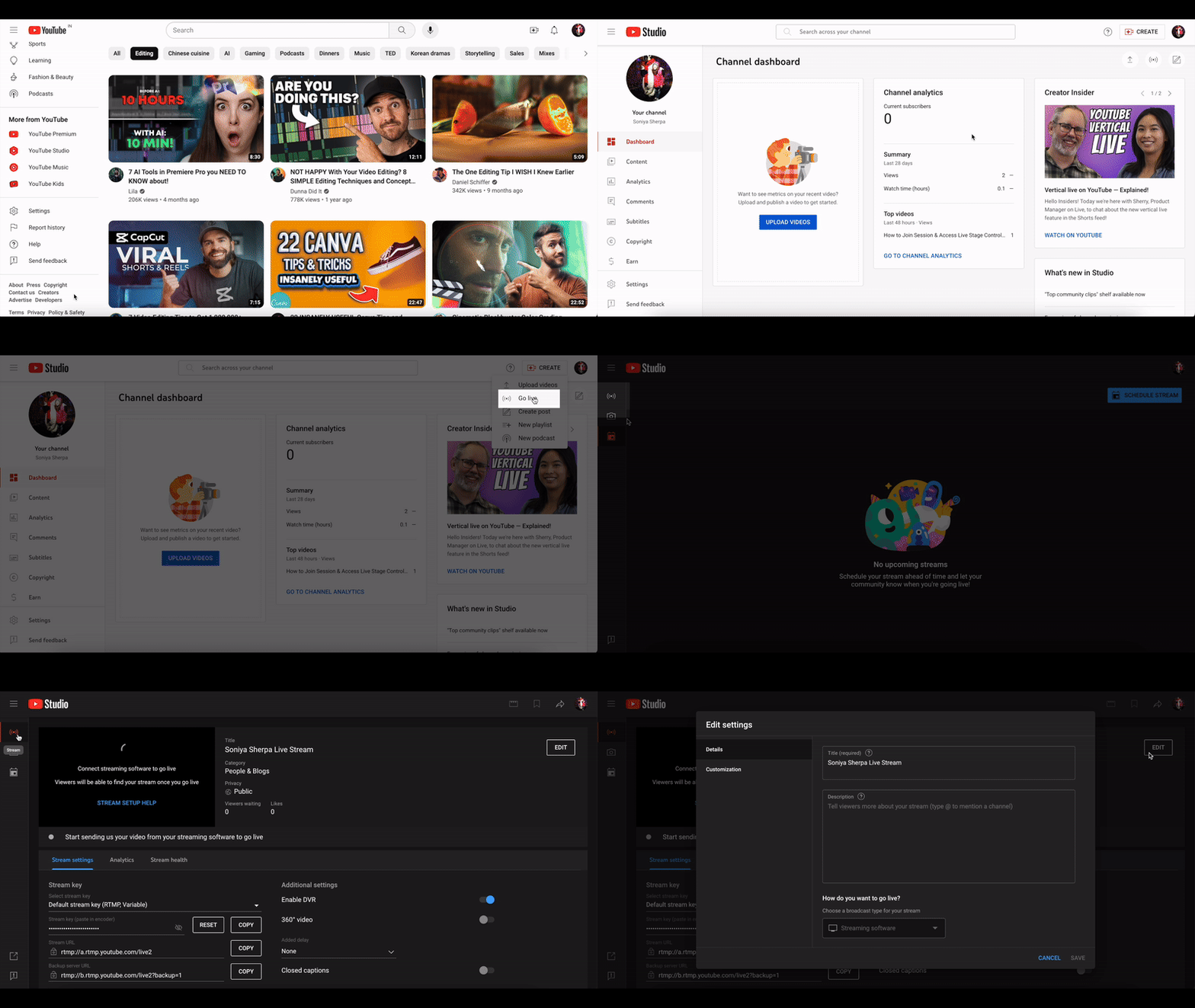
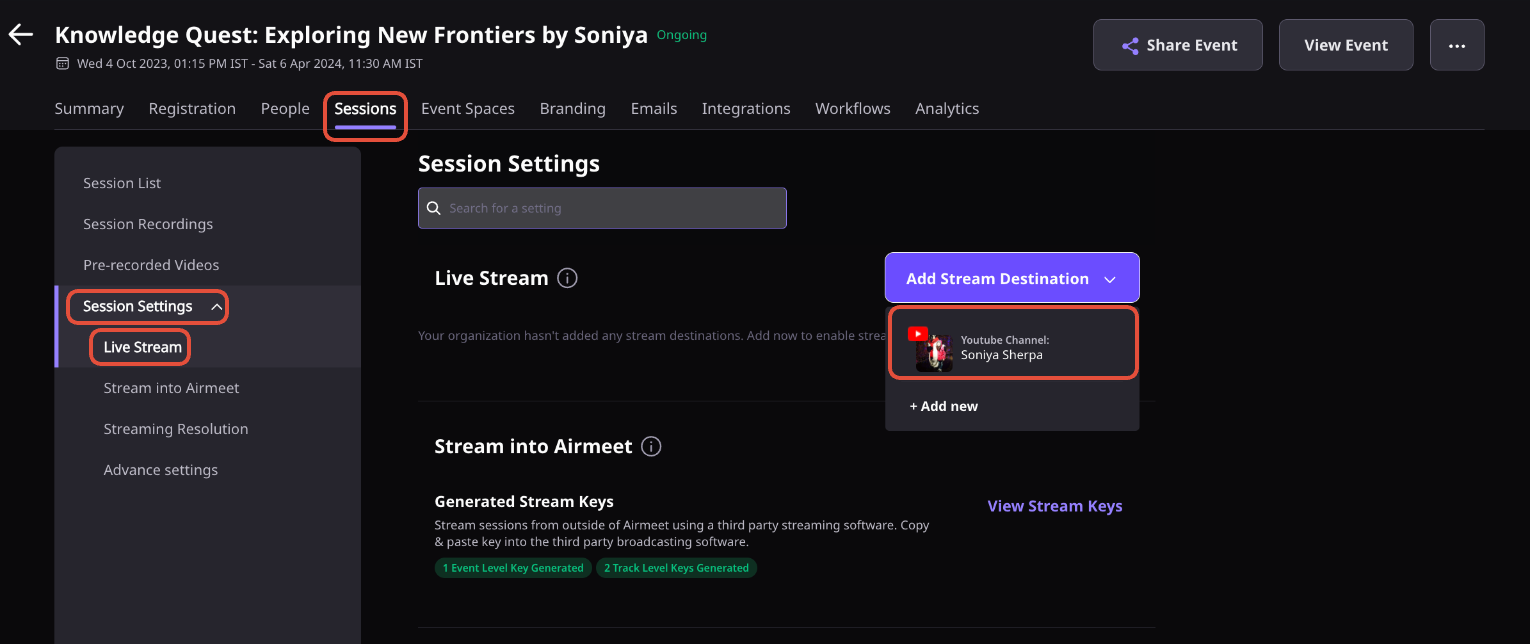
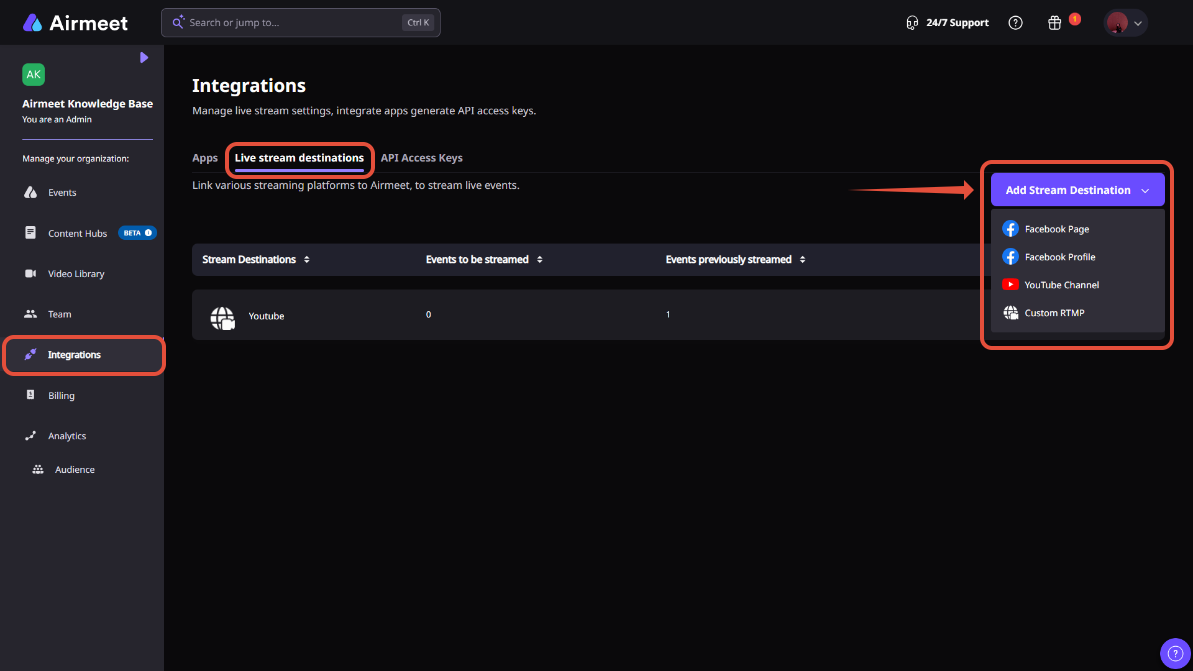
Step 2. Add a streaming destination
Select YouTube, Facebook, or configure a Custom RTMP destination. LinkedIn Live can also be supported through a compatible RTMP setup.
Step 3. Configure stream details
Enter the required stream information, such as the stream URL, stream key, title, description, and privacy settings.
Step 4. Review your setup
Confirm that the destination is connected correctly and verify your streaming settings before going live.
Step 5. Start your session
Launch the session from backstage. Airmeet automatically starts the connected live stream.
Step 6. End the broadcast
When the Airmeet session ends, the external live stream ends automatically.
Why Airmeet
Why choose Airmeet for Social Live Streaming
Airmeet brings live production, speaker control, brand delivery, audience engagement, and external distribution into one webinar operating model. Marketers can extend reach without handing the live experience to a disconnected toolchain—and use the same session content to create more awareness, engagement, and post-event conversations.
Centralized control Map destinations at the event or session level and trigger distribution from the session workflow.
Flexible reach Use major social destinations and Custom RTMP for compatible external broadcasters.
Campaign efficiency Keep one speaker and production experience while expanding the audience surface.
Operational clarity Saved destinations, status cues, and pre-live editing help teams prepare before broadcast.
help Center
Relevant Help Articles
Explore guides and tutorials to help you create, customize, and host exceptional events on Airmeet.
It is the ability to send an Airmeet session to an external live destination so audiences can watch on a supported social platform or compatible RTMP endpoint.
Airmeet supports streaming to YouTube, Facebook, and Custom RTMP destinations. If your LinkedIn Live account provides an RTMP stream URL and key, you can also stream to LinkedIn Live using the Custom RTMP option.
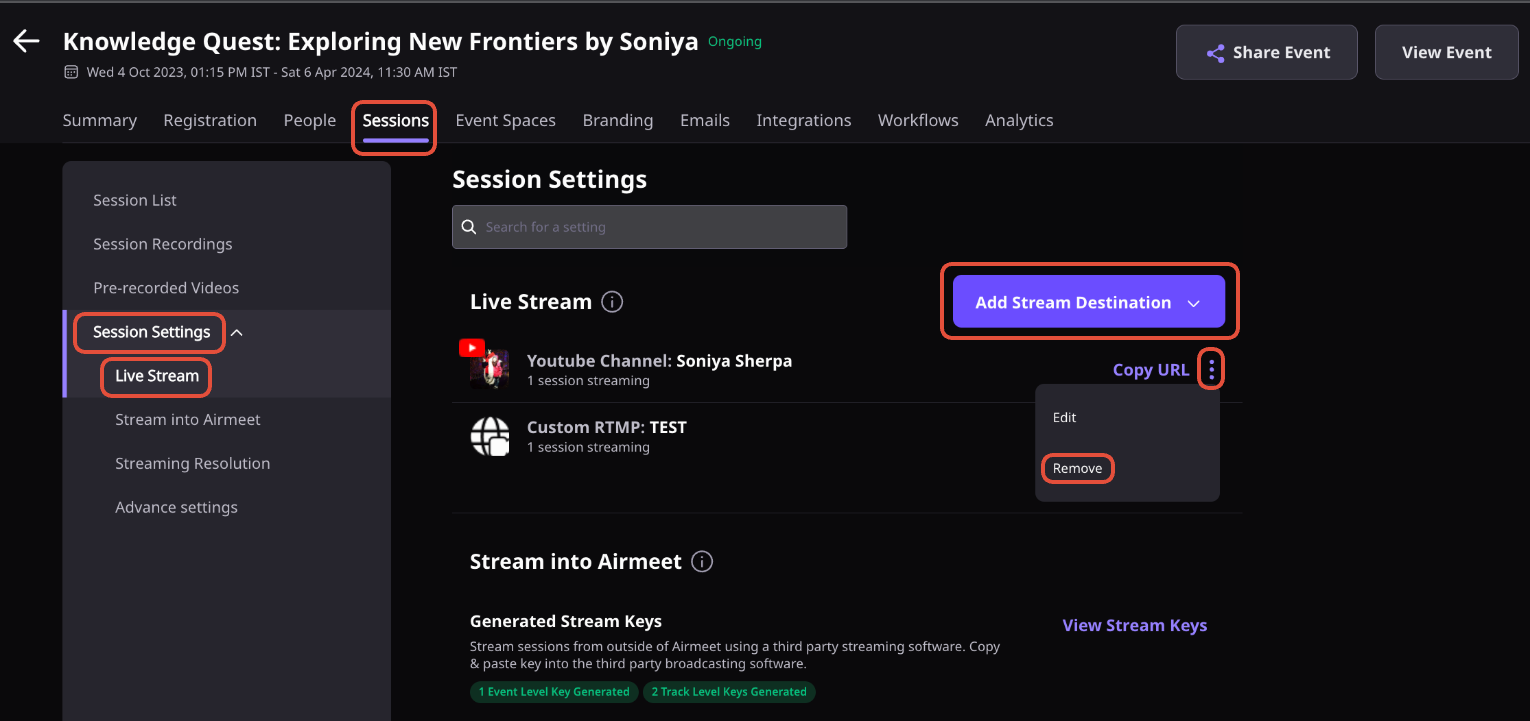
In the event dashboard, open Sessions, choose Session Settings, select Live Stream, and use Add Stream Destination. Labels can vary as the product evolves, so verify final screenshots before publishing.
It’s best to review and finalize your streaming settings before the session goes live. Once streaming has started, changing the destination may require stopping or restarting the broadcast.
The YouTube workflow supports parallel sessions as separate videos. For Custom RTMP, two parallel sessions cannot be streamed through that workflow at the same time.
Yes. Custom RTMP streams typically have a delay of around 15–20 seconds, so moderators should account for this when interacting with viewers on external platforms.
Yes. The destination account must be eligible for live streaming, and RTMP workflows require a valid stream URL and key. YouTube activation can take time for newly enabled channels.
Before your session starts, confirm that your destination platform is enabled for live streaming, verify your stream URL and key, review privacy settings, and run a quick test to ensure everything is working as expected.
Airmeet features
Other Features to Explore
Discover more powerful features that help you create engaging, branded, and seamless event experiences with Airmeet.
“I was really excited to see how alive Airmeet seemed. The first time I raised my virtual hand to ask a question, I was brought up on stage, my camera flipped on, and I was able to talk with the presenters, that was the sold-moment in my head! That is what I wanted. We weren't going to be speaking at our audience. We wanted a two-way engagement. With the analytics in the background, that was my “Aha moment!”
Victoria YounesExecutive Events Manager
Incredible Companies Use Airmeet
Most loved Virtual Events Platform
“I was really excited to see how alive Airmeet seemed. The first time I raised my virtual hand to ask a question, I was brought up on stage, my camera flipped on, and I was able to talk with the presenters, that was the sold-moment in my head! That is what I wanted. We weren't going to be speaking at our audience. We wanted a two-way engagement. With the analytics in the background, that was my “Aha moment!”
Victoria YounesExecutive Events Manager
Incredible Companies Use Airmeet
Most loved Virtual Events Platform
“I was really excited to see how alive Airmeet seemed. The first time I raised my virtual hand to ask a question, I was brought up on stage, my camera flipped on, and I was able to talk with the presenters, that was the sold-moment in my head! That is what I wanted. We weren't going to be speaking at our audience. We wanted a two-way engagement. With the analytics in the background, that was my “Aha moment!”
Victoria YounesExecutive Events Manager
Incredible Companies Use Airmeet
Most loved Virtual Events Platform
“I was really excited to see how alive Airmeet seemed. The first time I raised my virtual hand to ask a question, I was brought up on stage, my camera flipped on, and I was able to talk with the presenters, that was the sold-moment in my head! That is what I wanted. We weren't going to be speaking at our audience. We wanted a two-way engagement. With the analytics in the background, that was my “Aha moment!”