

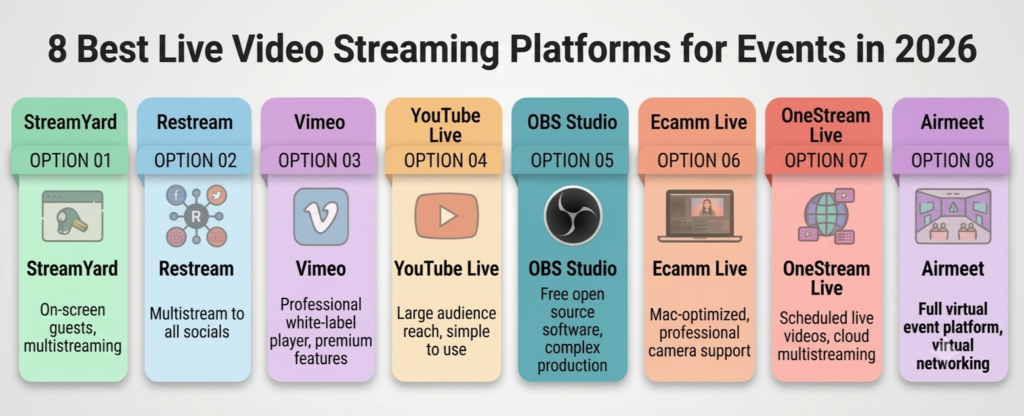
The eight options below cover the full range. Some run in a browser tab, some pass along a feed you produce elsewhere, one is a full events platform, and one is free software that asks a lot more from your team.
Note: Limits and prices change often, so confirm the current plan before you pay.
What to Compare Before Choosing Event Livestreaming Software
Factor | What to check |
Production control | A browser studio covers interviews and panels, while virtual event production with several cameras or detailed audio routing usually needs an encoder like OBS Studio. |
Distribution and access | Public reach and tight access control pull in different directions, so decide whether you need event-level privacy or search discovery on YouTube. |
Recording and replay | Check resolution, whether each guest gets a separate file for isolated recording, and how long files are kept, which Restream lists as 15 to 30 days depending on plan. |
Audience experience | Chat, captions, and delay shape the event, and YouTube recommends lower latency when you answer comments live. |
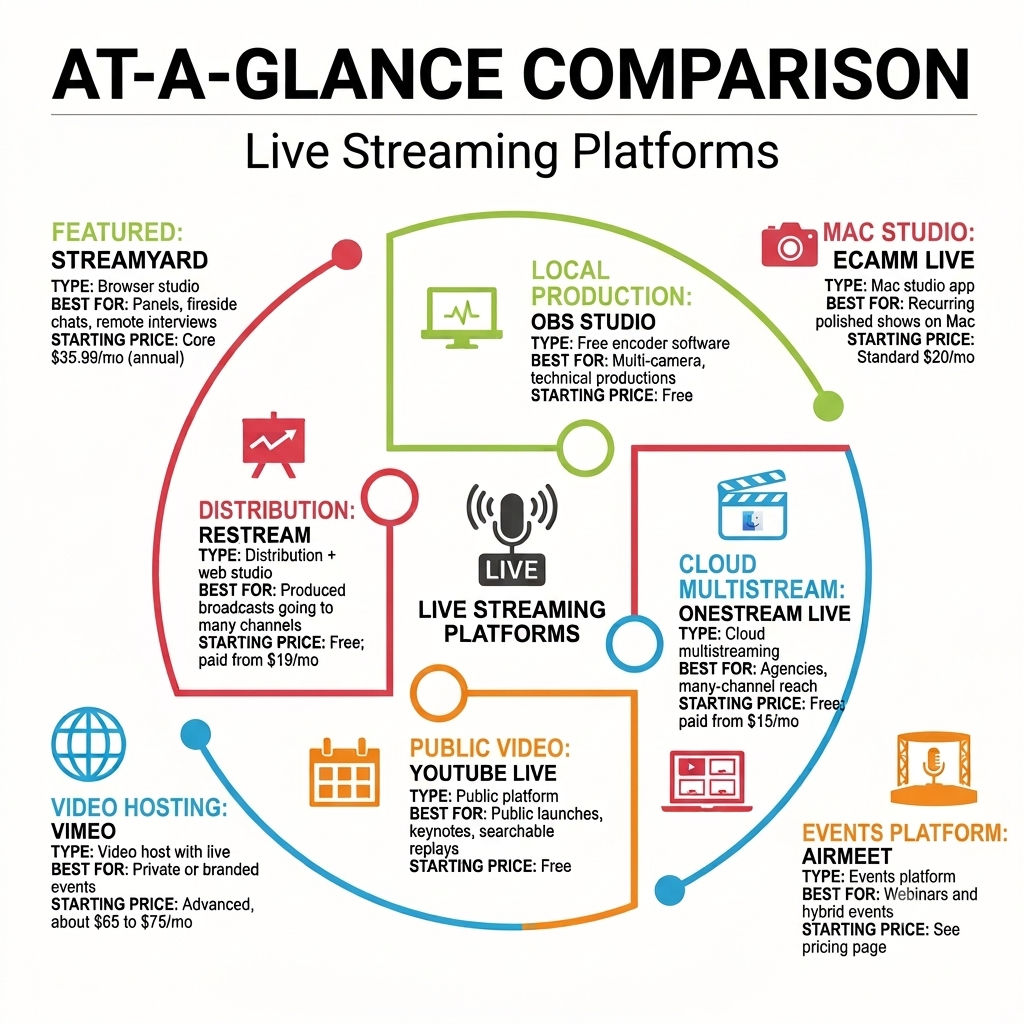
At-a-Glance Comparison
Platform | Type | Best for | Pricing model |
StreamYard | Browser studio | Panels, fireside chats, remote-speaker interviews | |
Restream | Distribution + web studio | Produced broadcasts going to many channels | |
Vimeo | Video host with live | Private or branded events | |
YouTube Live | Public platform | Public launches, keynotes, searchable replays | |
OBS Studio | Free encoder software | Multi-camera, technical productions | |
Ecamm Live | Mac studio app | Recurring polished shows on Mac | |
OneStream Live | Cloud multistreaming | Agencies, many-channel reach | |
Airmeet | Events platform | Webinars and hybrid events |
1. StreamYard
StreamYard is a browser studio, so remote guests join from a link, and the host runs layouts, banners, and screen shares from one tab, with no downloads.
Key features |
|
Best use case | Panels, fireside chats, and interviews with several remote speakers. |
Pricing | See current StreamYard plans for rates. |
2. Restream
Restream leans toward distribution. It sends one stream to 30+ social channels and accepts a feed from third-party streaming software or its own web studio.
Key features |
|
Best use case | Events that already produce in OBS or another encoder and need to reach many channels, such as a product launch going to YouTube, Facebook, LinkedIn, and Twitch at the same time. |
Pricing | Check the current Restream plans for up-to-date rates and annual billing discounts. |
3. Vimeo
Vimeo started as a video host, and live events sit on its higher tiers. Its help center says live streaming requires an Advanced plan or an Enterprise plan with the Events feature added.
Key features |
|
Best use case | Customer briefings, executive town halls, and other private or branded broadcasts where the player lives on your own site and you want control over who can watch. |
Pricing | Enterprise is a custom quote. Prices vary by billing period, so check Vimeo’s current plans before you set a budget. |
4. YouTube Live
YouTube Live is the usual choice for public reach and a replay people can find through search.
Key features |
|
Best use case | Public product launches, conference keynotes, and talks that should remain findable. It works best as one destination in a larger setup, with guest handling coming from the tool you stream with. |
Pricing | YouTube doesn’t sell streaming plans, so the cost is lead time. You need a verified channel with no live streaming restrictions in the past 90 days, and enabling it for the first time takes at least 24 hours. |
5. OBS Studio
OBS Studio is free and open-source software for recording and live streaming on Windows, Mac, and Linux.
Key features |
|
Best use case | Technical producers running conferences or hybrid events with several cameras, capture cards, and detailed audio routing, especially when the team already owns the hardware and has someone who has run it before. Remote guests, registration, and a viewing page come from other tools. |
Pricing | OBS is free and open source. The real costs are hardware, the operator’s time, and whichever relay or guest tool you pair it with. |
6. Ecamm Live
Ecamm Live is a live production studio built for Mac, with a 14-day free trial and a macOS 11.2 or newer requirement.
Key features |
|
Best use case | Regular live shows, like monthly town halls or product demos, run by someone on a Mac. It gives you camera switching, overlays, and remote guests without needing OBS. It doesn’t work on Windows, since it only runs on macOS. |
Pricing | Check Ecamm’s current pricing for rates and annual discounts. Remote guests need Pro, since Interview mode isn’t included in Standard. |
7. OneStream Live
OneStream Live is a cloud multistreaming service that sends one stream to 45+ social platforms.
Key features |
. |
Best use case | Agencies and teams stream for several clients or events that need to reach many channels at once, since one account can manage agency live streaming. |
Pricing | Check OneStream Live’s current plans for up-to-date rates and yearly discounts. |
8. Airmeet
Airmeet is an events platform rather than a pure streaming tool, so it covers the audience side that most options above leave to other software. Its multi-channel live streaming workflow sends one feed from your device to the cloud, which distributes it to multiple destinations.
Key features |
|
Best use case | Webinars and hybrid events where viewers register, interact, and expect an on-demand replay, and where the team also wants to reach viewers on social channels |
Pricing | Current plans are on Airmeet’s pricing page, and the team offers demos through the site. |
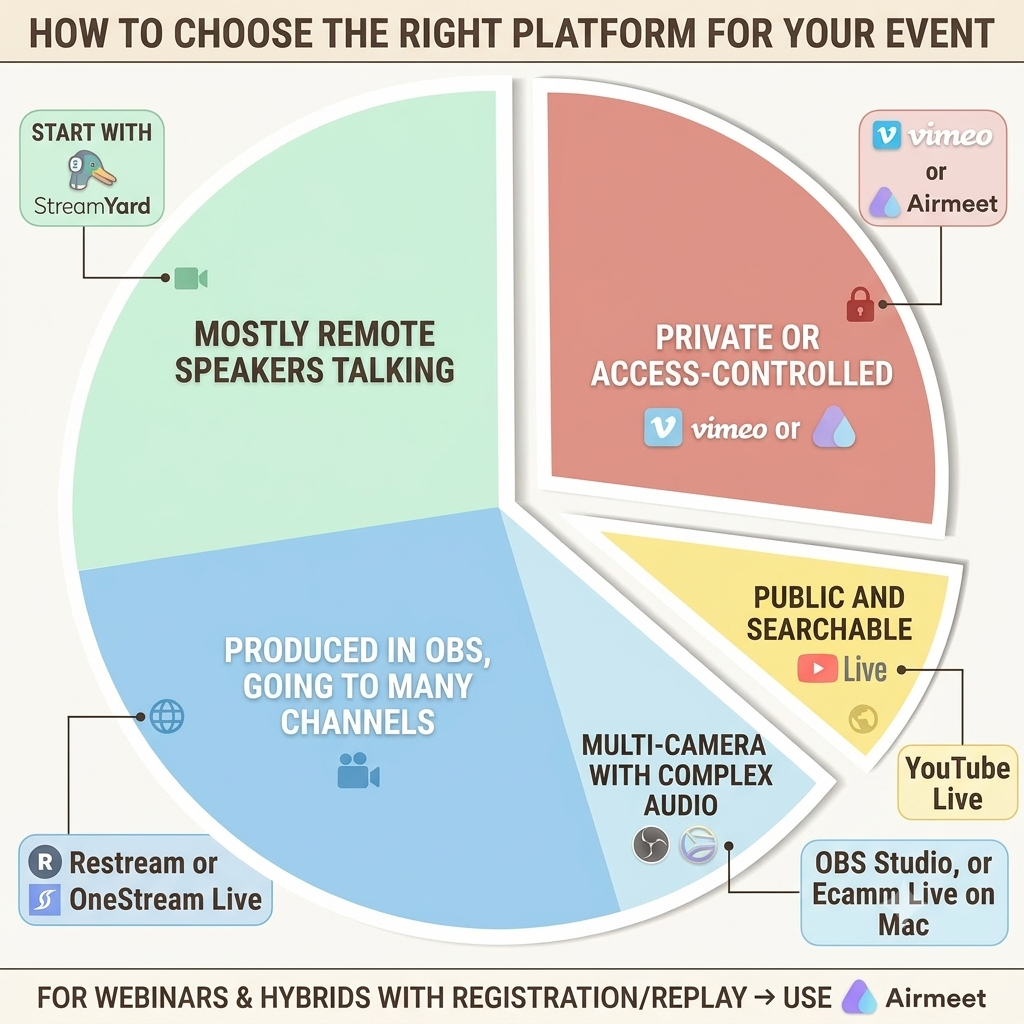
How to Choose the Right Platform for Your Event
If your event is… | Start with |
Mostly remote speakers talking | |
Produced in OBS, going to many channels | |
Private or access-controlled | |
Public and searchable | |
Multi-camera with complex audio | OBS Studio, or Ecamm Live on Mac |
Webinar or hybrid with registration and replay |
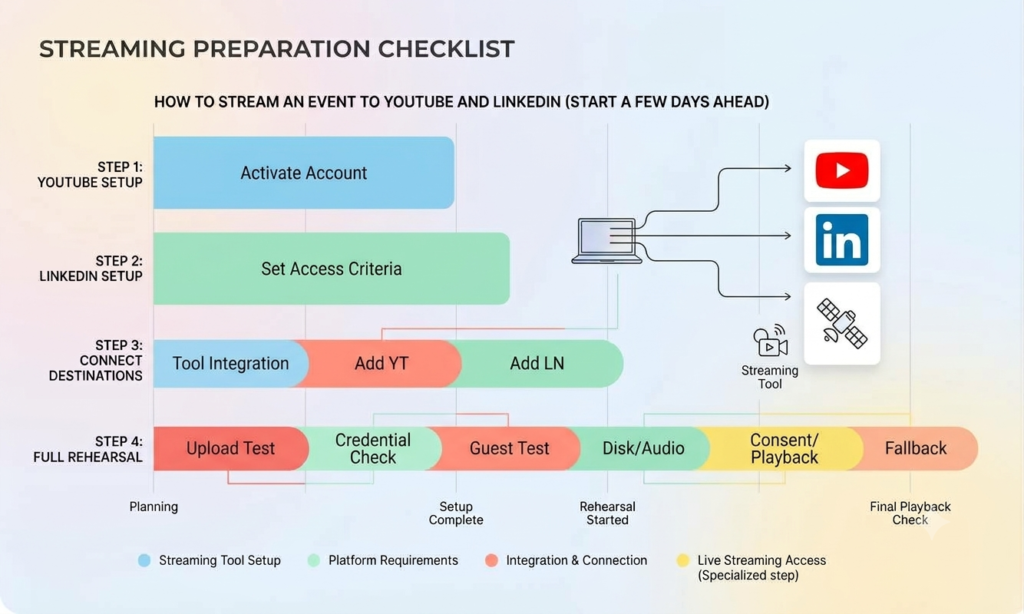
How to Stream an Event to YouTube and LinkedIn
Set up both accounts a few days ahead, because each has requirements.
- Set up YouTube: Your channel must be verified and have no live streaming restrictions in the past 90 days. The first time you enable live streaming, it can take up to 24 hours to activate.
- Set up LinkedIn: You can’t go live directly from LinkedIn. You need a third-party broadcast tool or a custom RTMP stream, and your profile or Page must meet LinkedIn’s access criteria. If you’re streaming for a company page, a content admin or super admin of that Page has to start the broadcast.
- Connect both destinations: Add YouTube and LinkedIn as destinations in a streaming tool. Each of these has a LinkedIn setup guide: StreamYard, Restream, and OneStream Live. Airmeet’s Multi-Channel Live Streaming has guides for YouTube and LinkedIn Live.
- Rehearse before the audience arrives: Once both destinations are connected, run a full rehearsal. Start your stream and check the preview in LinkedIn’s Live Studio, but don’t click Go live until the event starts. Use the rehearsal to check the upload connection for each destination’s credentials and permissions, guest browser access, audio monitoring, local disk space, recording consent, and your fallback plan. Finish with a short playback check of the recording. Restream’s live health monitor can help you watch the connection and bitrate during rehearsal.
Final Thoughts: Picking the Right Platform for Your Event
Start with the production model you already have. If a host and a few remote speakers do most of the work, a browser studio is the shorter path. If you already produce using an encoder, you can add a relay to extend your reach.
If access control matters more than reach, begin with a controlled video host. Whatever you choose, confirm the plan limits for your event size before you commit, since destination caps, recording length, and viewer counts vary by tier.
If your event is a webinar or hybrid session where registration, engagement, and replay matter as much as the stream, look at Airmeet’s Multi-Channel Live Streaming and book a demo.
FAQs:
OBS Studio is the most capable free option for production, though guest access, multistreaming, and a viewing page come from other tools. For a hosted option, Restream’s free plan covers 2 channels with Restream branding, and OneStream Live’s free plan covers 2 destinations at 720p.
Cloud multistreaming services take one feed and send it on, so your upload bandwidth doesn’t grow with each destination. The limit that matters is the destination cap on your plan, so check it for the exact platforms you need.
Start with Vimeo’s event-level privacy settings or a virtual event platform that controls entry, such as Airmeet, which offers multiple entry options. Whichever you choose, test viewing from an account outside your organization before the event.
An encoder is only needed for bigger setups. YouTube lets you go live from a webcam in the browser, and browser studios such as StreamYard and Restream Studio run without installing anything. An encoder like OBS Studio or a Mac studio like Ecamm Live helps once you need several cameras, capture cards, or detailed audio mixing.