Make webinar chat feel alive. Participants can share GIFs in event and session chat, while live emoji reactions let them celebrate, agree, laugh, or show support without interrupting the speaker. Together, these lightweight interactions turn passive viewing into visible participation.
Revenue-focused webinars lose energy when the only way to participate is to type a polished message or wait for Q&A. Quiet attendees stay invisible, speakers struggle to read the room, and high-impact moments pass without the shared response that makes a live event feel genuinely live.
The Solution
Give Every Attendee A Faster Way To Join The Moment
Airmeet gives participants two fast ways to express the moment. In event or session chat, they can open the GIF picker, choose a popular GIF or search by keyword, then send one GIF at a time from Airmeet.
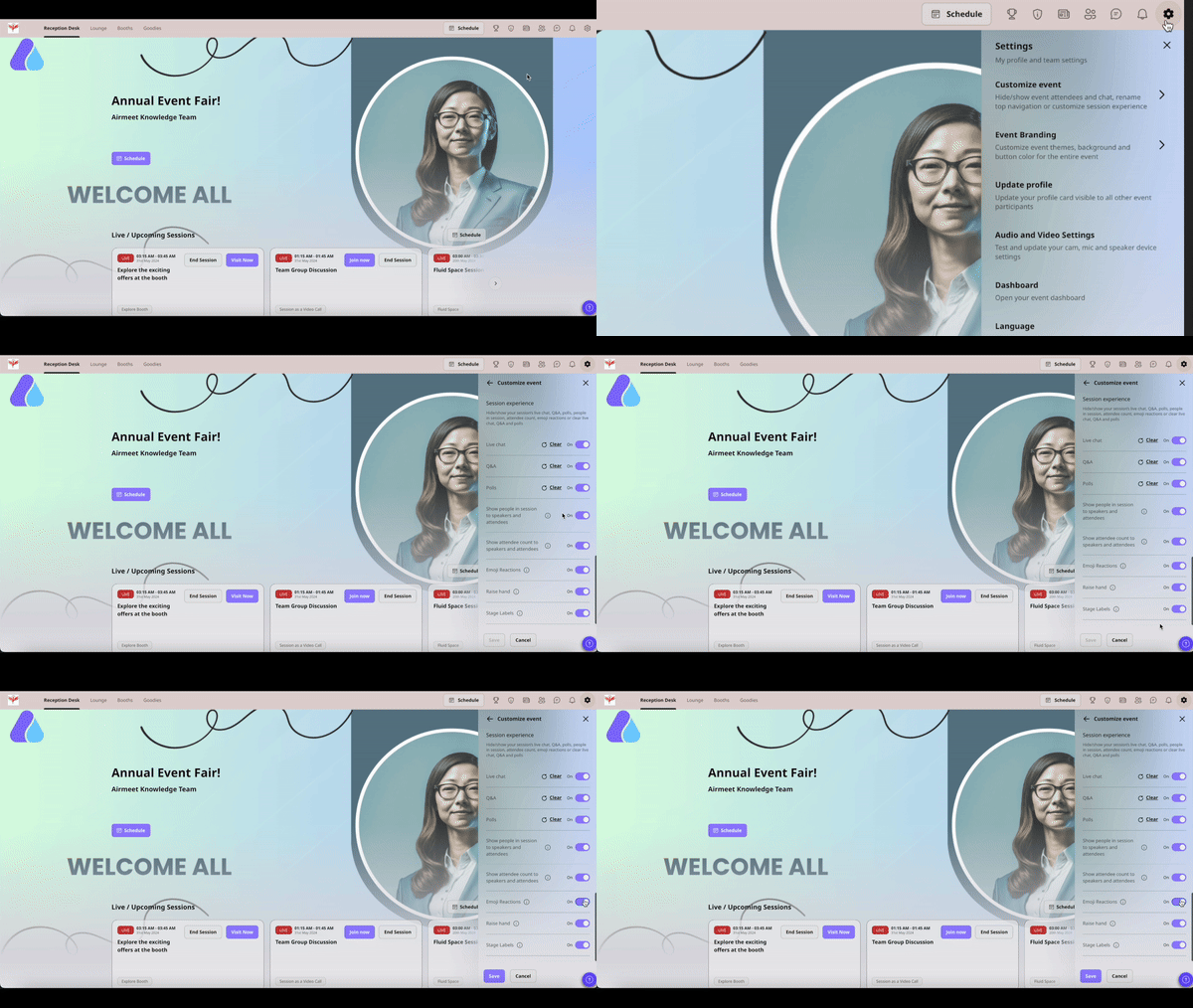
During a live session, emoji reactions create an immediate visual response on stage. Organizers can separately hide GIFs in the Feed settings and disable Emoji Reactions in Session experience settings, before or during the event.
Use Case
Benefits For Different Virtual Event Use Cases
Product Launches
Turn reveals into shared moments with celebratory GIFs and instant reactions.
Thought-Leadership Webinars
Let attendees signal agreement or appreciation without disrupting the speaker.
Customer Panels
Keep chat warm and expressive while the audience responds to real customer stories.
Community And Networking Events
Use familiar visual language to lower the barrier to joining the conversation.
Actual Product Screenshots
Step-By-Step Process: How Participants Use Gifs And Reactions
Step 1. Open The Chat
In the event or session, click the Chat icon on the right-hand side of the screen to open the chat panel.
Step 2. Open The Gif Picker
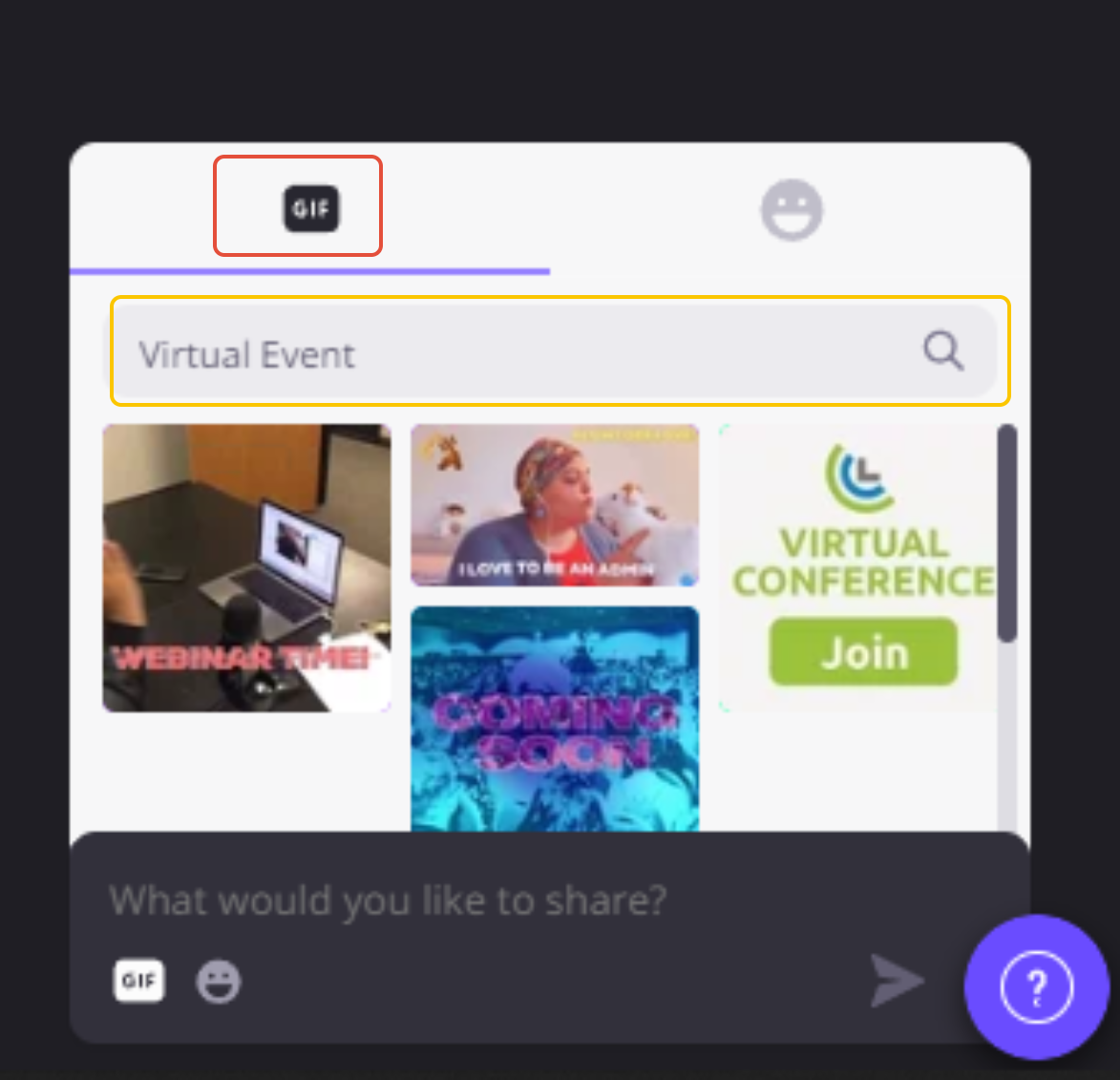
Click the GIF button in the chat input area. A picker will open, showing commonly used GIFs at the top and a search bar at the top of the panel.
Step 3. Choose Or Search For a GIF
Browse the commonly used GIFs or type a keyword in the search bar to find a specific one. Select the GIF you want to send.
Step 4. Use Emoji Reactions During a Live Session
Once a session is live, find the reaction bar at the bottom of the stage. Click an emoji to send a reaction that appears visually on stage. You can also type 1, 2, 3, 4, or 5 on your keyboard to trigger emoji reactions quickly.
A few things to keep in mind:
GIFs are available in both event chat and session chat
One GIF can be sent at a time
GIFs in the library are already moderated
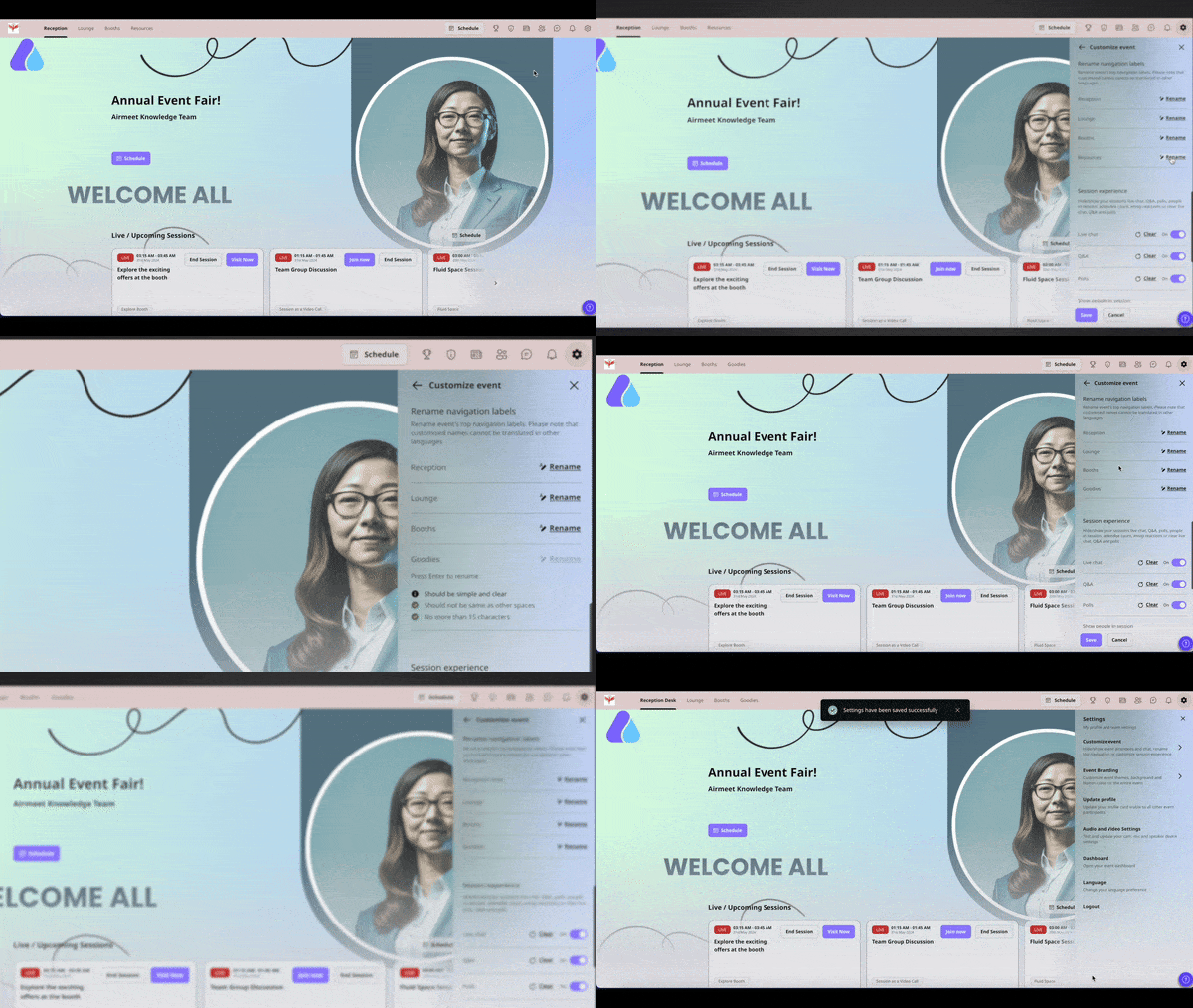
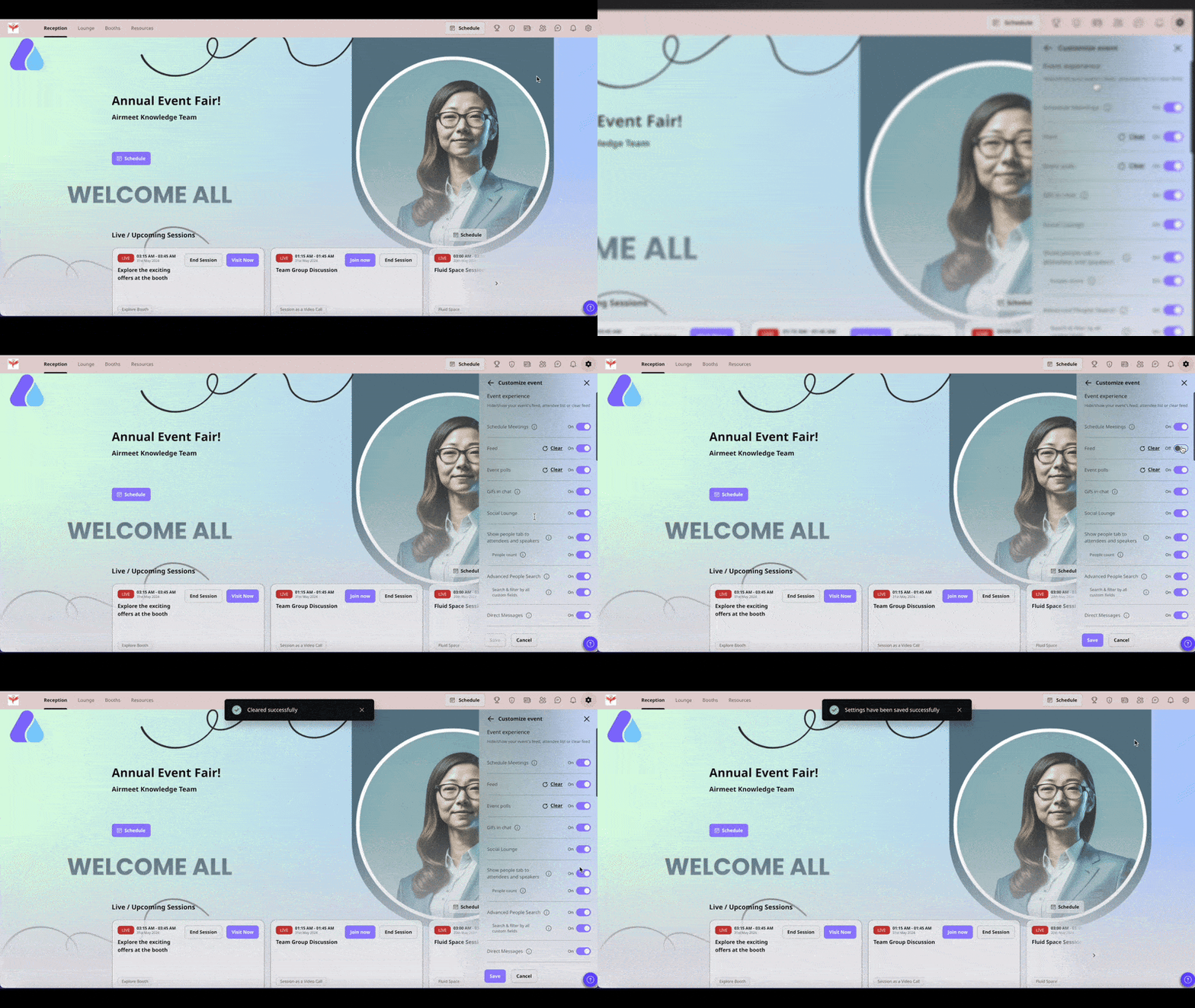
Organizers can hide GIFs from the Feed settings in Customize Event
Emoji Reactions can be disabled by organizers from Session experience settings before or during the event
Hiding Emoji Reactions disables on-stage reactions for all participants, including speakers and organizers. It does not disable emojis in chat unless live chat itself is hidden
Airmeet brings chat, GIFs, stage reactions, polls, Q&A, moderation, networking, and live-session controls into one branded webinar environment. Marketers can create a more human event experience without adding another audience tool, while event teams retain the controls needed to match each session's tone.
Why Airmeet
Why Choose Airmeet For Reactions and GIFs in Chat
Lower The Participation Barrier A reaction or GIF is easier than composing a message, helping more attendees take part.
Make Audience Energy Visible Speakers and attendees can feel the room respond as meaningful moments happen.
Create Memorable Brand Moments Expressive chat makes launches, celebrations, and community events feel less scripted.
Keep Organizers In Control Event teams can enable or hide GIFs and stage reactions independently to fit the session.
help Center
Relevant Help Articles
Explore guides and tutorials to help you create, customize, and host exceptional events on Airmeet.
They are lightweight engagement options in Airmeet. Participants can share GIFs in event and session chat, and use emoji reactions during a live session to express a quick response.
Yes. In event settings, organizers can open Customize Event, find the Feed section, switch GIFs off, and save. The setting hides GIFs for all participants, including organizers.
No. Hiding Emoji Reactions stops reactions that appear on stage during a live session. It does not disable emojis in chat unless the live chat itself is hidden.
Prompt them around intentional moments such as reveals, audience check-ins, speaker appreciation, and celebrations. Keep participation optional and align organizer settings with the tone of each session.
Airmeet features
Other Features to Explore
Discover more powerful features that help you create engaging, branded, and seamless event experiences with Airmeet.
“I was really excited to see how alive Airmeet seemed. The first time I raised my virtual hand to ask a question, I was brought up on stage, my camera flipped on, and I was able to talk with the presenters, that was the sold-moment in my head! That is what I wanted. We weren't going to be speaking at our audience. We wanted a two-way engagement. With the analytics in the background, that was my “Aha moment!”
Victoria YounesExecutive Events Manager
Incredible Companies Use Airmeet
Most loved Virtual Events Platform
“I was really excited to see how alive Airmeet seemed. The first time I raised my virtual hand to ask a question, I was brought up on stage, my camera flipped on, and I was able to talk with the presenters, that was the sold-moment in my head! That is what I wanted. We weren't going to be speaking at our audience. We wanted a two-way engagement. With the analytics in the background, that was my “Aha moment!”
Victoria YounesExecutive Events Manager
Incredible Companies Use Airmeet
Most loved Virtual Events Platform
“I was really excited to see how alive Airmeet seemed. The first time I raised my virtual hand to ask a question, I was brought up on stage, my camera flipped on, and I was able to talk with the presenters, that was the sold-moment in my head! That is what I wanted. We weren't going to be speaking at our audience. We wanted a two-way engagement. With the analytics in the background, that was my “Aha moment!”
Victoria YounesExecutive Events Manager
Incredible Companies Use Airmeet
Most loved Virtual Events Platform
“I was really excited to see how alive Airmeet seemed. The first time I raised my virtual hand to ask a question, I was brought up on stage, my camera flipped on, and I was able to talk with the presenters, that was the sold-moment in my head! That is what I wanted. We weren't going to be speaking at our audience. We wanted a two-way engagement. With the analytics in the background, that was my “Aha moment!”