


Meeting Scheduler lets attendees send private meeting requests to individuals or groups, book focused one-to-one conversations, and bring the right people together for private roundtables without leaving the Airmeet experience.

The Problem
The Solution
Use Cases
Reserve buyer-to-expert conversations around target accounts while interest is highest. A scheduled meeting turns a profile view into a committed next step before the event ends.
Turn booth visits and profile discovery into private demos or qualification conversations. Sponsors get a structured path from initial interest to a real conversation.

Bring a curated group together for a focused, invite-only discussion inside the event. Up to 15 participants can join the same private meeting without leaving the Airmeet experience.
Schedule peer exchanges, advisory conversations, office hours, or partner introductions. The same scheduling flow works for one-to-one and small group conversations.

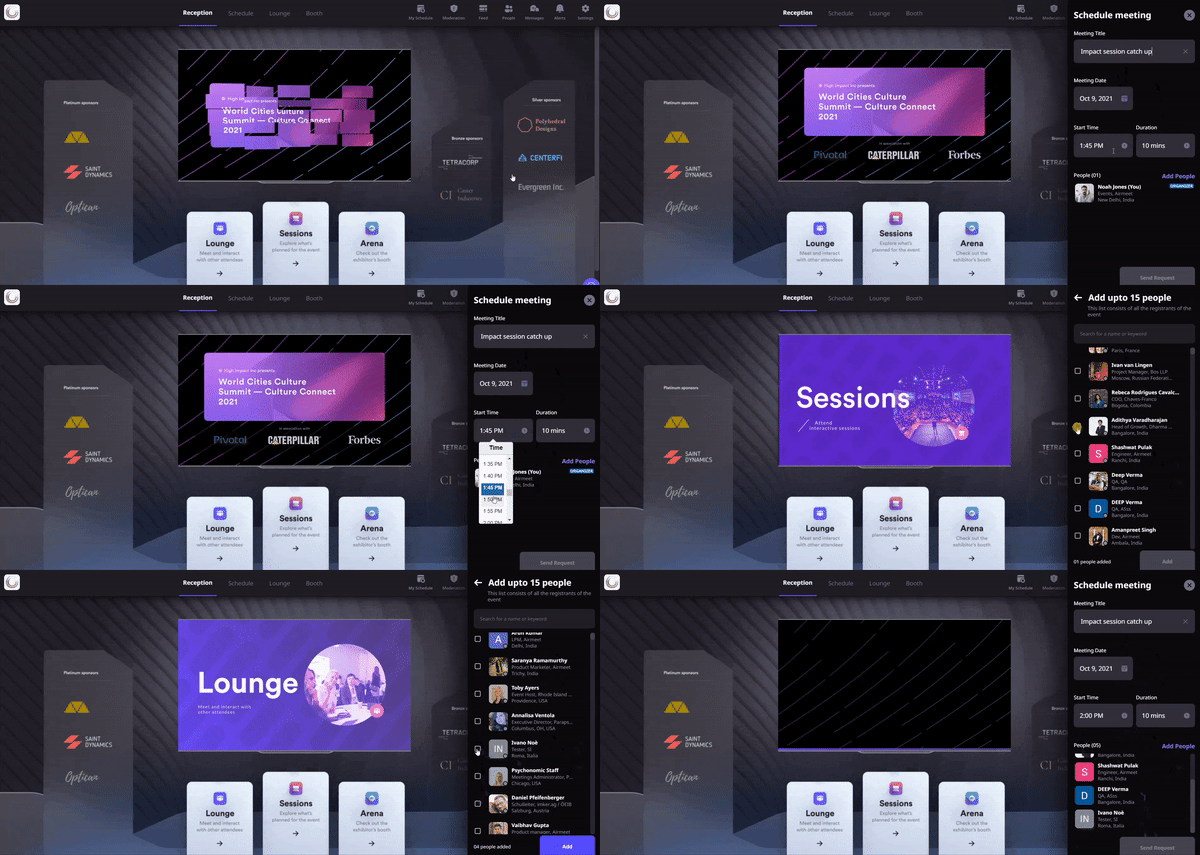
Path: Event > Schedule Tab > New Meeting
Inside the event, click the Schedule tab on the right-hand side. Click the plus New Meeting icon to open the meeting setup panel.
Add the following before sending the request:
Once the details are complete, send the request. Invitees receive an in-event notification and will see the request in their My Meetings tab. An email invitation is also sent to the registered email address. Email invitations are not sent when the event entry type is set to Register without email verification.
The requester receives a notification when an invitee accepts or declines. All scheduled meetings are visible in the My Meetings tab for both the requester and invitees.
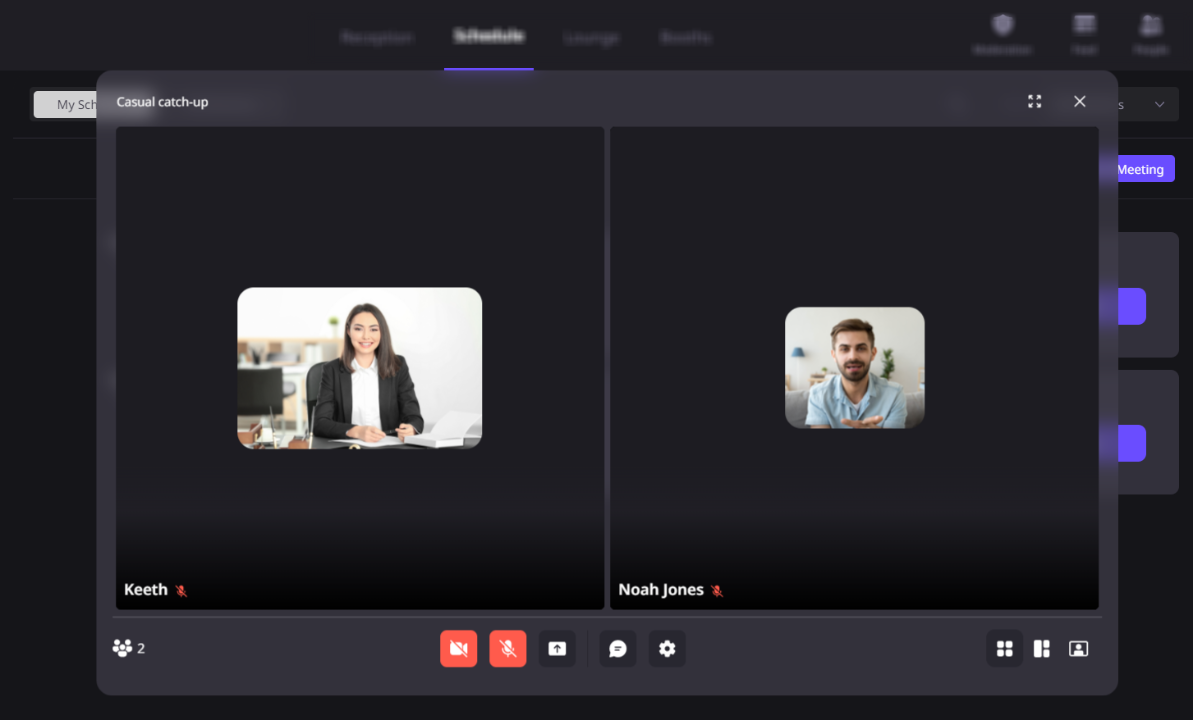
Participants can join up to 10 minutes before the scheduled start time. A reminder appears 5 minutes before the meeting begins. The private meeting table supports video, microphone, screen sharing, table chat, and multiple viewing layouts.
Why Airmeet
Meeting Scheduler lets event participants send private meeting requests to registered attendees and reserve time for one-to-one or group conversations during an Airmeet event.
Open the Schedule tab on the right-hand side of the event and click the plus New Meeting icon. Add the meeting title, date, start and end time, and invitees, then send the request.
Up to 15 registered participants can be invited to a single meeting.
Meetings can run for a minimum of 5 minutes and a maximum of 60 minutes.
No. The scheduled time must fall within the event start and end time.
Invitees see the request in My Meetings and receive in-event notifications. An email invitation is also sent to the registered email address, except when the event entry type is set to Register without email verification.
Yes. Participants can join up to 10 minutes before the scheduled start time, and in-event reminders appear 5 minutes before the meeting begins.
Yes. Only invited participants can view or join the meeting. The event organizer and other attendees cannot enter unless they are invited.
An existing meeting cannot be rescheduled. The event organizer must delete the meeting before a new one can be created for the same participants.
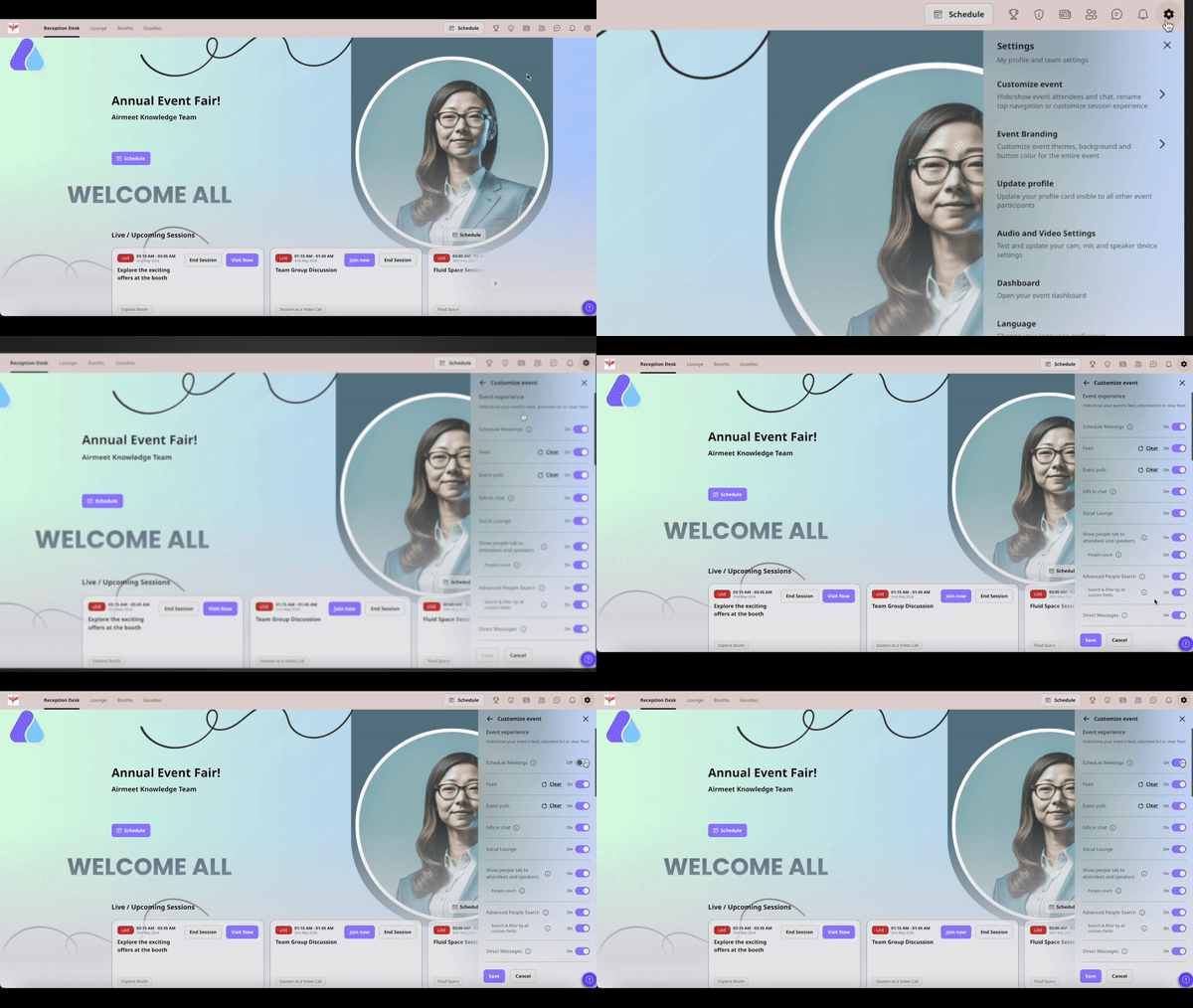
Yes. An attendee can turn off Allow Meeting Requests from the Schedule tab, and an organizer can disable Schedule Meetings for all participants from event settings. Existing scheduled meetings can still run even when the feature is hidden during a live event.


Incredible Companies Use Airmeet

Most loved Virtual Events Platform

Incredible Companies Use Airmeet
Most loved Virtual Events Platform
Incredible Companies Use Airmeet
Most loved Virtual Events Platform
Incredible Companies Use Airmeet

Most loved Virtual Events Platform
Incredible Companies Use Airmeet
Most loved Virtual Events Platform

