Build, rehearse, and validate your Airmeet experience before attendees enter – so every revenue-focused webinar begins polished, on-brand, ready to convert and engage your audience.
The first few minutes of a webinar shape the entire attendee experience. Last-minute technical issues, unfinished event spaces, or uncertain presenters can distract from your message and reduce confidence. Event Preview gives your team time to rehearse, refine, and resolve issues before anyone joins.
Technical surprises Catch audio, video, and presentation issues before the session begins.
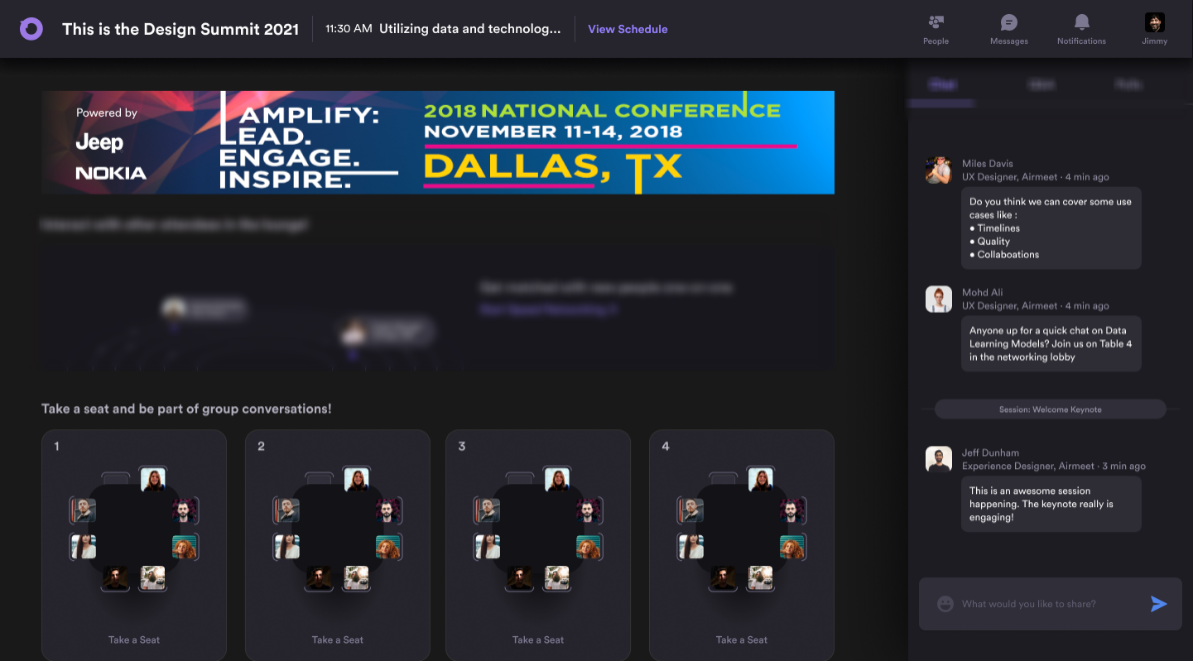
Incomplete event setup Review booths, lounge areas, branding, and navigation before attendees arrive.
Unprepared presenters Give speakers and hosts time to rehearse transitions and become comfortable with the platform.
The Solution
Turn Preparation Into A Controlled Rehearsal
A safe pre-event workspace for rehearsing the experience before attendee doors open.
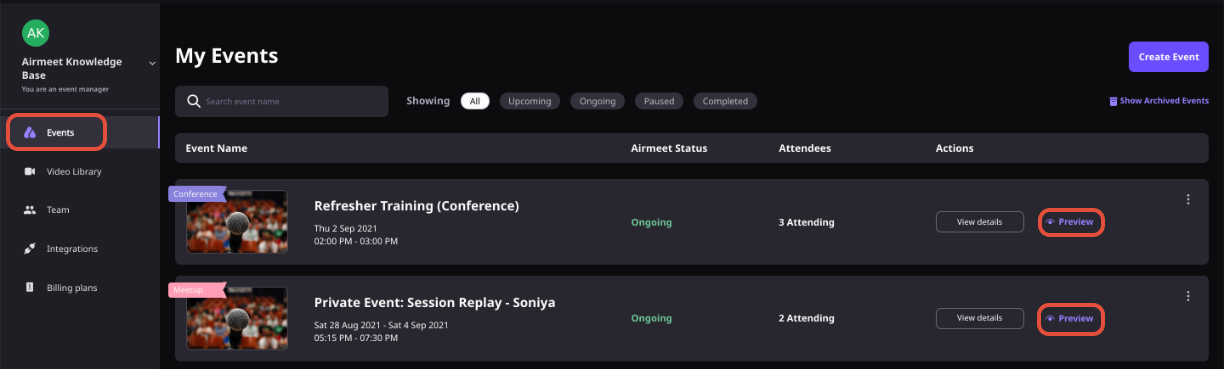
Enter from the community or event dashboard without starting the event.
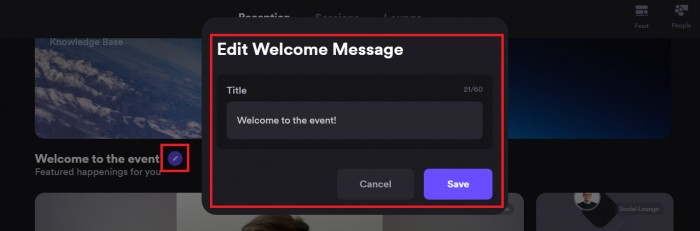
Configure lounge tables, booth assets, welcome messaging, and experience settings.
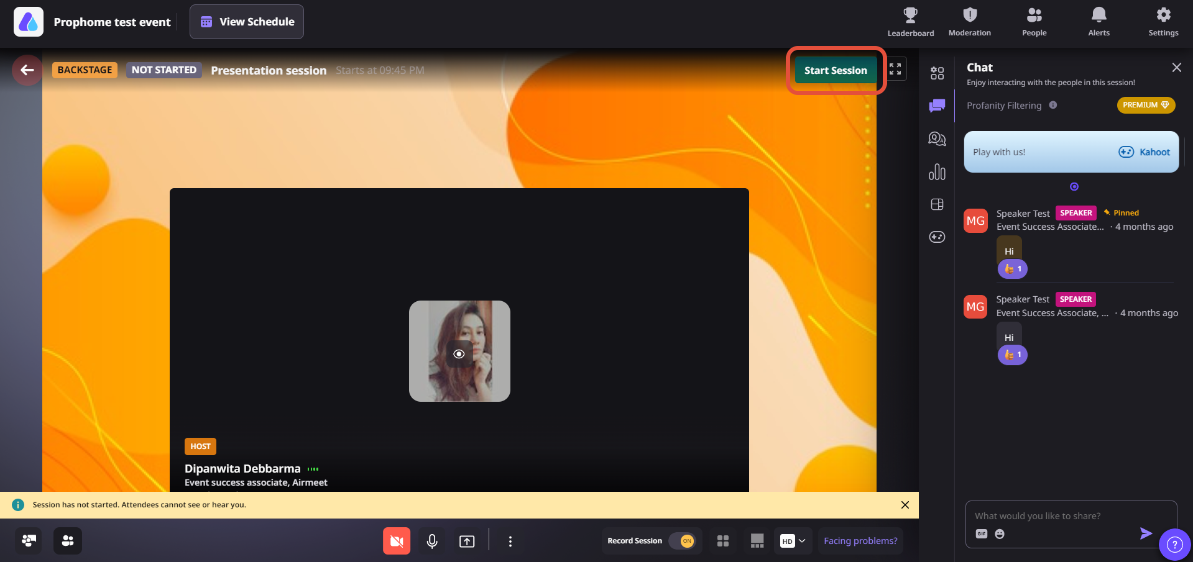
Bring mapped speakers and hosts backstage for audio, video, and agenda checks.
Validate the journey, exit, refine, and return until the event feels ready.
Virtual Event Use Cases
Event Preview For Every Revenue Event Motion
Preview adapts to the event formats marketers use to build pipeline and customer trust.
Demand generation webinars
Rehearse presentations, speaker transitions, and branding before engaging high-intent prospects.
Product launches
Check demos, stage presentations, launch booths, and team readiness before the reveal.
Customer Education
Ensure instructors, learning spaces, and attendee navigation are ready before training begins.
Partner and Sponsor Events
Review sponsor booths and partner experiences before attendees arrive.
Product Screenshots
Step-By-Step Process: How Event Preview Works
Step 1. Open Event Preview
From your Community or Event Dashboard, enter Preview Mode without starting the event.
Step 2. Review The Attendee Experience
Navigate through the event as attendees will see it and confirm branding, navigation, and event layout.
Step 3. Configure Event Spaces
Update booths, lounge tables, welcome messages, and other attendee-facing elements.
Step 4. Rehearse with Speakers
Bring hosts and speakers backstage to test microphones, cameras, presentations, and transitions.
Step 5. Validate the Complete Event Journey
Walk through the event experience, identify anything that needs improvement, and make changes.
Step 6. Exit, Refine, and Preview Again
Repeat the process until your team is confident everything is ready for the live event.
Why Airmeet
Why Choose Airmeet For Event Preview
Event Preview lets your team rehearse the webinar in the same environment you'll use during the live event. By validating branding, speaker readiness, event spaces, and attendee journeys in advance, teams can launch with greater confidence and fewer last-minute surprises.
help Center
Relevant Help Articles
Explore guides and tutorials to help you create, customize, and host exceptional events on Airmeet.
Set up your Airmeet in preview mode without starting the event
Event Preview lets organizers enter and review their event before it officially starts, making it easy to test the attendee experience and prepare everything for launch.
Yes. Hosts, co-hosts, and mapped speakers can use backstage to test microphones, cameras, screen sharing, and presentation flow before the session begins.
Many engagement features, such as chat, polls, Q&A, and announcements, can be tested during rehearsal. Some functionality varies by event type, so it’s worth verifying the features you will use during the live event.
No. Putting your event in Preview mode doesn’t change how ticketing works. Attendees can still register or purchase tickets based on your event’s registration settings while your team prepares the event behind the scenes.
Airmeet features
Other Features to Explore
Discover more powerful features that help you create engaging, branded, and seamless event experiences with Airmeet.
“I was really excited to see how alive Airmeet seemed. The first time I raised my virtual hand to ask a question, I was brought up on stage, my camera flipped on, and I was able to talk with the presenters, that was the sold-moment in my head! That is what I wanted. We weren't going to be speaking at our audience. We wanted a two-way engagement. With the analytics in the background, that was my “Aha moment!”
Victoria YounesExecutive Events Manager
Incredible Companies Use Airmeet
Most loved Virtual Events Platform
“I was really excited to see how alive Airmeet seemed. The first time I raised my virtual hand to ask a question, I was brought up on stage, my camera flipped on, and I was able to talk with the presenters, that was the sold-moment in my head! That is what I wanted. We weren't going to be speaking at our audience. We wanted a two-way engagement. With the analytics in the background, that was my “Aha moment!”
Victoria YounesExecutive Events Manager
Incredible Companies Use Airmeet
Most loved Virtual Events Platform
“I was really excited to see how alive Airmeet seemed. The first time I raised my virtual hand to ask a question, I was brought up on stage, my camera flipped on, and I was able to talk with the presenters, that was the sold-moment in my head! That is what I wanted. We weren't going to be speaking at our audience. We wanted a two-way engagement. With the analytics in the background, that was my “Aha moment!”
Victoria YounesExecutive Events Manager
Incredible Companies Use Airmeet
Most loved Virtual Events Platform
“I was really excited to see how alive Airmeet seemed. The first time I raised my virtual hand to ask a question, I was brought up on stage, my camera flipped on, and I was able to talk with the presenters, that was the sold-moment in my head! That is what I wanted. We weren't going to be speaking at our audience. We wanted a two-way engagement. With the analytics in the background, that was my “Aha moment!”