Is your Brand visible in AI search?

Airmeet features

Dynamic Stage Backdrops

Create branded live-session stages with custom backdrops, layout-aware visuals, banners, and sponsor-ready presentation moments.

The Problem

Live sessions are where attendees pay the most attention, but a plain or disconnected stage can make the event feel less produced.

How Airmeet Solves It

How Airmeet Solves It

Benefits by Event Use Case

Dynamic stage backdrops help high-attention live moments look more memorable and intentional.

Webinars

Give executive webinars a premium branded stage. A clean backdrop behind your speaker signals production quality before the first slide appears.

Summits

Separate tracks, keynotes, and panels visually. Personalized backdrops help attendees immediately recognize which session type they are in.

Product launches

Frame demos and reveals with campaign branding. Make the stage part of your launch campaign, creating a cohesive brand experience.

Benefits by Event Use Case

Sponsored events

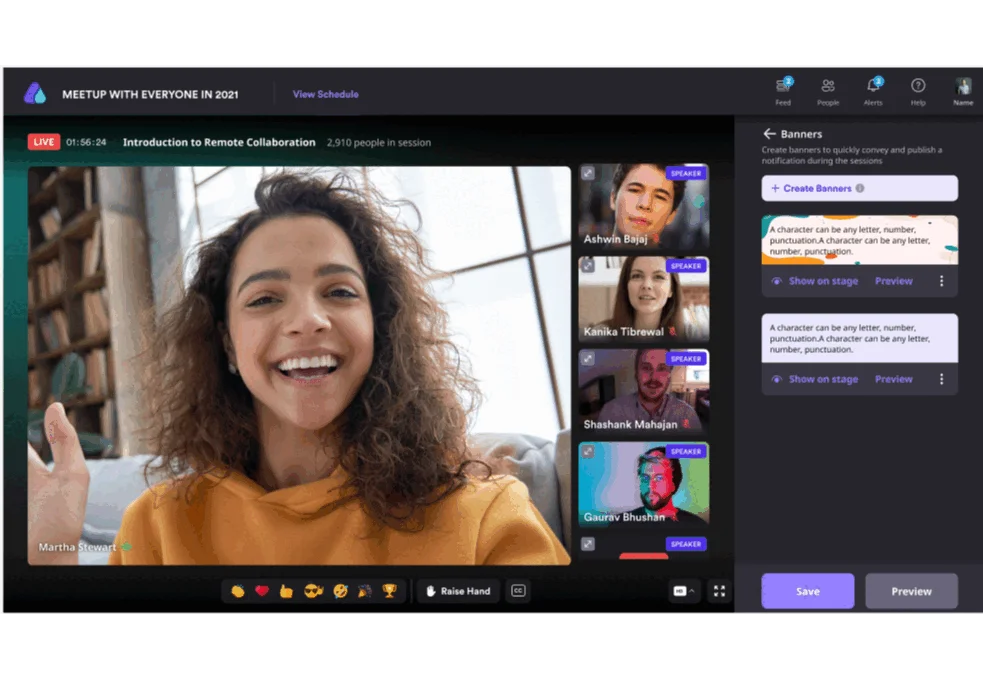
Turn live sessions into sponsor visibility moments. Branded backdrops carry sponsor logos on the stage itself, while the Stage Banner feature lets you add sponsor messages and lower-third overlays during the session.

Training programs

Make enablement sessions feel organized and official. A consistent visual environment signals structure and keeps learners focused.

Event series

Build a familiar visual identity for recurring sessions. Consistent stage branding helps your audience recognize and connect with your brand over time.

Actual Product Screenshots

Step-by-Step Process

Setting up a stage backdrop on Airmeet takes just a few minutes. Follow the steps below to upload, preview, and apply your branded backdrop before or during a live session.

Step 1. Go to Stage Backdrop Settings

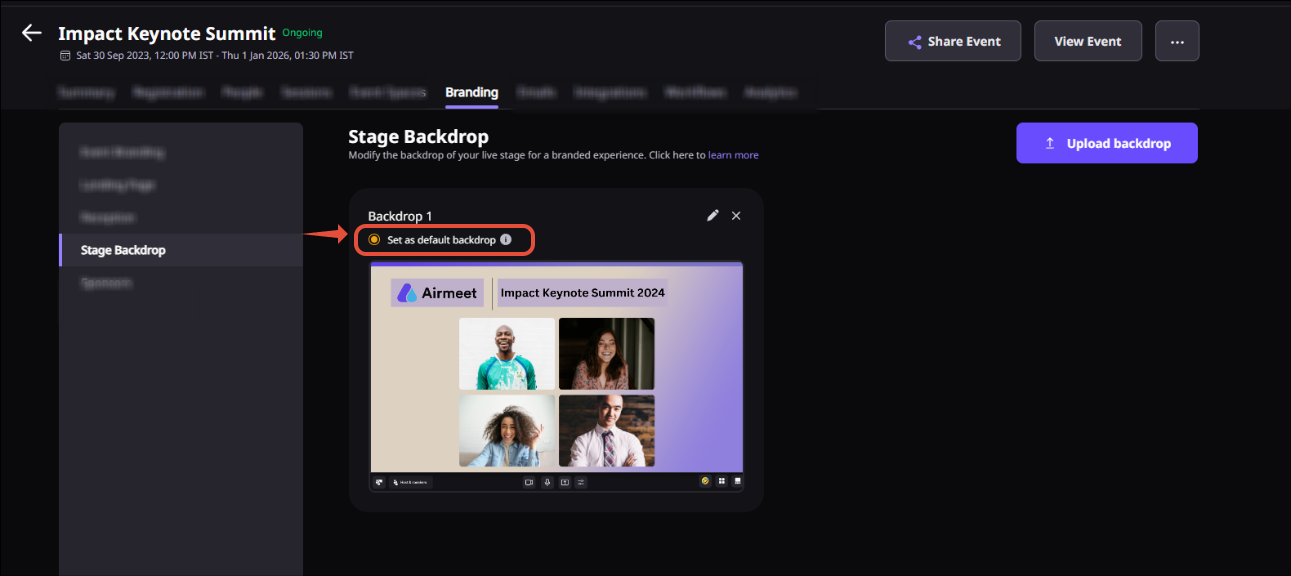
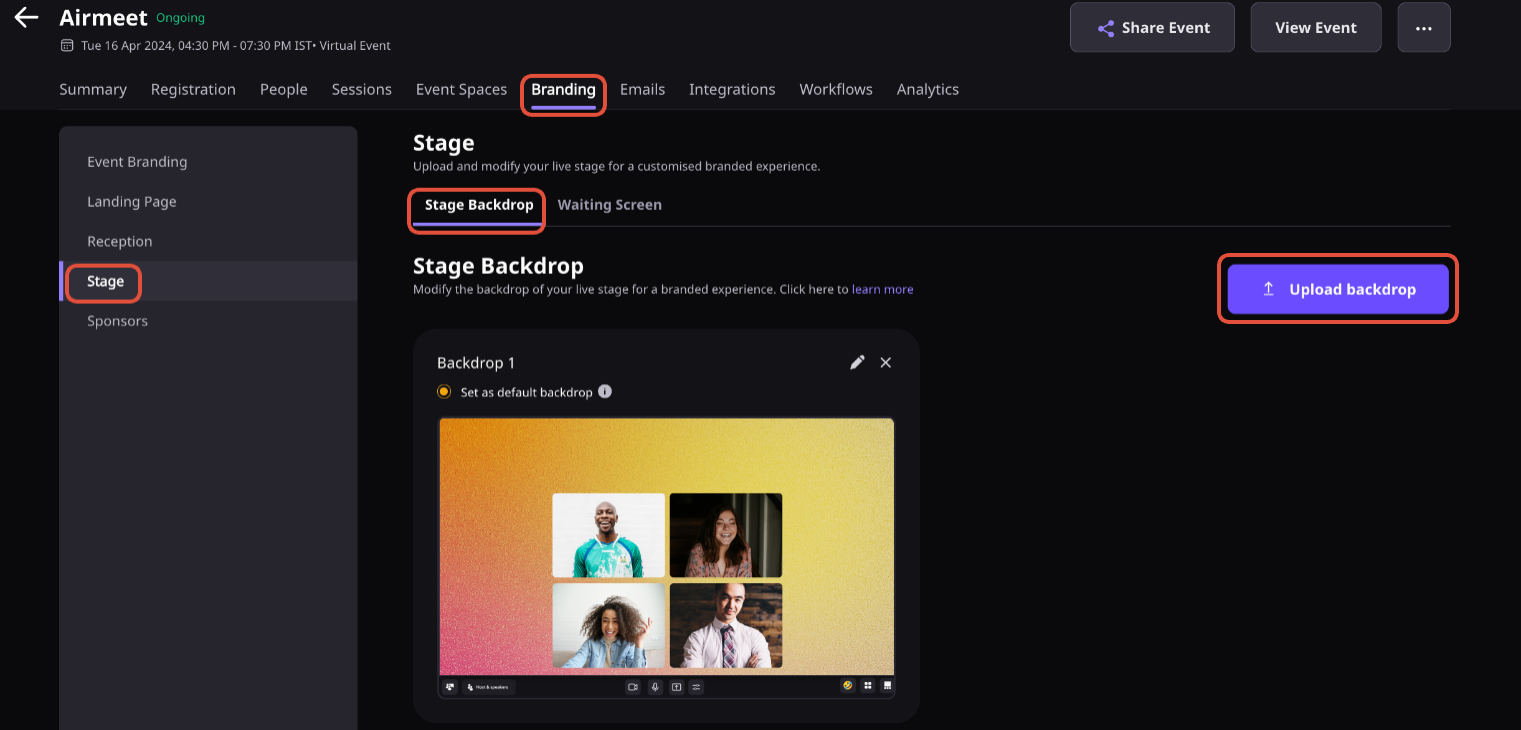
From your Events Dashboard, navigate to the “Branding tab” and select “Stage Backdrop” from the left-hand side menu. 

You can also follow this path directly: Events Dashboard > Branding > Stage Backdrop. This is where you upload and manage all backdrop images for your event.

Step 2. Upload Your Backdrop Image

Click Upload Backdrop and select your image file. Before uploading, make sure your file meets these requirements to avoid stretching or blurring on the live stage:

  • Dimensions: 1920px x 1080px, aspect ratio 16:9
  • Maximum file size: 10MB
  • Supported formats: JPEG, JPG, PNG

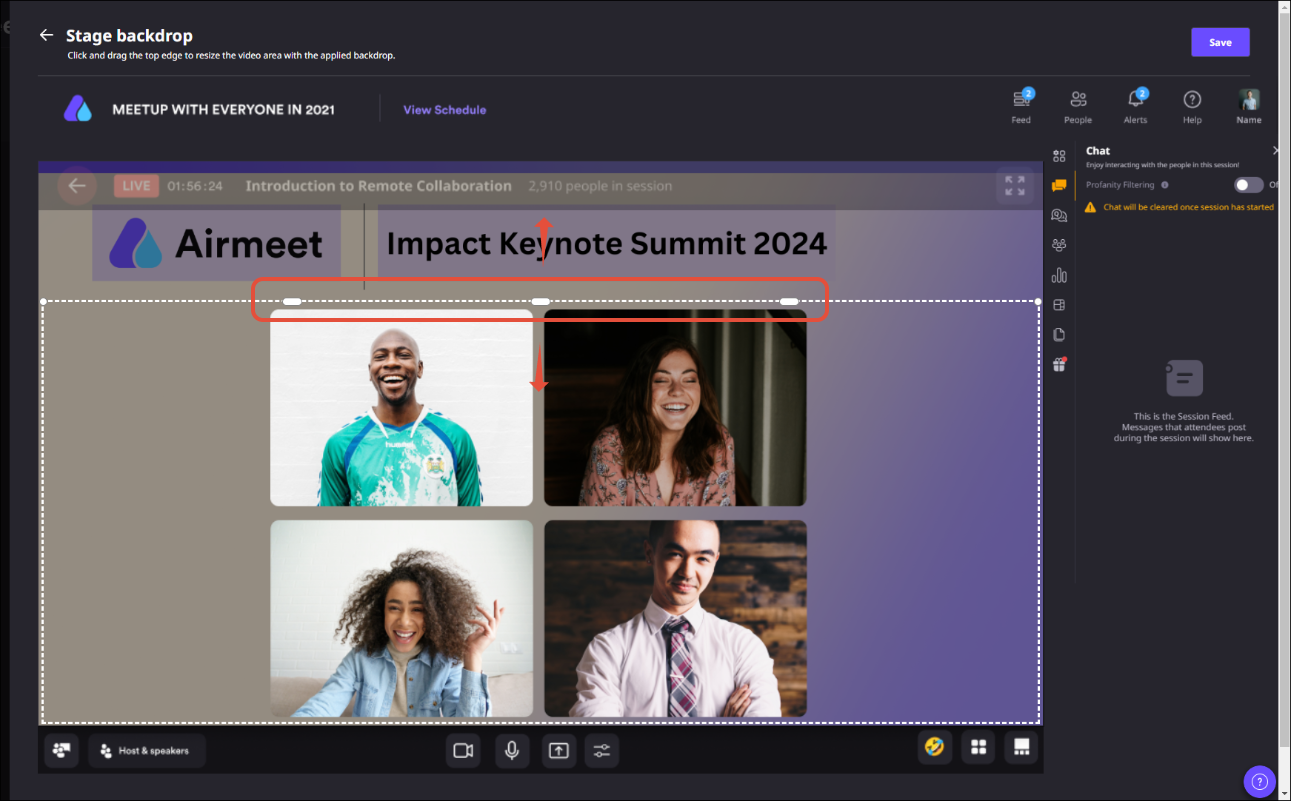
For best results, place your logo and branding elements at the top of the image so they stay visible without covering the speaker area during the session.

Step 3. Preview and Adjust

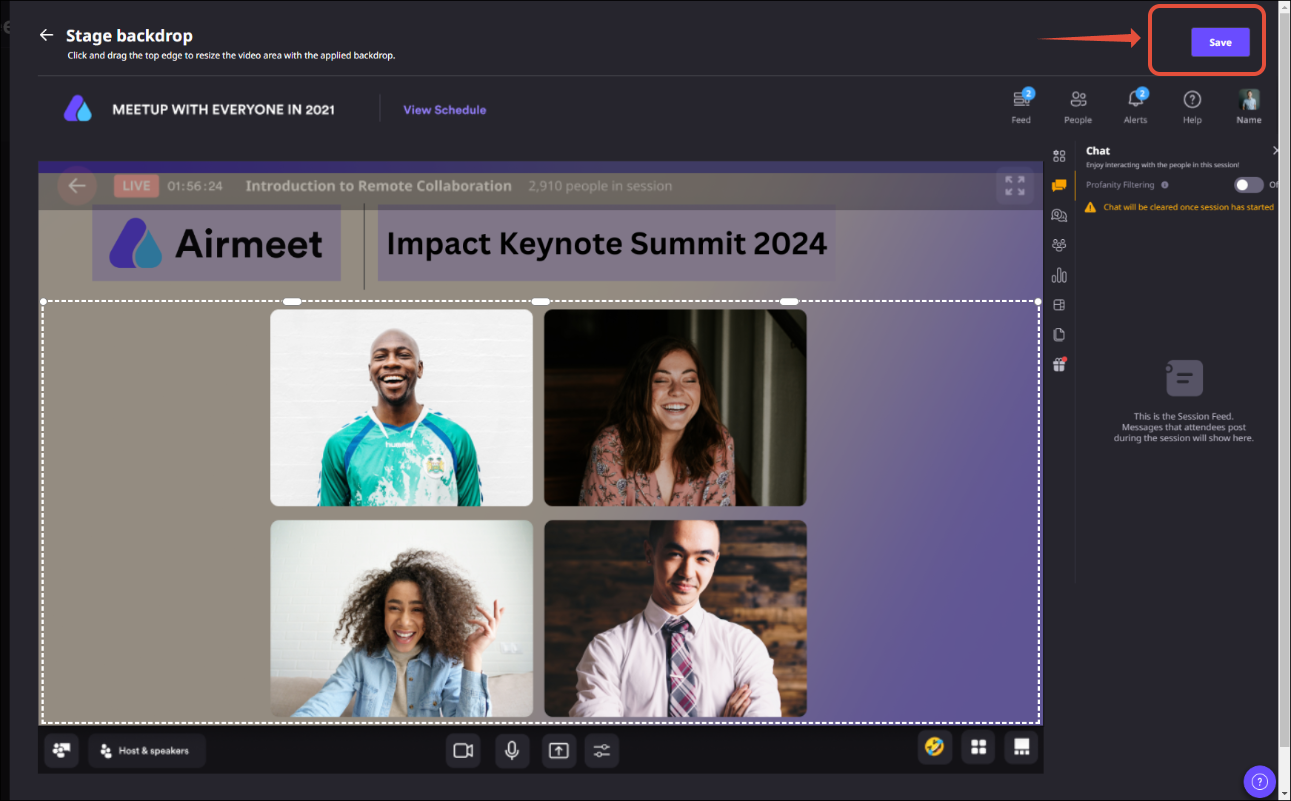
Once uploaded, use the preview tool to see how the backdrop will look on the live stage. Adjust the video grid height to position your logo and branding elements correctly. 

Step 4. Save and Set as Default

If the preview looks right, click “Save.” You can also select “Set as Default Backdrop” to automatically apply it across all sessions in your event without having to set it manually each time.

Step 5. Apply or Change the Backdrop During the Session

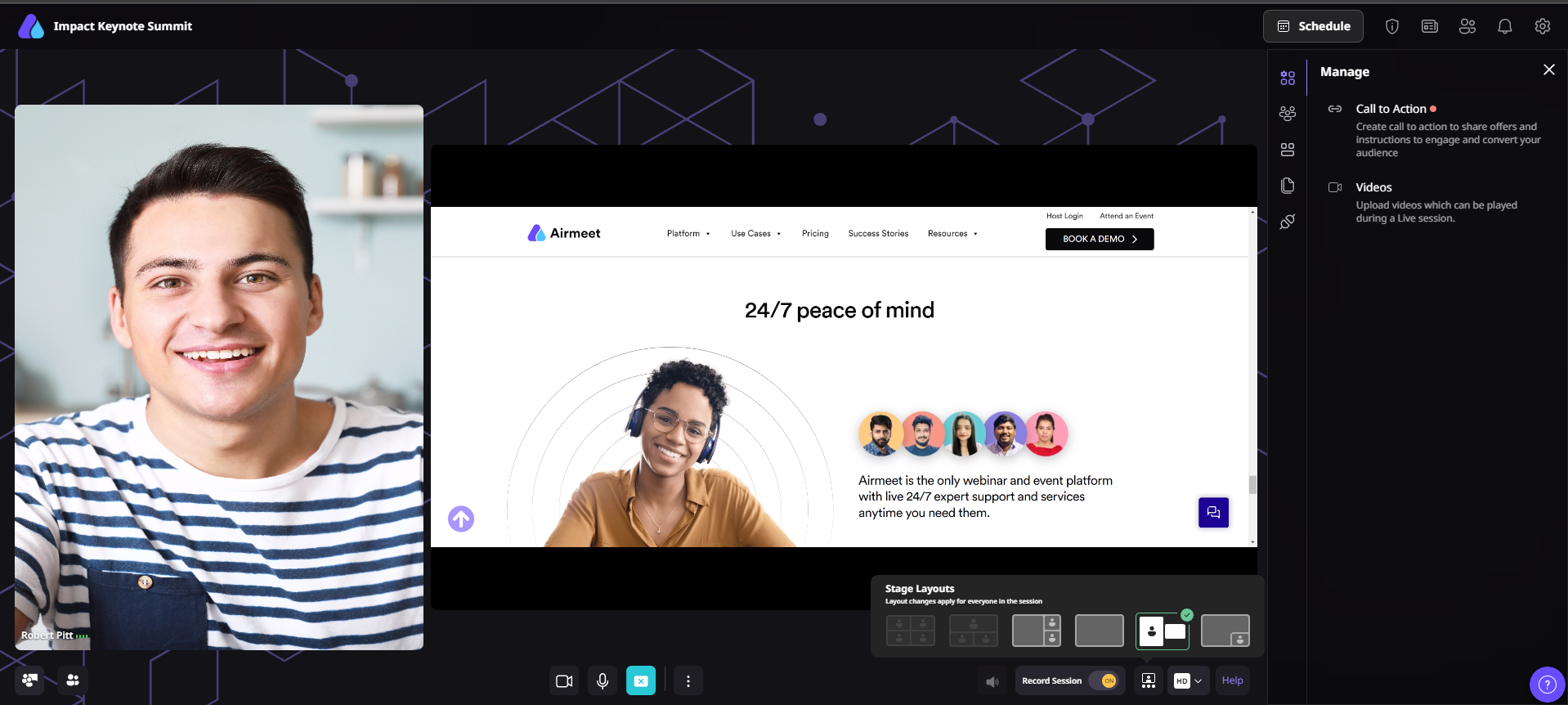
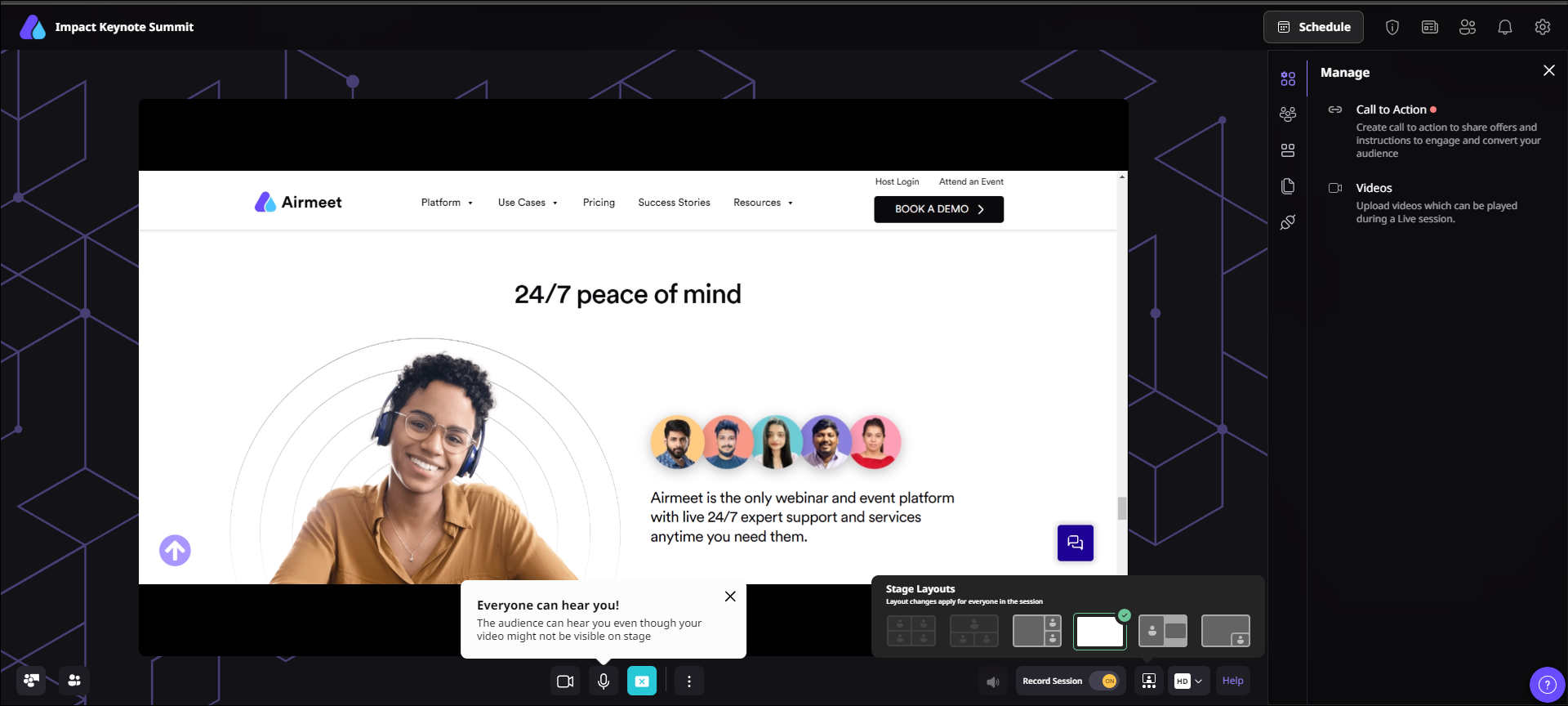
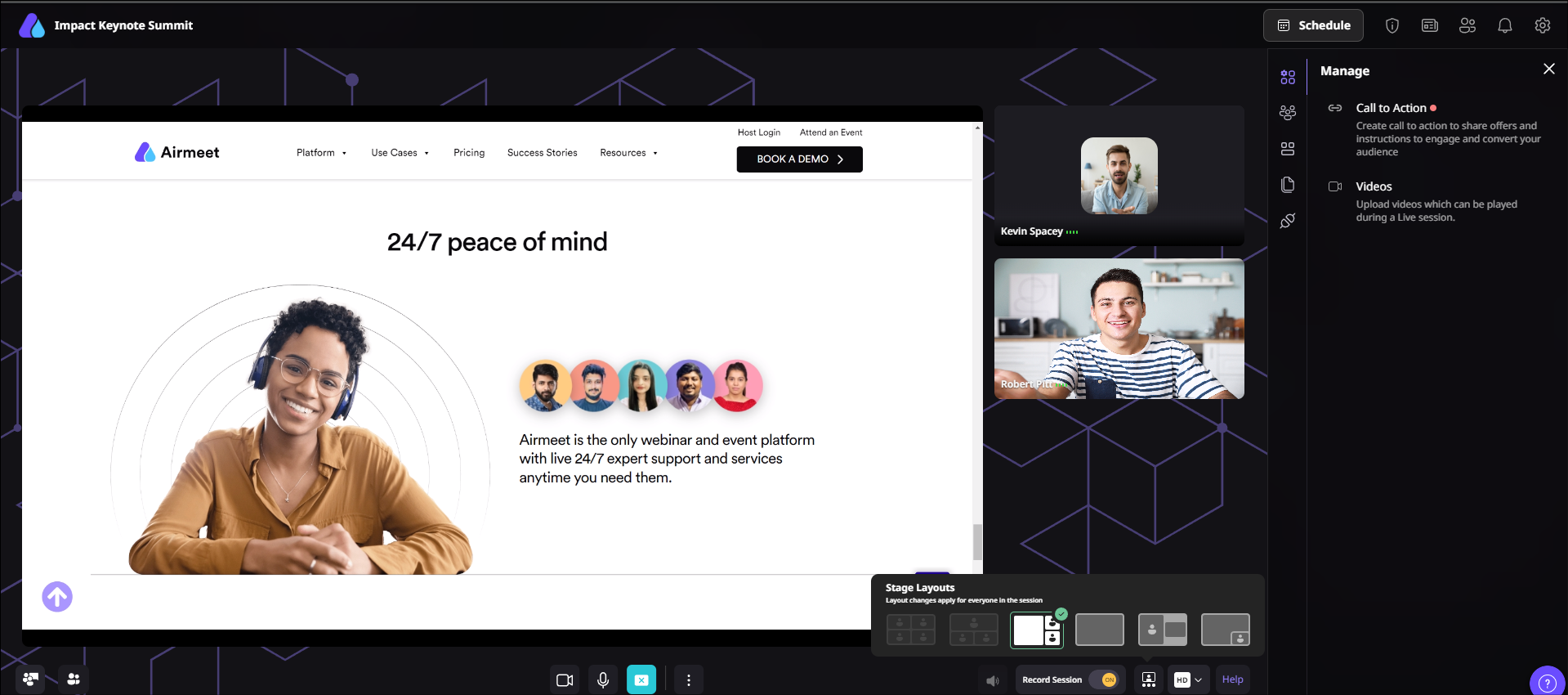
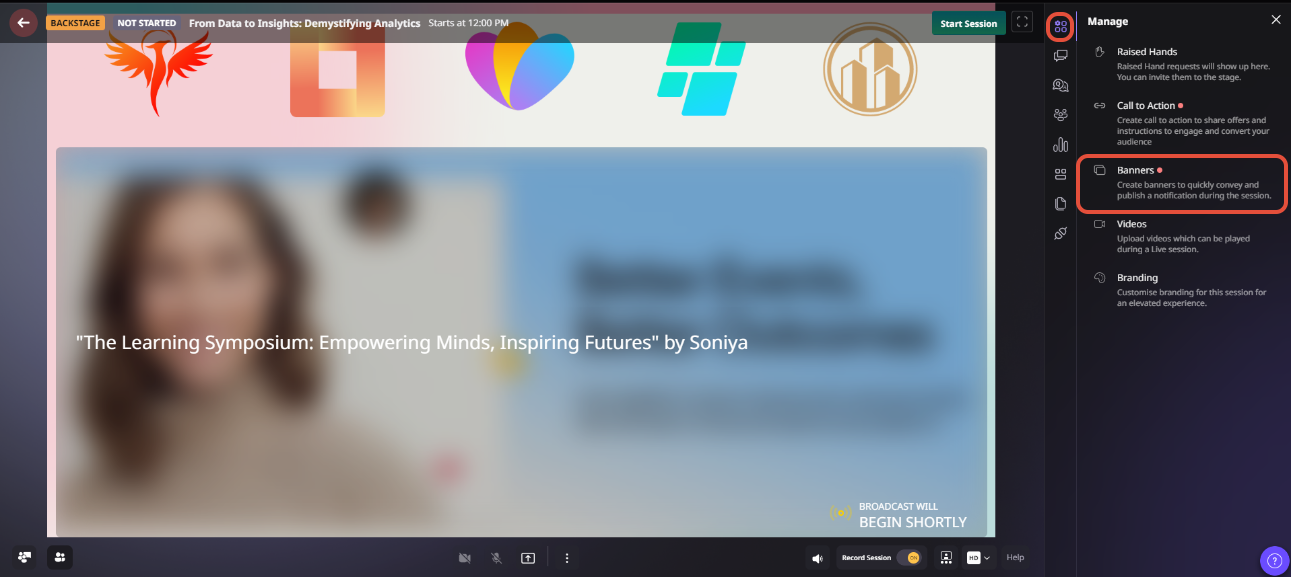
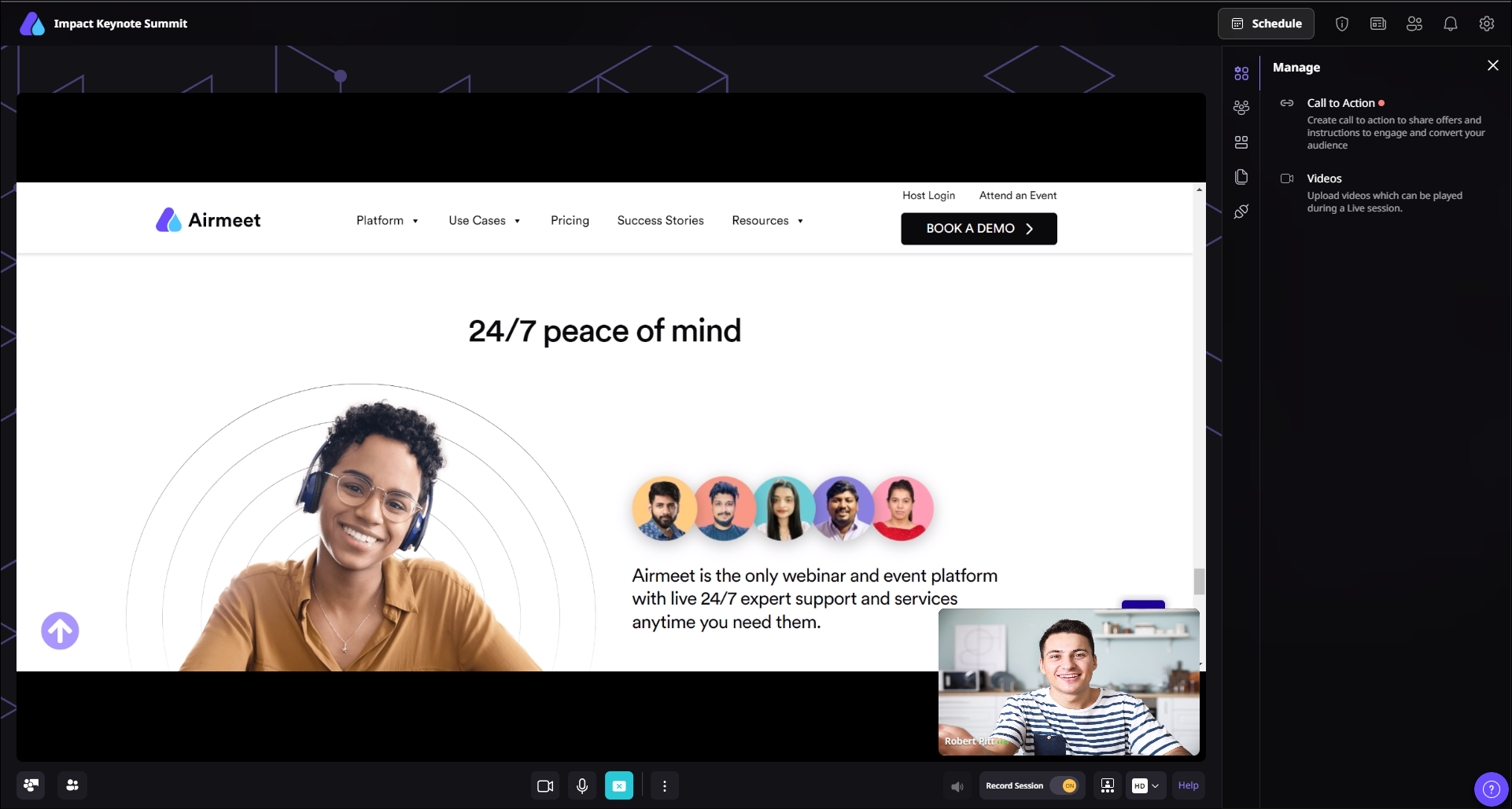
From the backstage or live stage, click “Manage” on the right-hand side panel. Under the Branding section, select the backdrop you want from your uploaded list and click “Apply.” Only the session host or co-host can make changes during a live session.

Step 6. Remove When Needed

To remove the backdrop at any point during the session, select the “None” option from the same “Manage” panel. The change takes effect immediately without interrupting the session.

A few things to keep in mind:

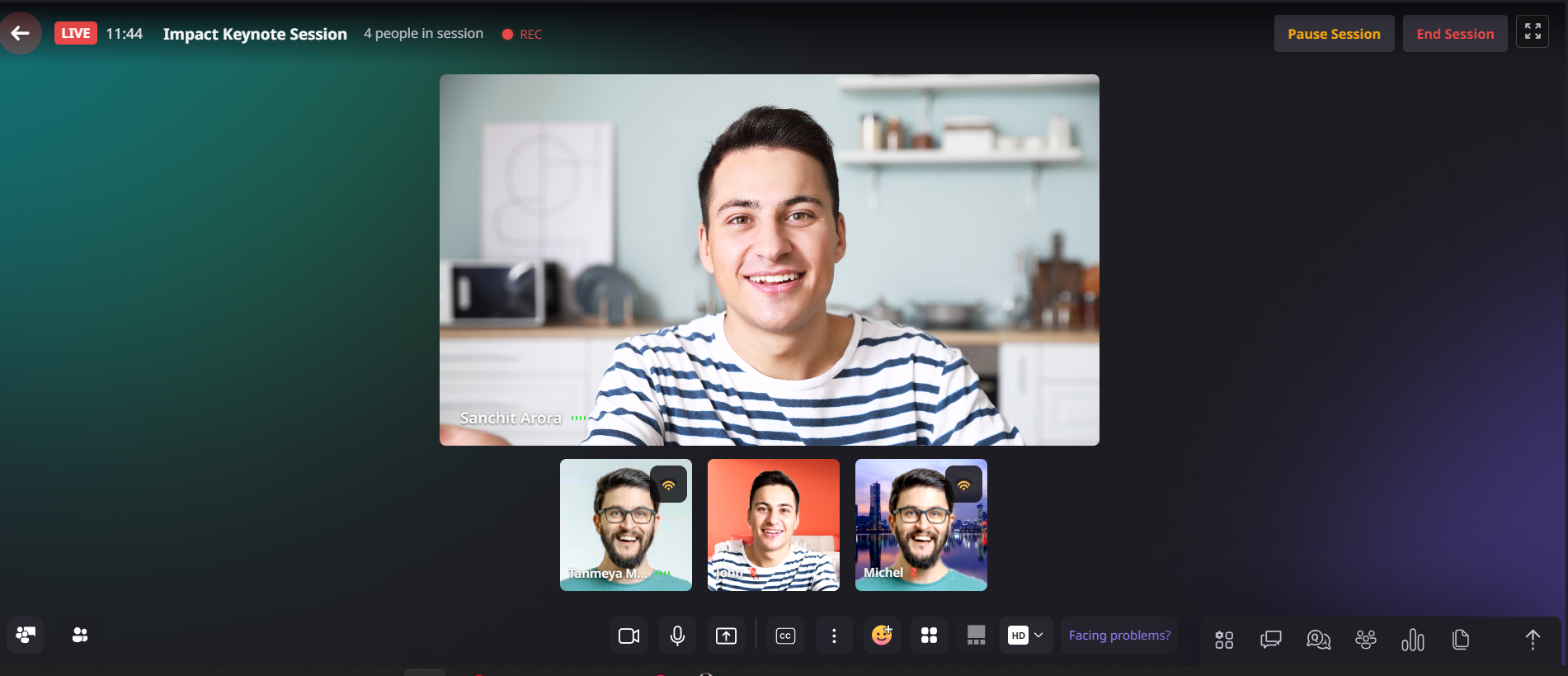
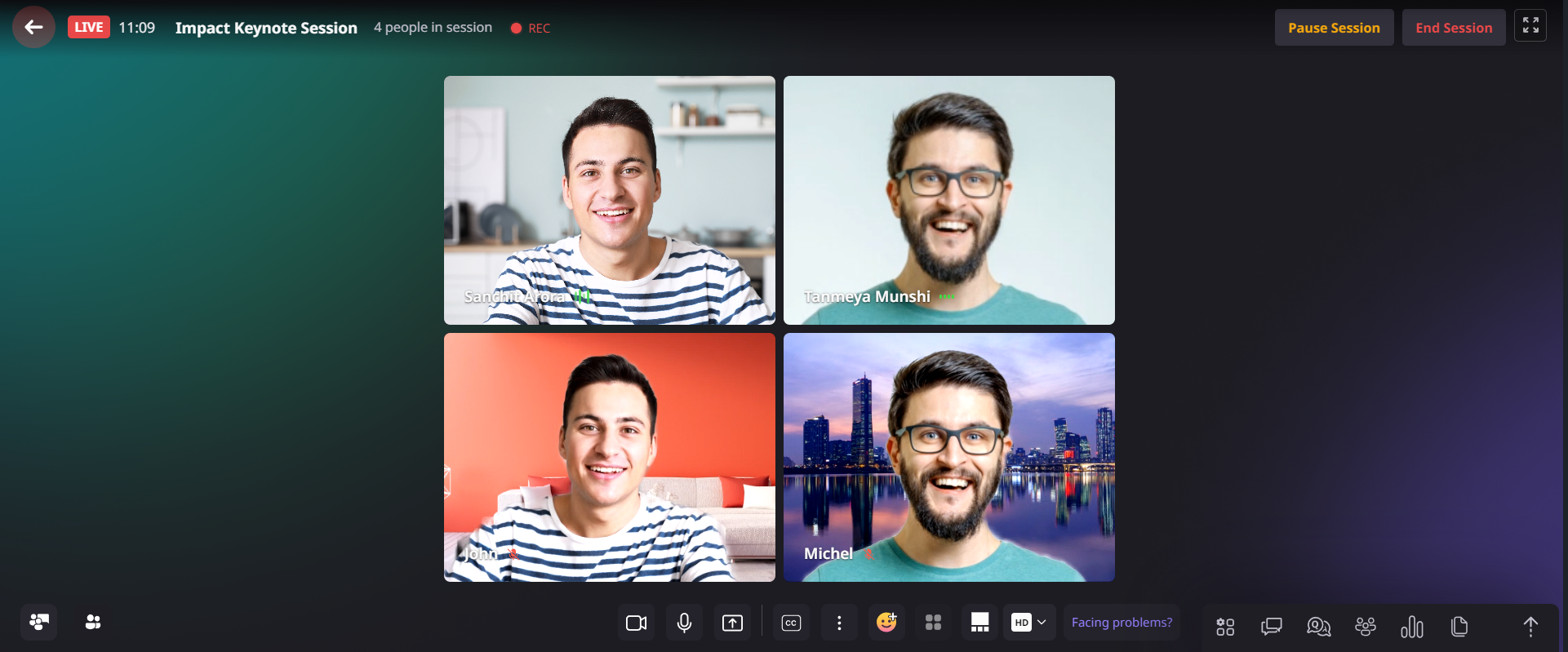
  • When a stage backdrop is active, the speaker video feeds auto-compress from 16:9 to 4:3. This means speaker tiles will appear slightly narrower on screen, so factor this into your backdrop design so branding does not overlap with speaker faces
  • Session recordings will include the backdrop post-processing
  • The backdrop can be changed during an ongoing session 
  • For sessions streaming via RTMP, keep the backdrop design simple with solid colors or minimal graphics as complex designs can appear distorted on external streaming outputs

Once your backdrop is saved and set as default, every session in your event will open with a polished branded stage ready to go.

Why Choose Airmeet for Dynamic Stage Backdrops?

Most stage customization tools are built for broadcast studios. Airmeet brings professional stage branding directly into your event platform, eliminating the need for separate production tools.
Custom Registration Form

help Center

Relevant Help Articles

Explore guides and tutorials to help you create, customize, and host exceptional events on Airmeet.
How to add stage backdrop for your Airmeet sessions
How to change stage layout on Airmeet session
How to create stage banner or lower third for your Airmeet event
How to customize live event branding

FAQs

Frequently Asked Questions

They are branded visual backdrops used on the live session stage to make speaker and content moments feel more polished and event-specific.

Backdrops help the live stage look intentional, reinforce the event brand, and improve perceived production quality.

Yes. They are useful for sponsor-led sessions, partner panels, and high-visibility branded segments.

Backdrops create the overall stage environment, while lower thirds and banners can add names, sponsor messages, or segment context.

Yes. The page positions session branding as a way to tailor visual treatment by session type or audience.

Avoid busy backgrounds that compete with speakers, clash with slides, or make text and lower thirds difficult to read.

It makes speaker-led webinars look more premium and connected to the host brand.

It helps distinguish tracks, keynotes, panels, and sponsor sessions with clearer visual identity.

Keep it simple. Busy backgrounds pull attention away from the speaker, and anything text-heavy makes your lower thirds and banners nearly impossible to read during the session. Place logos and branding elements at the top of the backdrop so the speaker area stays clean and visible throughout.

Short answer, yes. The backdrop lives inside the Airmeet session feed, not on a physical wall in the venue. So someone sitting in the room and someone joining from their laptop three states away are both looking at the exact same branded stage during the live session.

Airmeet features

Other Features to Explore

Discover more powerful features that help you create engaging, branded, and seamless event experiences with Airmeet.
Screen and PDF Share on Stage
Invite Attendees to Stage
Virtual Background
Custom Landing Page

Incredible Companies Use Airmeet

Most loved Virtual Events Platform

Incredible Companies Use Airmeet

Most loved Virtual Events Platform

Incredible Companies Use Airmeet

Most loved Virtual Events Platform

Incredible Companies Use Airmeet

Most loved Virtual Events Platform

Incredible Companies Use Airmeet

Most loved Virtual Events Platform