Turn webinar interest into focused one-to-one conversations
Public chat is where shared energy lives. But in a busy feed, high-intent moments move fast. An attendee might spot a relevant prospect, a customer asking the right question, a speaker with a useful perspective, or a potential business partner. But without a quick, respectful way to shift the conversation, the moment passes.
And nobody wants unsolicited outreach. Without a consent step, private contact can feel intrusive and actually damage the trust your event worked to build.
The Solution
A simple, consent-led path from discovery to dialogue
Two clicks and a yes. That is all it takes to move from a public moment to a private conversation.
Find the right person Go to the People tab to browse participants, or hover over any name in the chat feed to act on a live moment.
Send the request Open the three-dot menu and select Direct Message. The request lands privately with the recipient.
Wait for consent The recipient chooses Accept or Decline. The conversation only begins after they say yes.
Stay in control Organizers can turn direct messaging off entirely when the event format or audience calls for tighter interaction settings.
Use Cases
Built for the moments that move revenue relationships forward
Demand generation webinars
Let engaged prospects ask a focused follow-up without turning the public feed into a sales thread. The private path keeps it relevant and respectful.
Customer education
Give customers a direct route to clarify an account-specific question with the right expert, without making it a public exchange.
Partner events
Help complementary partners discover each other and carry a relevant conversation forward in context, rather than losing it in the general chat.
Thought-leadership sessions
When a speaker shares something that resonates, attendees can follow up directly. The connection happens while the idea is still fresh.
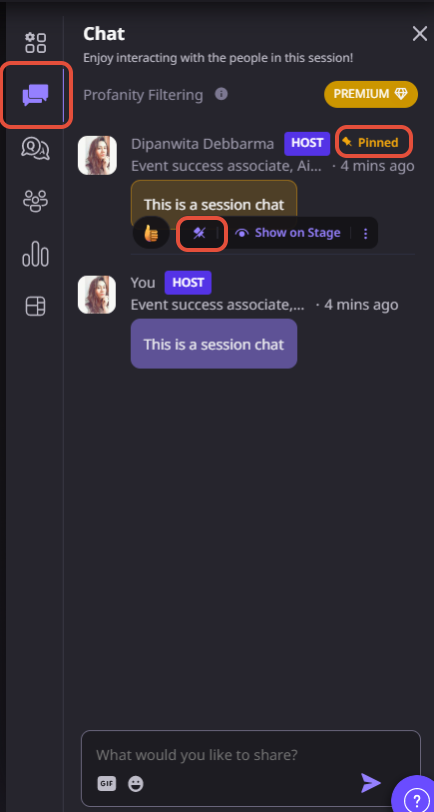
Actual product Screenshots
Step-by-step process
Step 1. Find the Person
There are two ways to find who you want to message.
From the People tab: Path: Event > Attendees section in RHS > Hover over display image > Send Message
Inside the event, hover over a participant’s display image in the Attendees section on the right-hand side, or hover over a message they have posted. From the menu that appears, select Direct Message.
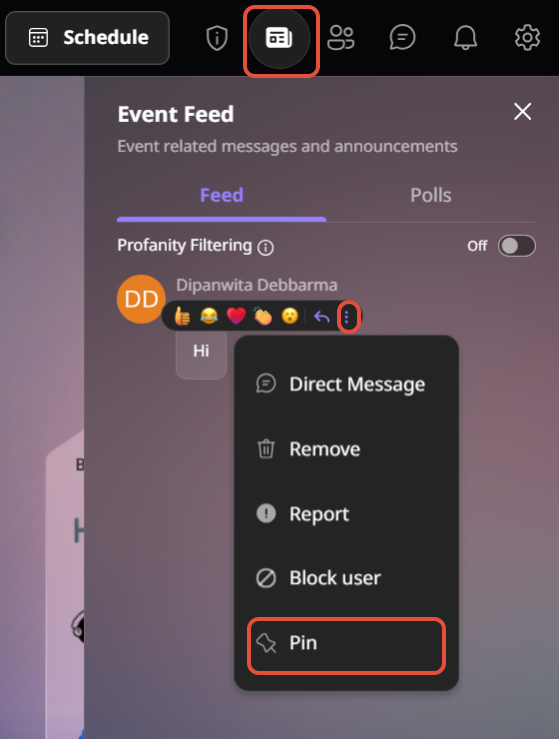
From the chat feed: Path: Chat feed > Hover over message > 3-dot button > Direct Message
If someone sends a message in the public chat that prompts a follow-up, hover over their message. Click the 3-dot button that appears and select Direct Message to send a private request directly from that context.
Step 2. Send the Request
Once you select Direct Message, a private chat request is sent to the recipient. They will receive a notification inside the event and can choose to Accept or Decline.
Step 3. Wait for Acceptance
The conversation only opens after the recipient accepts. If they decline, no conversation starts. This keeps the experience respectful for everyone.
Step 4. Continue the Conversation
Once accepted, the private chat opens in the Messages tab. Both participants can exchange messages privately for the rest of the event. Only the two of you can see the conversation.
A few things to keep in mind:
Direct messages are private and visible only to the participants in that specific conversation
The recipient must accept before any conversation begins
An attendee can report a message if the content is inappropriate
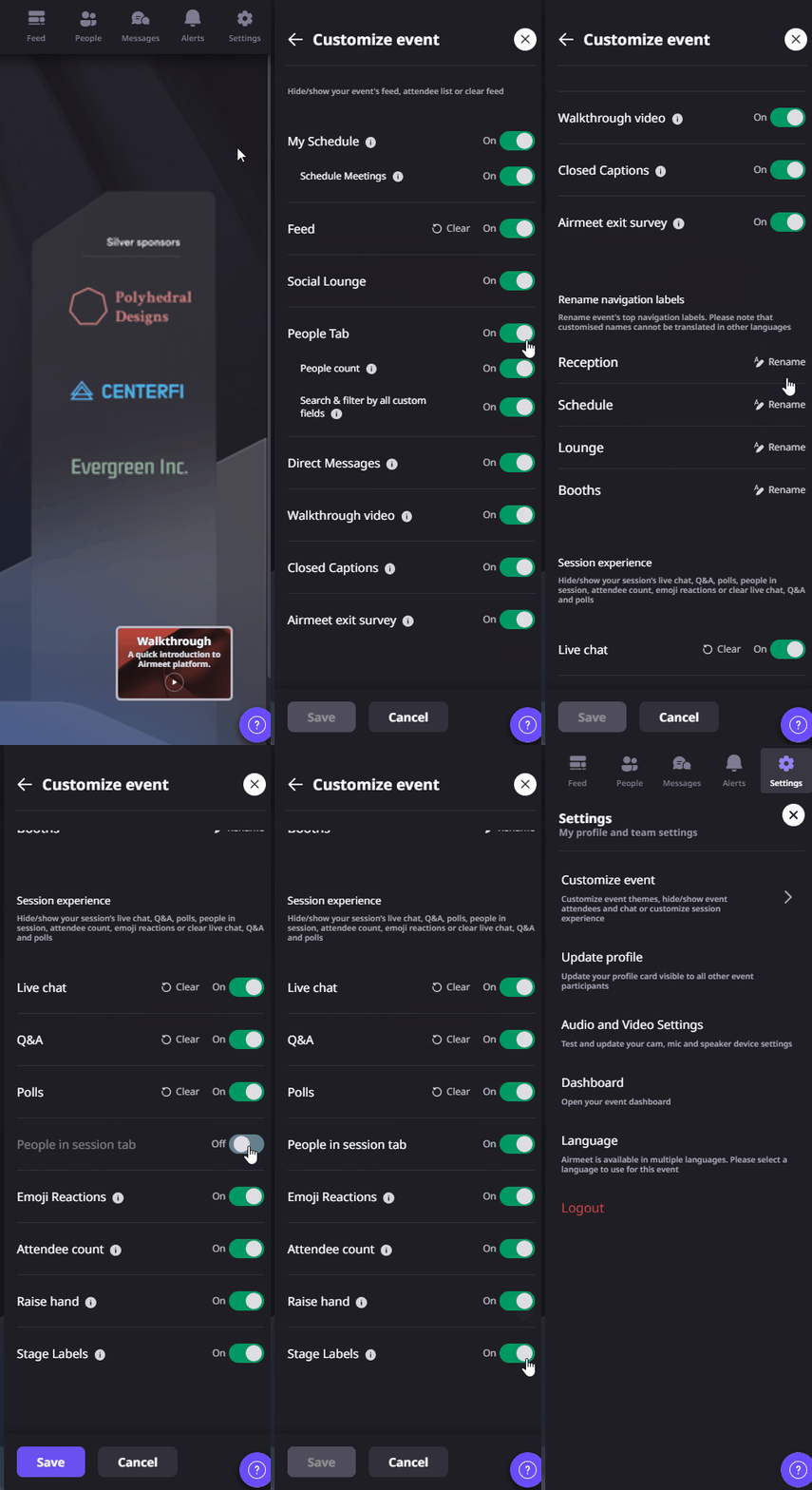
An organizer can disable direct messaging for all attendees from the Settings tab by clicking Customize Event and toggling off Direct Message under the Session Experience section.
Why Airmeet
Why choose Airmeet for Direct Chat Messaging
Airmeet puts private conversation inside the live event context so attendees can act while interest is fresh. Two discovery paths, People and chat, make it easier to find the right person. The recipient's Accept or Decline choice keeps the experience respectful. And organizer-level controls let teams match interaction settings to the audience and event format.
help Center
Relevant Help Articles
Explore guides and tutorials to help you create, customize, and host exceptional events on Airmeet.
It is a one-to-one private messaging option for event participants. Direct messages are visible only to the specific recipient, not to the public chat or other attendees.
Find a participant in the People tab or hover over their name in the chat feed. Open the three-dot menu and select Direct Message to send a private request.
Yes. The People tab lists event participants, and the advanced people search lets attendees filter by profile attributes, including job title, organization, location, and interests where available.
No. The feature creates a private conversation inside the event. Any qualification, CRM update, or follow-up workflow should be handled through your team’s chosen process unless separately configured.
Set clear expectations in pre-event guidance, encourage relevance over volume, and let the recipient’s Accept or Decline choice do its job. Keep outreach respectful, helpful, contextual, and brief.
Agree on a clear next step such as sharing a resource or scheduling a follow-up meeting, and capture the outcome in the appropriate sales or customer-success workflow
Airmeet features
Other Features to Explore
Discover more powerful features that help you create engaging, branded, and seamless event experiences with Airmeet.
“I was really excited to see how alive Airmeet seemed. The first time I raised my virtual hand to ask a question, I was brought up on stage, my camera flipped on, and I was able to talk with the presenters, that was the sold-moment in my head! That is what I wanted. We weren't going to be speaking at our audience. We wanted a two-way engagement. With the analytics in the background, that was my “Aha moment!”
Victoria YounesExecutive Events Manager
Incredible Companies Use Airmeet
Most loved Virtual Events Platform
“I was really excited to see how alive Airmeet seemed. The first time I raised my virtual hand to ask a question, I was brought up on stage, my camera flipped on, and I was able to talk with the presenters, that was the sold-moment in my head! That is what I wanted. We weren't going to be speaking at our audience. We wanted a two-way engagement. With the analytics in the background, that was my “Aha moment!”
Victoria YounesExecutive Events Manager
Incredible Companies Use Airmeet
Most loved Virtual Events Platform
“I was really excited to see how alive Airmeet seemed. The first time I raised my virtual hand to ask a question, I was brought up on stage, my camera flipped on, and I was able to talk with the presenters, that was the sold-moment in my head! That is what I wanted. We weren't going to be speaking at our audience. We wanted a two-way engagement. With the analytics in the background, that was my “Aha moment!”
Victoria YounesExecutive Events Manager
Incredible Companies Use Airmeet
Most loved Virtual Events Platform
“I was really excited to see how alive Airmeet seemed. The first time I raised my virtual hand to ask a question, I was brought up on stage, my camera flipped on, and I was able to talk with the presenters, that was the sold-moment in my head! That is what I wanted. We weren't going to be speaking at our audience. We wanted a two-way engagement. With the analytics in the background, that was my “Aha moment!”