Rename event navigation labels so attendees see familiar, audience-friendly terms for sessions, networking, resources, sponsors, and other key event areas.
Generic navigation can make attendees pause, search, or miss important areas of the event, especially when internal event terminology does not match the audience journey.
Generic menu language Default labels may not match how attendees think about the event experience.
Hidden high-value areas Sponsors, resources, lounges, or tracks can be overlooked when navigation is unclear.
Extra support load Hosts spend more time answering where-to-go questions instead of engaging attendees.
How Airmeet Solves It
Airmeet helps organizers adapt navigation language to the audience, making important areas easier to discover without changing the underlying event structure.
Audience-friendly labels Rename navigation items using terms attendees already understand.
Format flexibility Tailor labels for webinars, summits, trainings, expos, and community programs.
Brand-aligned language Match navigation wording to the campaign, theme, or community voice.
Benefits by Event Use Case
Custom navigation labels help attendees navigate every virtual event format using familiar terminology. They better understand where to go, what to expect, and how to engage, reducing friction throughout the event.
Webinars
Make session, Q&A;, and resource areas easier to find.
Summits
Clarify tracks, stages, sponsor areas, and networking spaces.
Product launches
Guide attendees toward demos, resources, and follow-up actions.
Sponsor expos
Make partner booths, offers, and resource areas more discoverable.
Training programs
Label modules, materials, and help areas in learner-friendly language.
Community events
Use familiar community terms for rooms, lounges, and discussions.
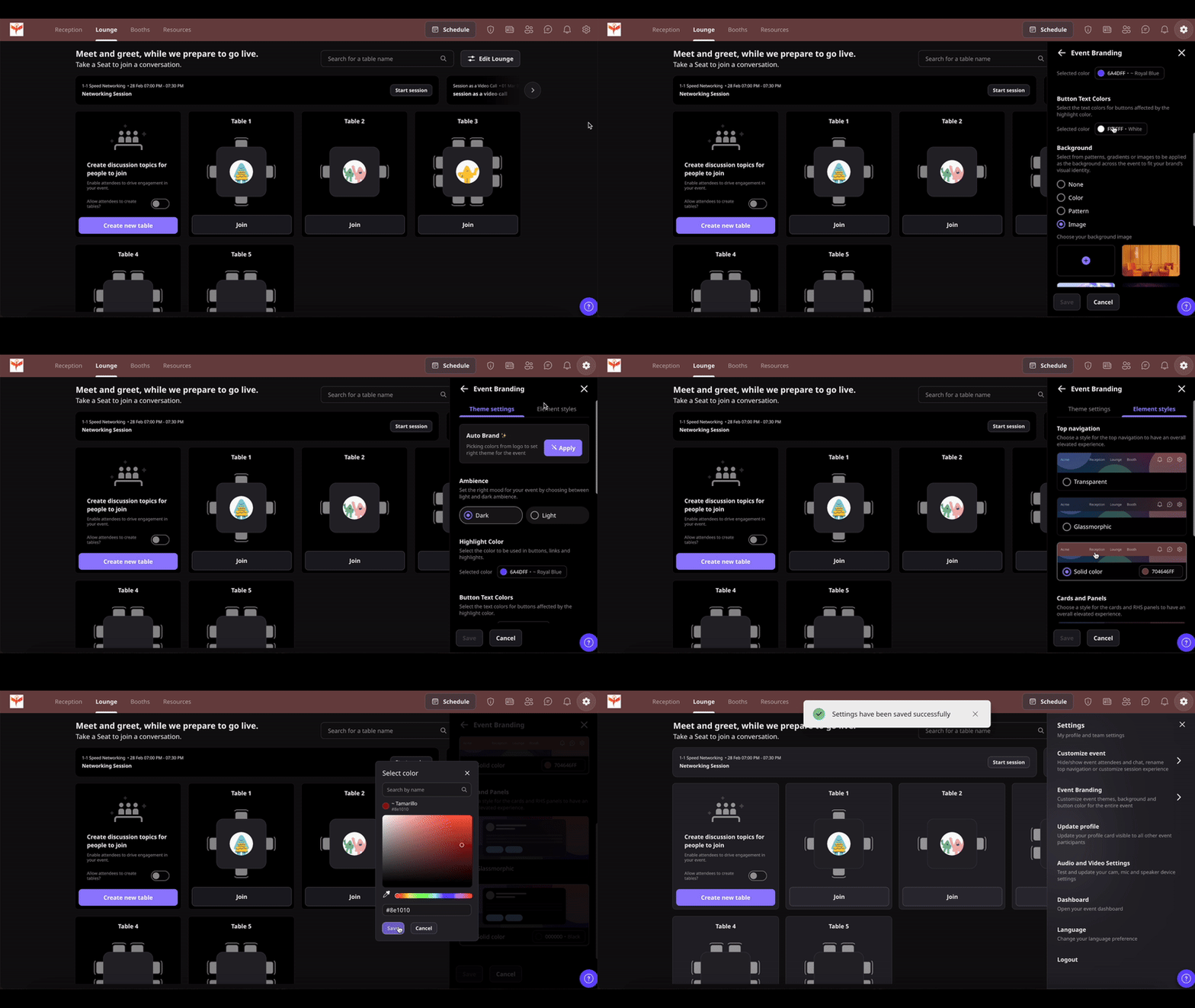
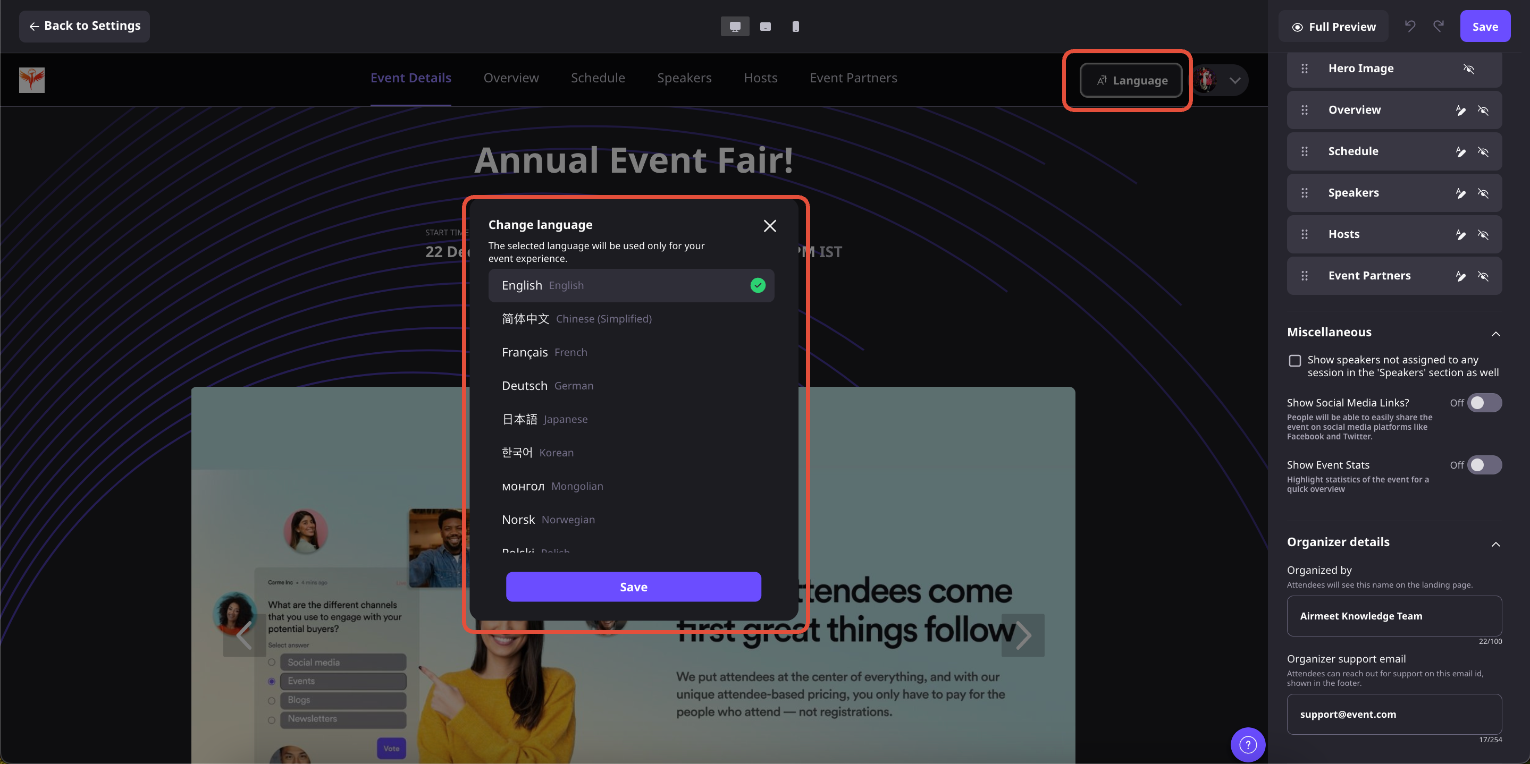
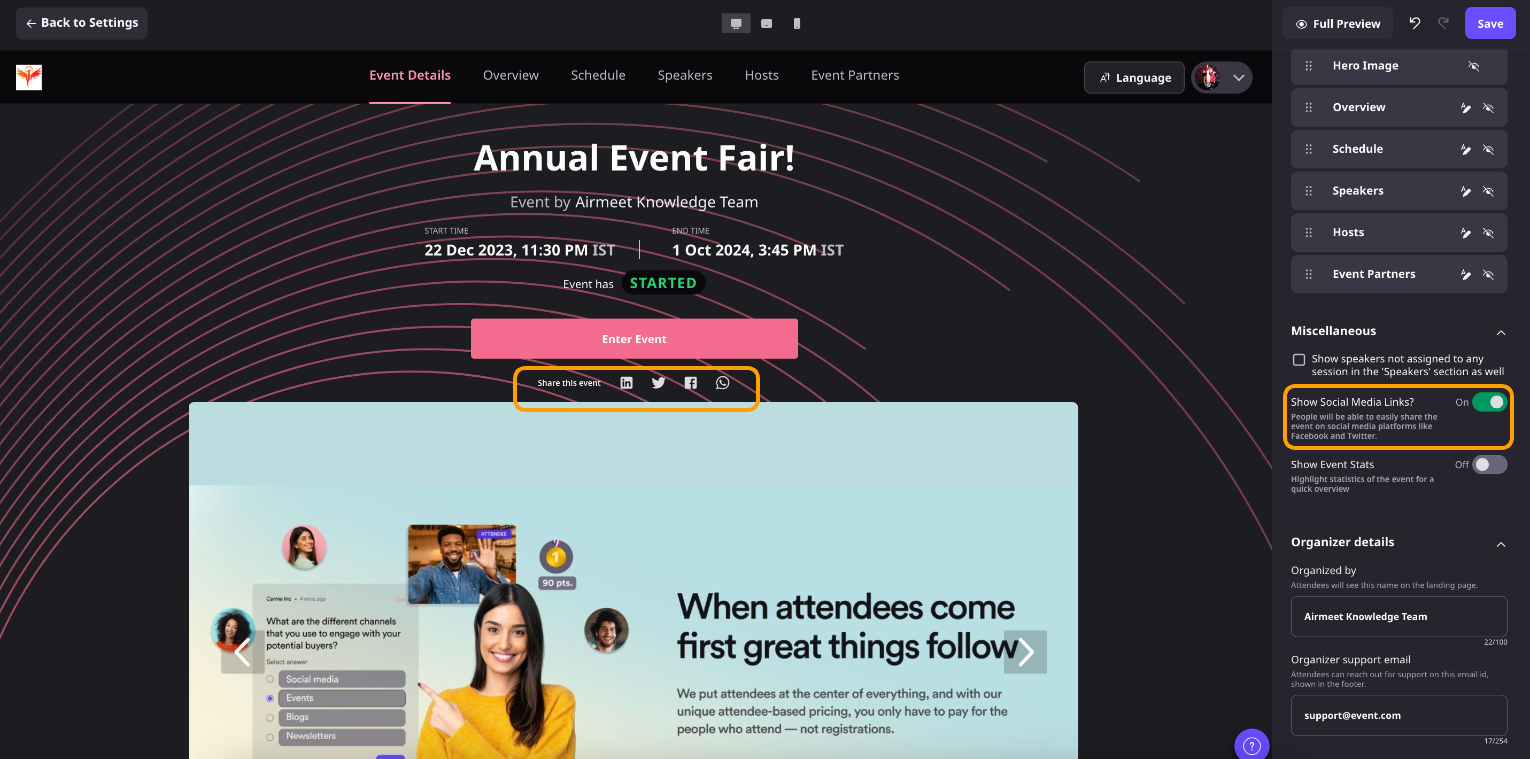
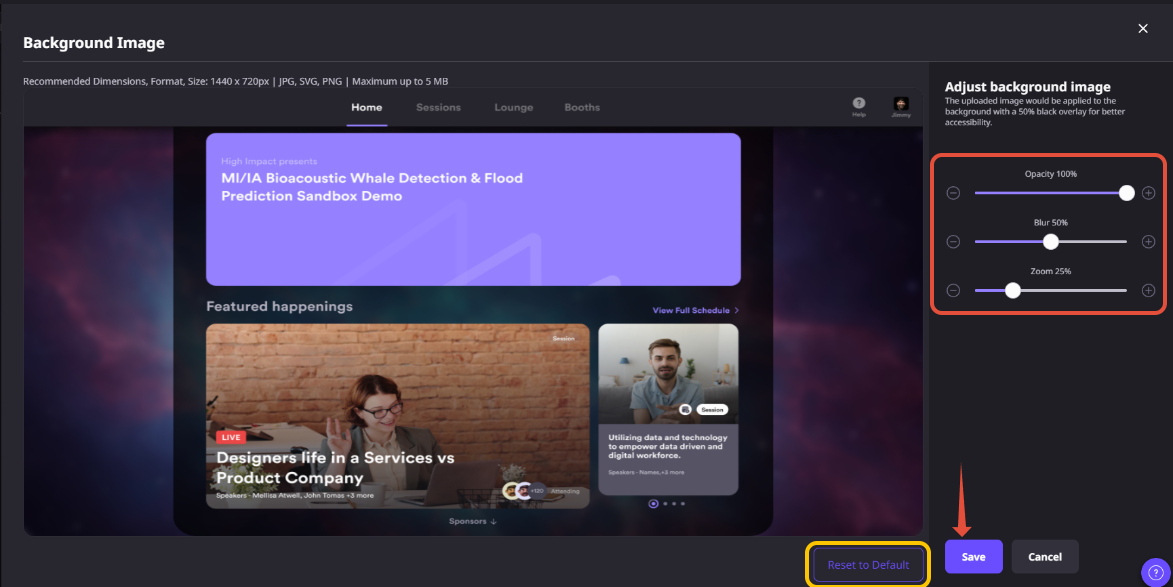
Actual Product Screenshots
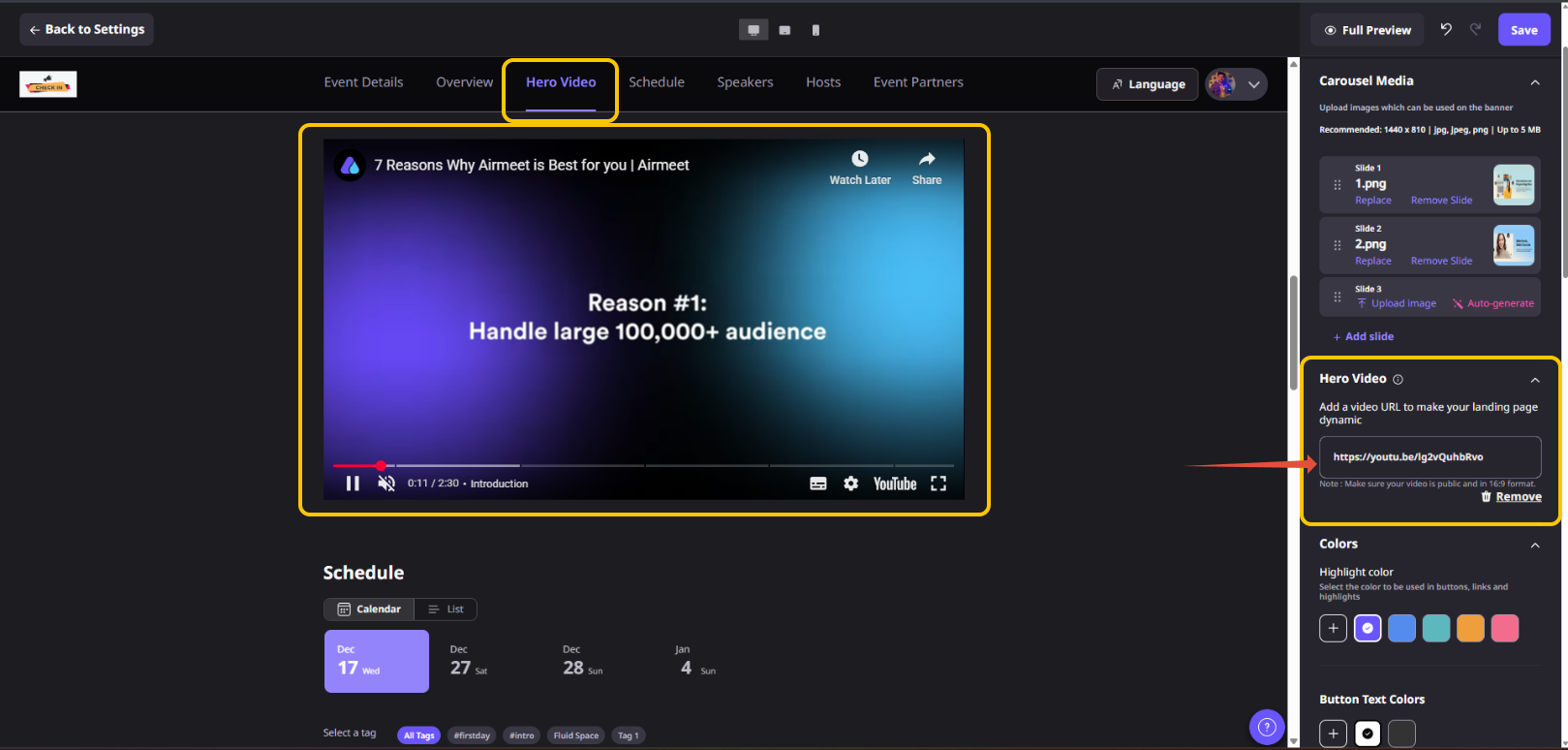
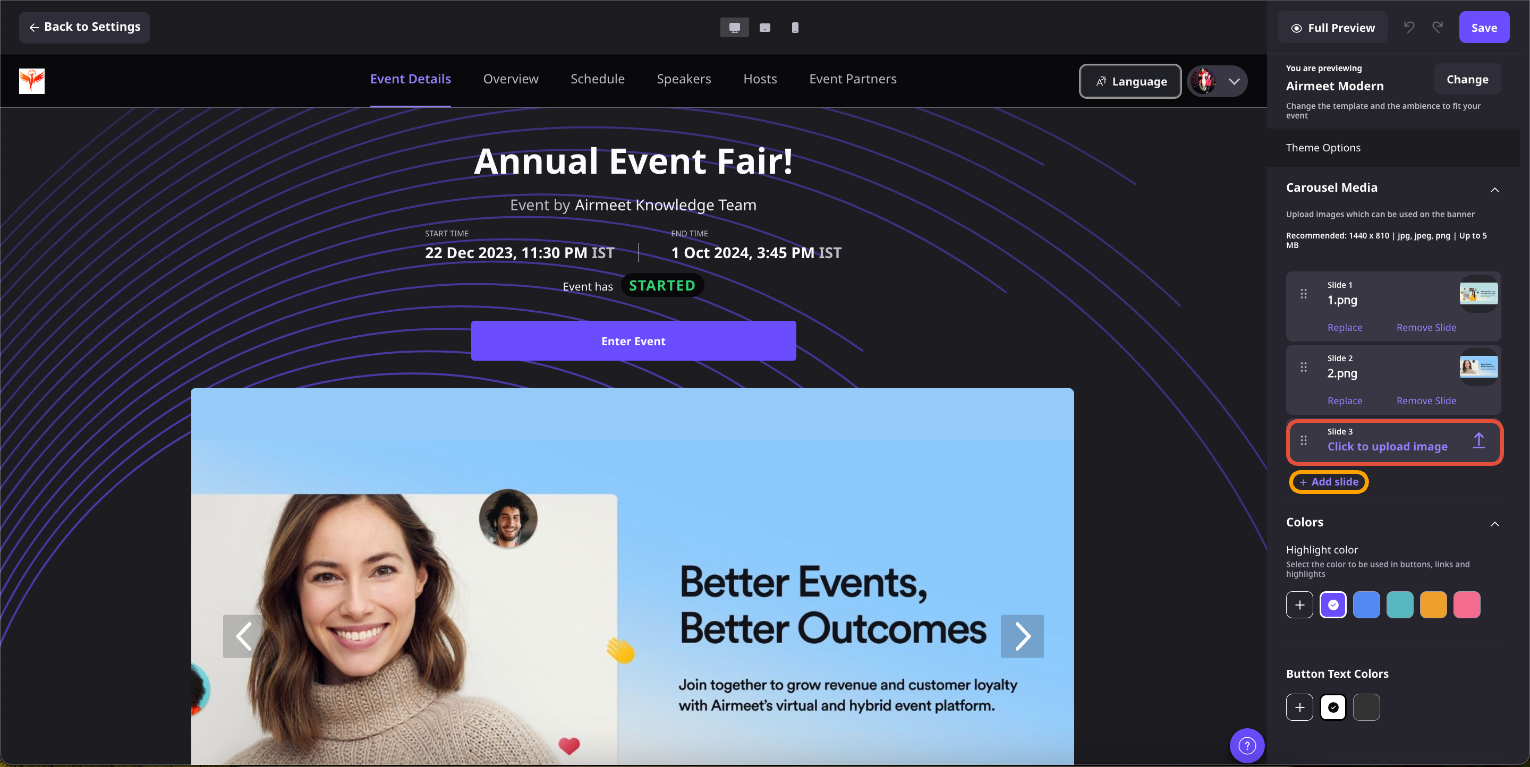
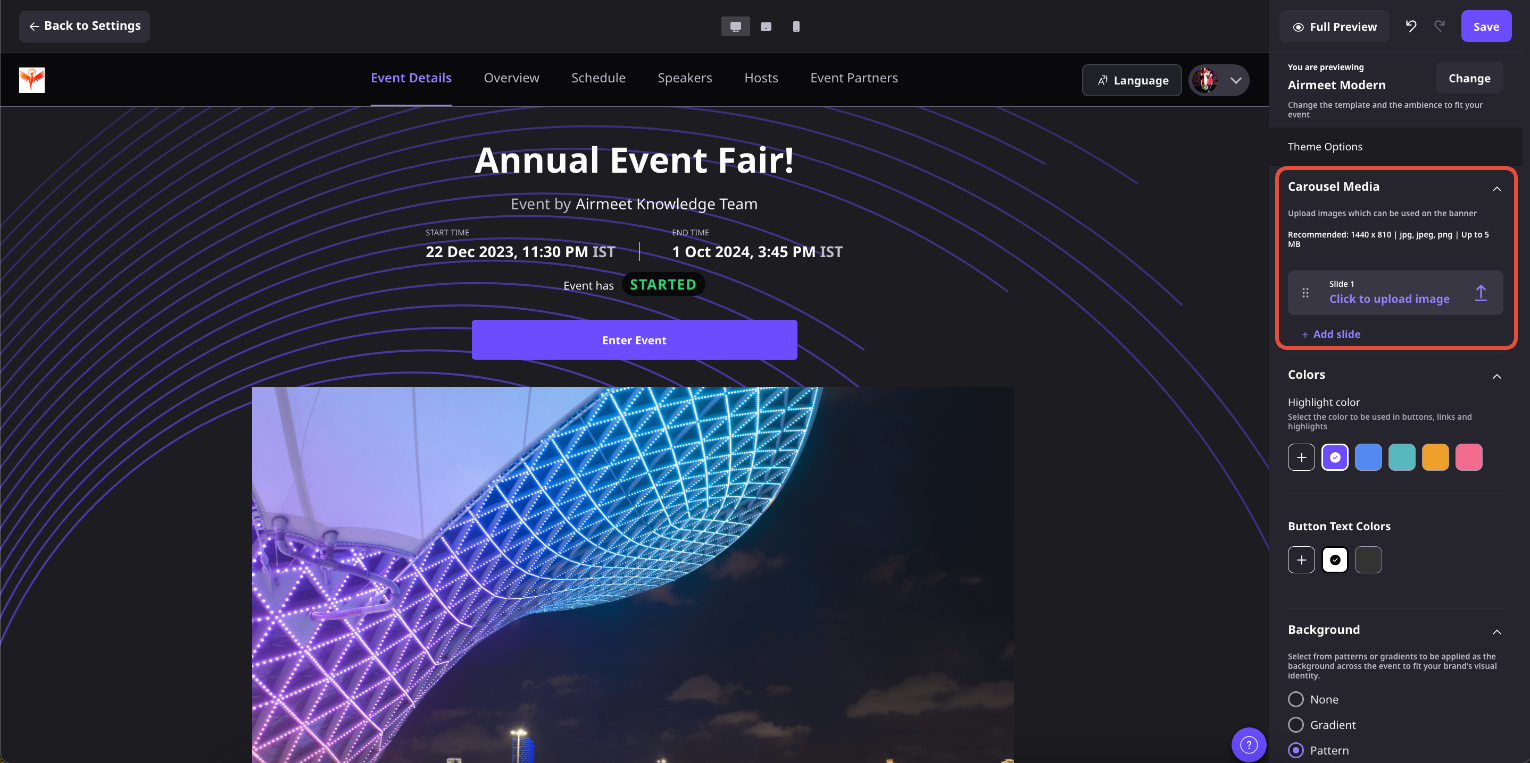
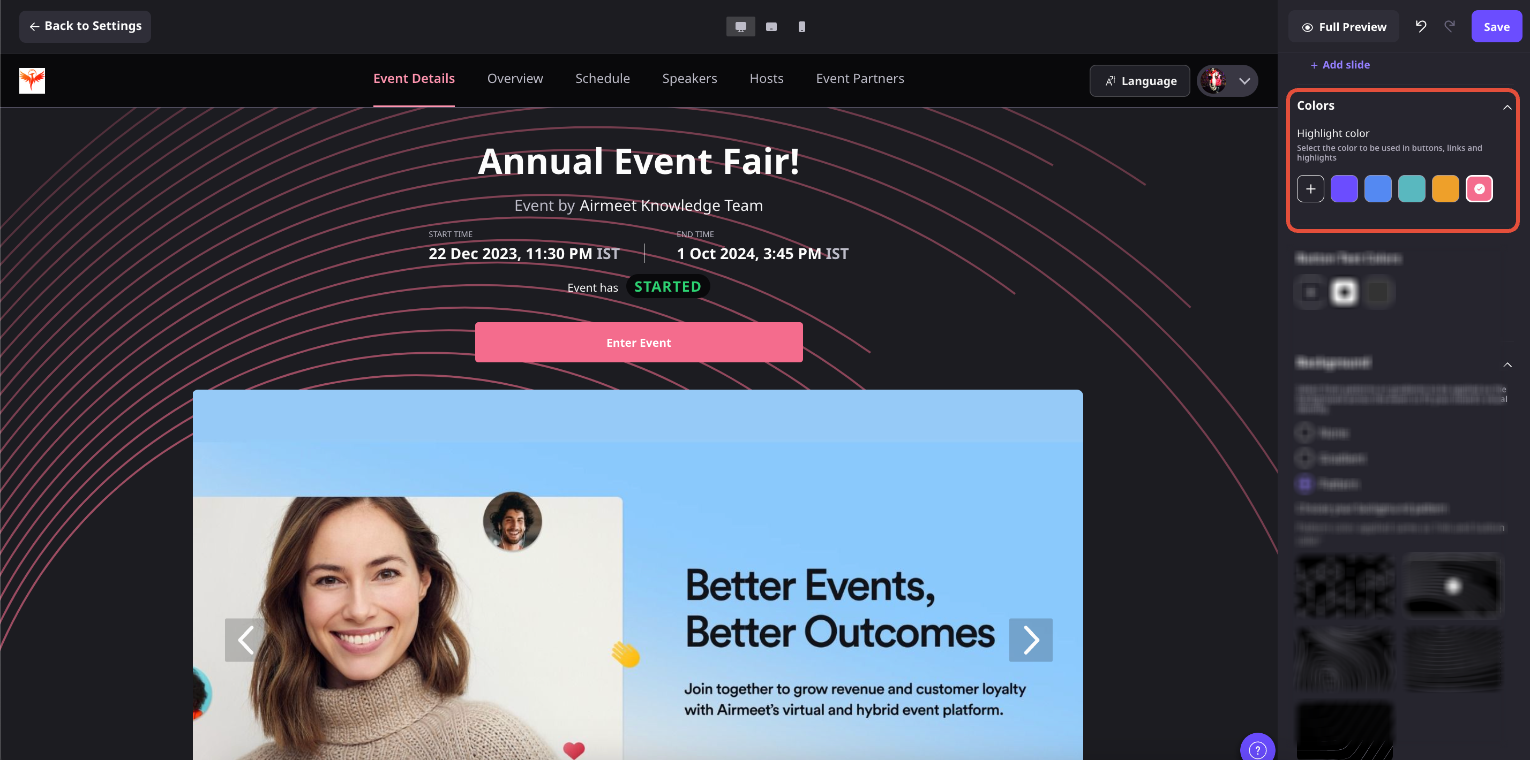
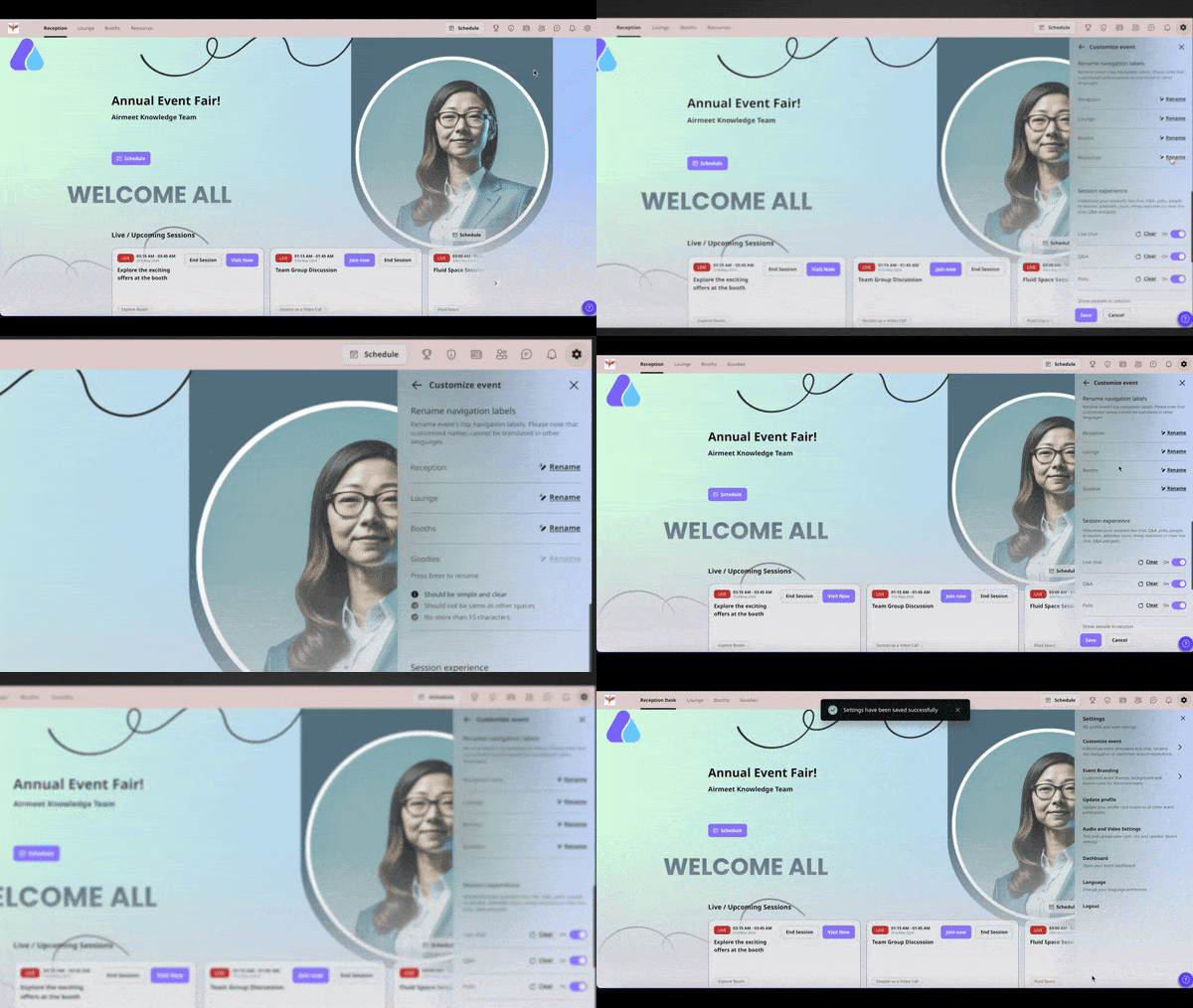
Explore real product screenshots from the Airmeet Help Center that show how to customize event navigation labels for your virtual event. Learn where settings are located, rename attendee-facing menu items, preview your changes, and create a clearer event experience.
Step-by-Step Process
Customizing navigation labels in Airmeet allows you to create an attendee experience that feels intuitive and aligned with your event. Follow these steps to update the labels displayed throughout your virtual event.
Step 1. Open Your Event
Open your virtual event in “Preview Mode” or during the Live Event. Event navigation labels can be customized at any time by the event organizer.
Step 2. Go to Customize Event
Click the “Settings” icon in the top-right corner of the “Event Dashboard” and select “Customize Event.” This section contains the options to personalize your attendee experience, including navigation labels.
Step 3. Locate Rename Navigation Labels
Scroll to the “Rename Navigation Labels” section. Here, you’ll find the list of attendee-facing navigation items that can be customized.
Step 4. Rename Navigation Items
Select the navigation label you want to change, click “Rename,” enter the new label, and save your changes. You can use audience-friendly terminology that better reflects your event by renaming sessions, networking spaces, sponsor areas, or resource hubs.
Step 5. Review the Updated Navigation
Preview the updated navigation to ensure the new labels are clear, consistent with your event branding, and easy for attendees to understand.
Step 6. Save and Publish
Click “Save” to apply your changes. The updated navigation labels will be visible throughout your virtual event, helping attendees discover sessions, networking spaces, sponsors, and resources more easily.
Note: Navigation labels can be customized both before the event begins and during the live event. Only event organizers can modify these labels, and custom labels are not automatically translated into other languages.
Why Choose Airmeet for Custom Event Navigation Labels?
Airmeet connects flexible navigation language with event setup, branding, sponsor visibility, and attendee experience so teams can make every event easier to explore and easier to manage.
Designed for attendee journeys Airmeet navigation is built around how people actually move through sessions, networking, sponsors, resources, and live engagement areas.
Language that matches your audience Organizers can use familiar terms instead of default product language, making the event feel clearer and more intentional from the first click.
Stronger branded experience Custom labels help the event sound like your campaign, community, or internal program rather than a generic virtual venue.
Better discovery for priority areas When sponsors, resource hubs, lounges, and key tracks are named clearly, attendees are more likely to find and use them.
Flexible across event formats The same setup can be adapted for webinars, summits, trainings, expos, town halls, product launches, and recurring community events.
Less organizer support during the event: Clearer navigation reduces where-to-go questions, helping hosts and moderators focus on engagement instead of attendee troubleshooting.
help Center
Relevant Help Articles
Explore guides and tutorials to help you create, customize, and host exceptional events on Airmeet.
How to customize the event navigation labels in virtual event format
Use the screenshots section to confirm the exact product surface, but the intent is to adapt labels for key event areas such as sessions, networking, resources, sponsors, and similar destinations.
“I was really excited to see how alive Airmeet seemed. The first time I raised my virtual hand to ask a question, I was brought up on stage, my camera flipped on, and I was able to talk with the presenters, that was the sold-moment in my head! That is what I wanted. We weren't going to be speaking at our audience. We wanted a two-way engagement. With the analytics in the background, that was my “Aha moment!”
Victoria YounesExecutive Events Manager
Incredible Companies Use Airmeet
Most loved Virtual Events Platform
“I was really excited to see how alive Airmeet seemed. The first time I raised my virtual hand to ask a question, I was brought up on stage, my camera flipped on, and I was able to talk with the presenters, that was the sold-moment in my head! That is what I wanted. We weren't going to be speaking at our audience. We wanted a two-way engagement. With the analytics in the background, that was my “Aha moment!”
Victoria YounesExecutive Events Manager
Incredible Companies Use Airmeet
Most loved Virtual Events Platform
“I was really excited to see how alive Airmeet seemed. The first time I raised my virtual hand to ask a question, I was brought up on stage, my camera flipped on, and I was able to talk with the presenters, that was the sold-moment in my head! That is what I wanted. We weren't going to be speaking at our audience. We wanted a two-way engagement. With the analytics in the background, that was my “Aha moment!”
Victoria YounesExecutive Events Manager
Incredible Companies Use Airmeet
Most loved Virtual Events Platform
“I was really excited to see how alive Airmeet seemed. The first time I raised my virtual hand to ask a question, I was brought up on stage, my camera flipped on, and I was able to talk with the presenters, that was the sold-moment in my head! That is what I wanted. We weren't going to be speaking at our audience. We wanted a two-way engagement. With the analytics in the background, that was my “Aha moment!”