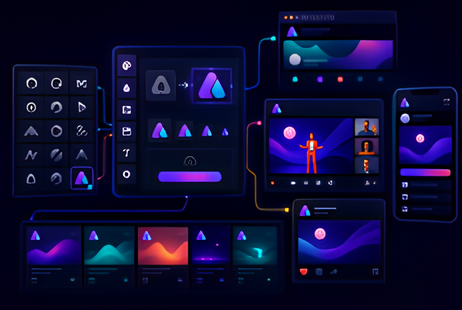
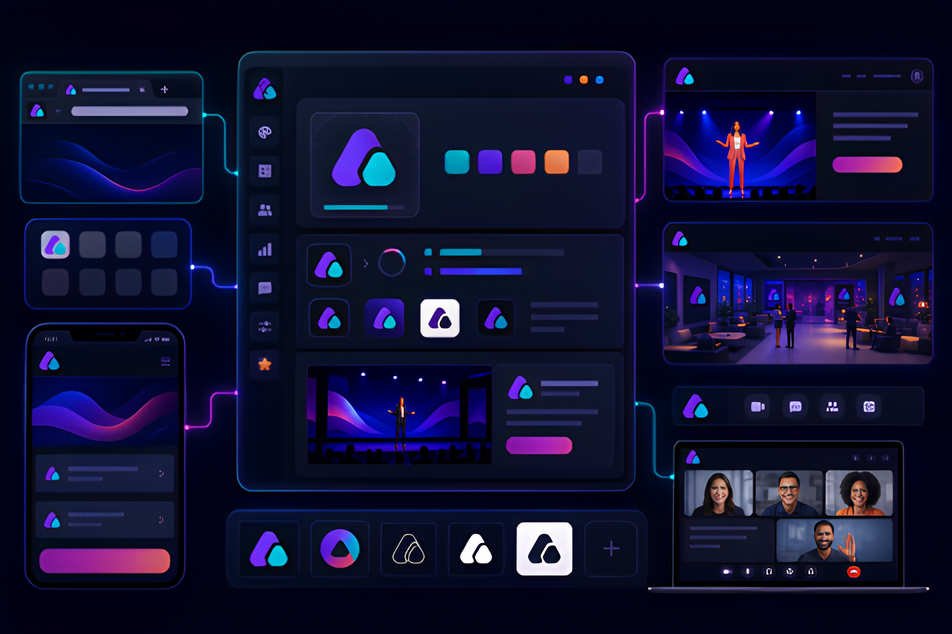
Add your brand logo and favicon so attendees recognize your event across browser tabs, landing pages, mobile views, live sessions, and event-series experiences.
Generic first impression Unbranded tabs and pages make campaigns feel less official.
Inconsistent identity Attendees may see different marks across pages, mobile views, and live spaces.
Lower trust and recall Without a logo or favicon, the event is harder to recognize.
How Airmeet Solves It
Logo placement Add a recognizable brand mark across important event surfaces.
Favicon visibility Make browser tabs and saved links easier to identify.
Event-series branding Use consistent logos across recurring programs.
Unified experience Pair logo and favicon setup with broader Airmeet branding controls.
Benefits by Event Use Case
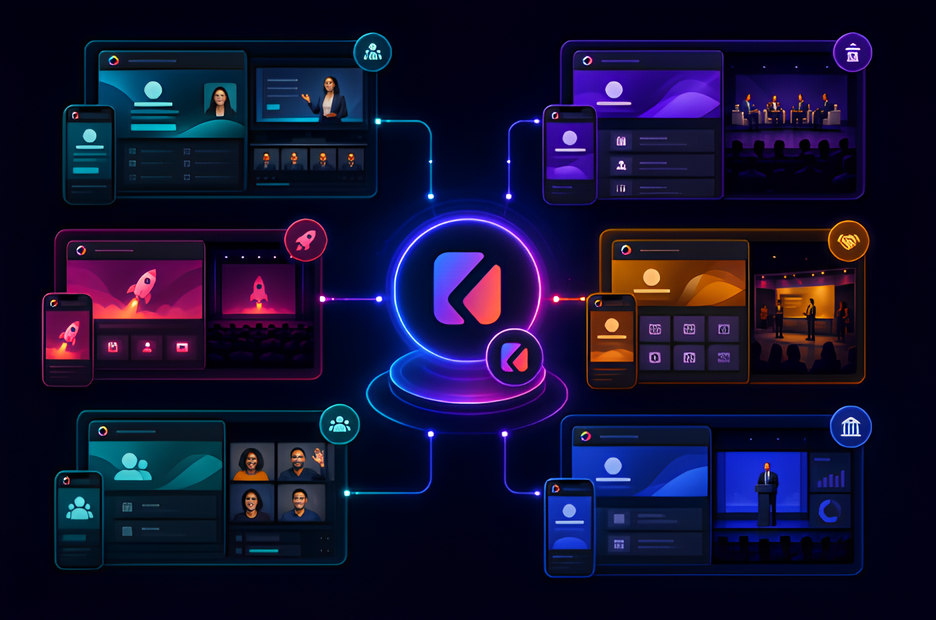
Discover how Airmeet adapts to different event formats, helping you deliver engaging experiences and achieve your unique event goals.
Webinars
Deliver a consistent brand experience from registration to the live webinar.
Summits
Create a cohesive branded experience across multi-track and multi-day summits.
Product launches
Keep every launch touchpoint on-brand to build recognition and trust.
Sponsored events
Showcase sponsor branding professionally without compromising your own identity.
Community meetups
Build familiarity by making recurring community events instantly recognizable.
Town halls
Deliver internal communications with a professional, company-branded experience.
Actual Product Screenshots
Step-by-Step Process
Adding your logo to an Airmeet event takes just a few minutes from the Events Dashboard. Here is how to get it done before your event goes live.
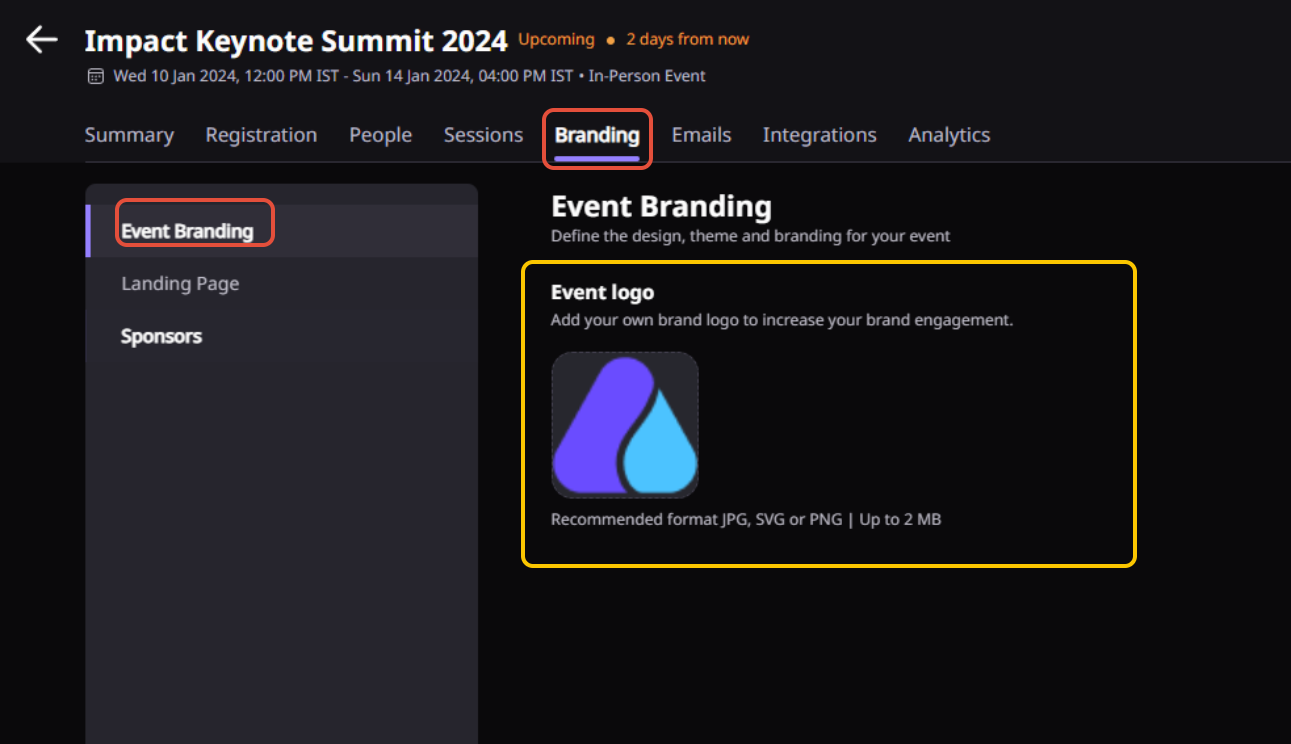
Step 1. Go to Event Branding Settings
From your Events Dashboard, navigate to the Branding tab and select “Event Branding.” You can follow this exact path: Events Dashboard > Branding > Event Branding. This is where you upload and manage your event logo.
Step 2. Upload Your Event Logo
Click “Upload Event Logo” and select your image file. Make sure your file meets these specs before uploading:
Recommended dimensions: 84px x 84px
Supported formats: JPG, SVG, PNG
Maximum file size: 2MB
Note: Dimensions may vary slightly depending on your event format. Check the branding guide for your specific format before uploading.
Step 3. Save Your Changes
Click Save once your logo is uploaded. Your logo will now appear across the landing page, reception, and event surfaces attendees interact with.
Step 4. Set Up for an Event Series
If you are running an event series, the same logo setup applies at the series level.
Go to your Event Dashboard > Branding > Event Branding and upload your series logo. All events mapped to that series will inherit the logo automatically without needing to reconfigure each one individually.
A few things to keep in mind:
If no separate event logo is uploaded, Airmeet uses your organization logo as the default
The event logo is also used to generate your event color palette automatically
Supported formats are JPG, SVG, and PNG only
For event series, the series logo applies consistently across all mapped events
To auto-brand your event using your logo colors across CTA buttons and in-event elements, go to Settings > Event Branding inside your live event and click Auto-Brand
Why Choose Airmeet for Branded Logo and Favicon?
Most event tools treat branding as an afterthought. Airmeet builds it directly into the event setup workflow so your logo and favicon are configured once and applied consistently across every surface your attendees interact with, without needing a separate design tool or technical workaround.
Built for events, not general marketing The branding controls in Airmeet are designed specifically for event organizers. Logo setup, favicon configuration, landing page customization, reception branding, and stage backdrops all live inside the same Events Dashboard under one Branding tab so nothing gets missed during setup.
Auto-brand from your logo Airmeet can generate your event color palette automatically based on your uploaded logo. One click applies your brand colors across CTA buttons, fonts, and in-event elements without manual color matching.
Consistent across every format Whether you are running a webinar, a virtual conference, a hybrid event, or an in-person event series, Airmeet applies the same logo and branding controls across all event formats from the same workflow so your identity stays consistent regardless of how the event is structured.
Event series support built in For recurring programs, Airmeet lets you set a series-level logo that carries across every event mapped to that series. Recurring attendees see the same brand identity every time without the organizer having to reconfigure it manually for each session.
Pairs with a full branding suite Logo and favicon setup connects directly with Airmeet's landing page customization, live event branding, stage backdrops, reception design, and CTA accent colors so the entire attendee journey from the first page visit to the last session reflects your brand consistently.
help Center
Relevant Help Articles
Explore guides and tutorials to help you create, customize, and host exceptional events on Airmeet.
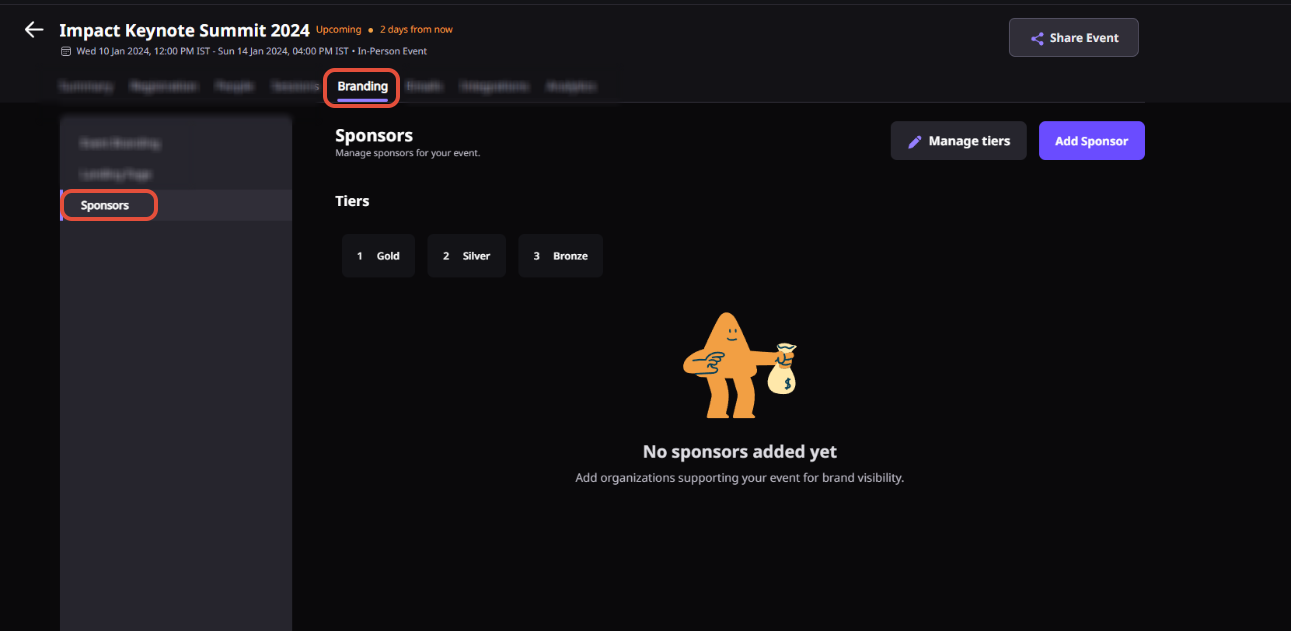
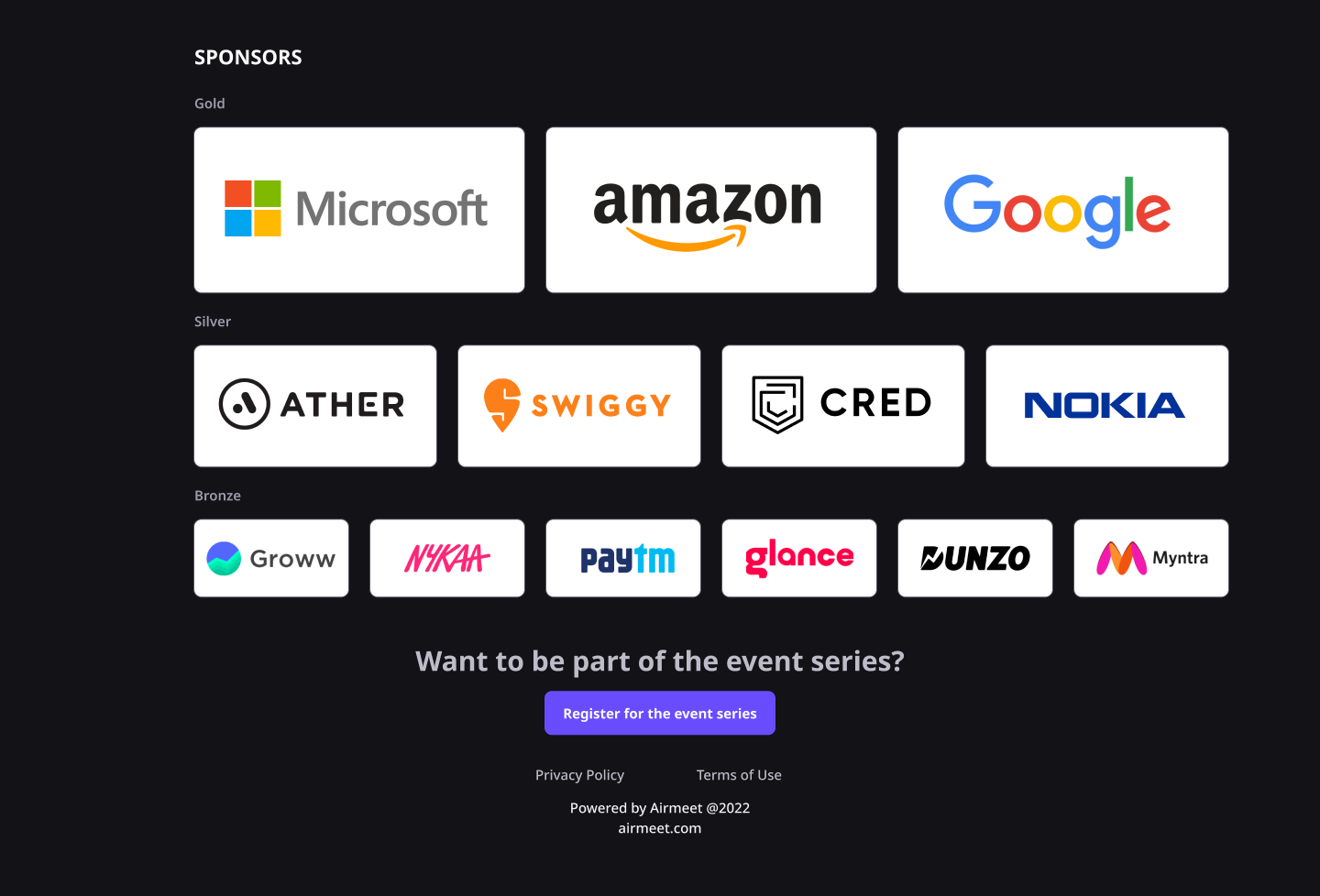
How to add event series logo and manage sponsors for your event series
When attendees land on your event, they are making a quick judgment about who is behind it. Your logo answers that question immediately, builds trust before the first session starts, and makes it easier for people to remember and return for future events.
Not within the same series. The logo you set at the series level in the Events Dashboard under Branding automatically applies to every event in that series. That is actually the point; it keeps things visually consistent so attendees always know they are in the right place.
Yes, and that is where it gets useful. Your logo and favicon do not sit in isolation. They connect with your landing page customization, live event branding, stage backdrops, and event theme controls.
Airmeet features
Other Features to Explore
Discover more powerful features that help you create engaging, branded, and seamless event experiences with Airmeet.
“I was really excited to see how alive Airmeet seemed. The first time I raised my virtual hand to ask a question, I was brought up on stage, my camera flipped on, and I was able to talk with the presenters, that was the sold-moment in my head! That is what I wanted. We weren't going to be speaking at our audience. We wanted a two-way engagement. With the analytics in the background, that was my “Aha moment!”
Victoria YounesExecutive Events Manager
Incredible Companies Use Airmeet
Most loved Virtual Events Platform
“I was really excited to see how alive Airmeet seemed. The first time I raised my virtual hand to ask a question, I was brought up on stage, my camera flipped on, and I was able to talk with the presenters, that was the sold-moment in my head! That is what I wanted. We weren't going to be speaking at our audience. We wanted a two-way engagement. With the analytics in the background, that was my “Aha moment!”
Victoria YounesExecutive Events Manager
Incredible Companies Use Airmeet
Most loved Virtual Events Platform
“I was really excited to see how alive Airmeet seemed. The first time I raised my virtual hand to ask a question, I was brought up on stage, my camera flipped on, and I was able to talk with the presenters, that was the sold-moment in my head! That is what I wanted. We weren't going to be speaking at our audience. We wanted a two-way engagement. With the analytics in the background, that was my “Aha moment!”